Appearance
Workflow step editor
Each workflow is built from a sequence of steps, and each step can define actions — like moving to another step — that appear as buttons on the document itself.
1. Open a workflow’s steps
Open a workflow and scroll to Workflow steps. Each step on the left is one status the document can be in; drag steps to reorder them, or click Add workflow step to add another.
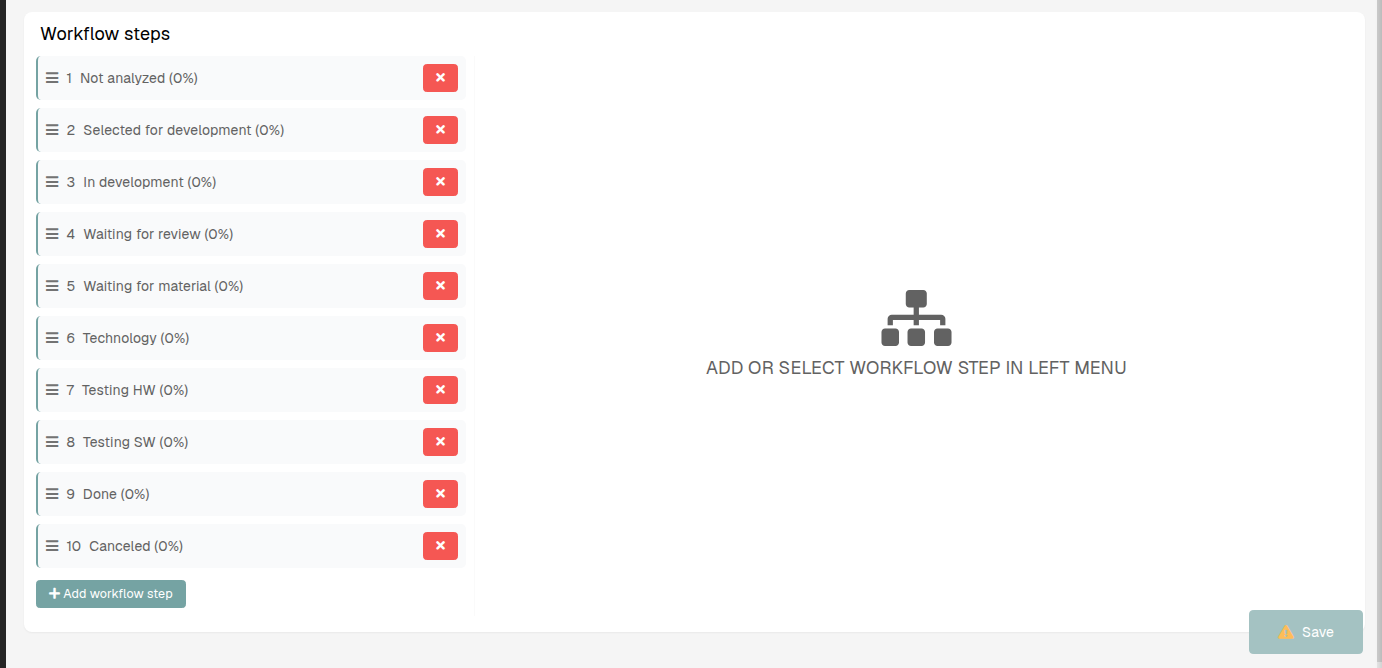 The workflow step editor
Click a step to edit it on the right — its name, destination status, and the actions (buttons) it should offer, such as moving the document on to the next step.