Appearance
Get started with ISO & Compliance
ISO & Compliance keeps all documents of our management system in one place — procedures, policies, records and certificates for standards such as ISO 9001, ISO 14001 or GDPR. For every document you can see who is responsible for it, when it has to be checked again and whether it meets the requirements. This guide explains the page and its words, so you can find your way around. No data is changed.
1. Open ISO & Compliance
You find ISO & Compliance in the main menu under Company. The quickest way there: press Ctrl + K (⌘ + K on a Mac), type compliance and click ISO & Compliance.
 Finding ISO & Compliance with Ctrl + K
2. Find your way around
The page opens on the Overview. On the left is the list of Areas; click one to see its documents. In the top bar you find the All standards filter, the Document register (a table of all documents) and, if you may change the structure, the pencil Edit layout.
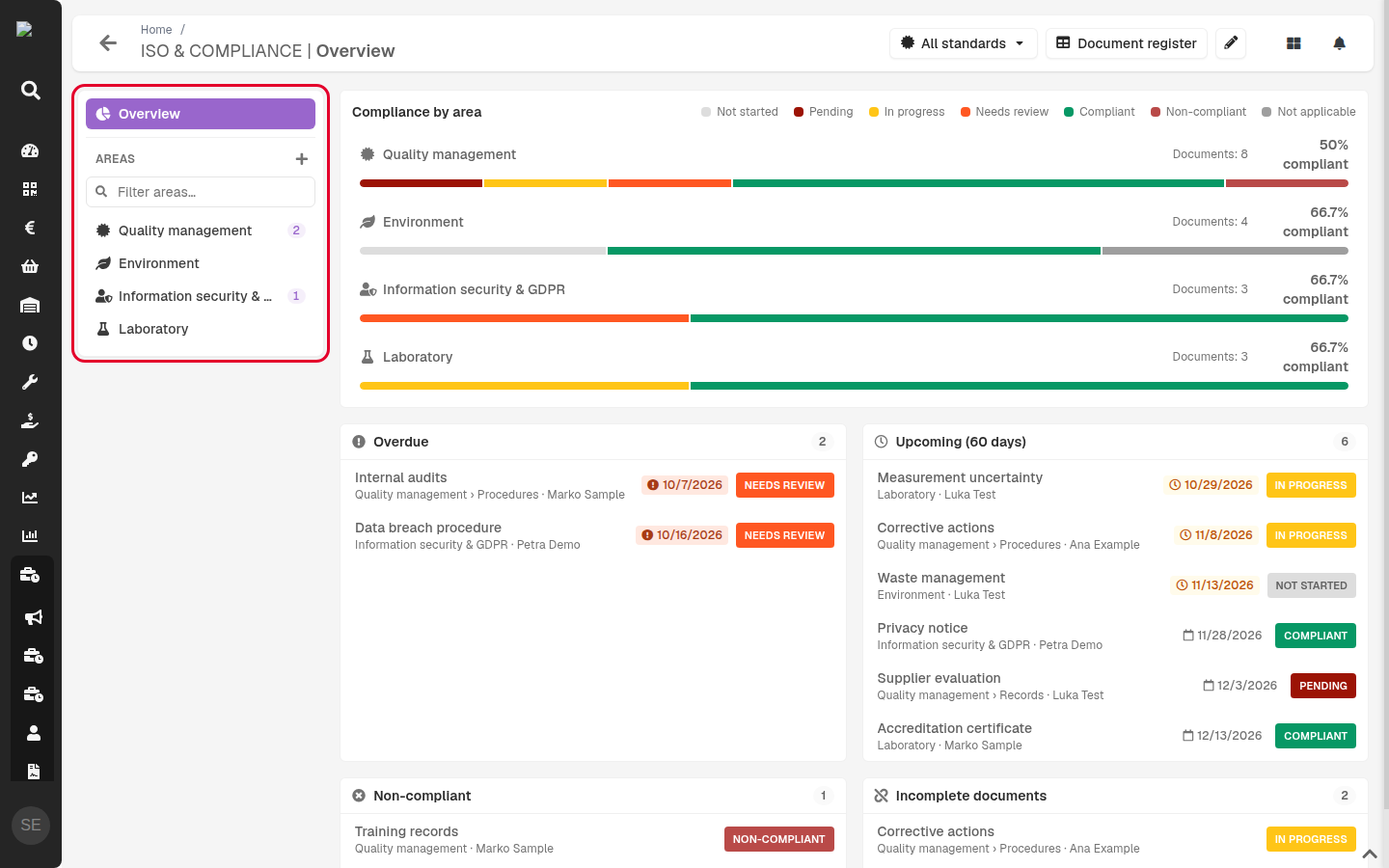 The ISO & Compliance page with its list of areas
A few words you will meet on this page:
- Area — one part of the management system, for example Quality management, Environment or Information security & GDPR.
- Document — a procedure, policy, form or record that has to be kept up to date. Every document has a status, an owner and review dates.
- Group — a folder inside an area that keeps related documents together, for example Procedures or Records.
- Link — a shortcut to another ERP page or a website, for example the quality policy.
- Info block — a short text with instructions or explanations shown inside an area.
- Standard — the norm a document belongs to, for example ISO 9001 or GDPR. A document can belong to several standards.
- Owner and Department — who is responsible for keeping the document up to date.
- Review — the regular check of a document. Last reviewed is when it was last checked, Next review is when it is due again (by default every 12 months).
- Deadline — a fixed date that doesn’t move with reviews, for example the day a certificate expires.
TIP
The small number next to an area in the list counts its documents that need attention: overdue ones plus non-compliant ones.
3. Read the overview
Under Compliance by area, every area has one row. The coloured bar shows how many of its documents are in each status — the legend above the bars names the colours. On the right you see the number of documents and how many percent of them are Compliant. Click a row to open that area.
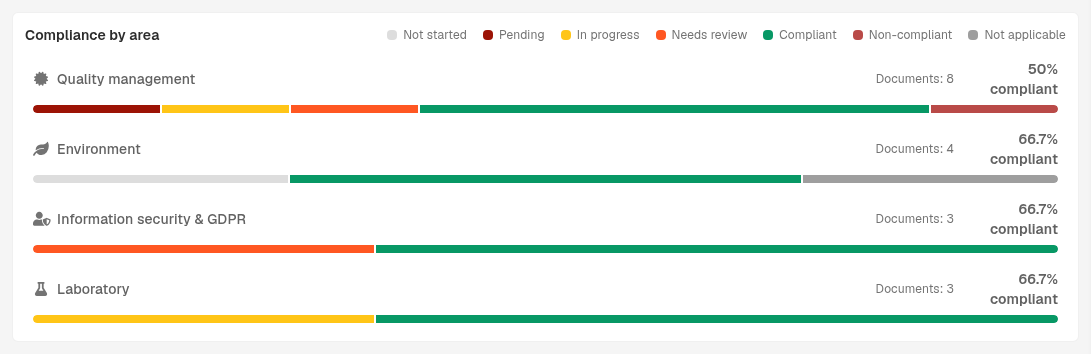 Compliance by area
NOTE
Documents marked Not applicable are not counted in the percentage — they don’t apply to us, so they can’t make an area less compliant.
4. See what needs attention
Below the bars, four lists collect the documents someone should look at. Click a document in a list to open its area and its details.
- Overdue — the next review or the deadline has already passed.
- Upcoming (60 days) — a review or a deadline is due within the next 60 days.
- Non-compliant — documents whose status is Non-compliant.
- Incomplete documents — documents that have neither a link nor any attached files yet.
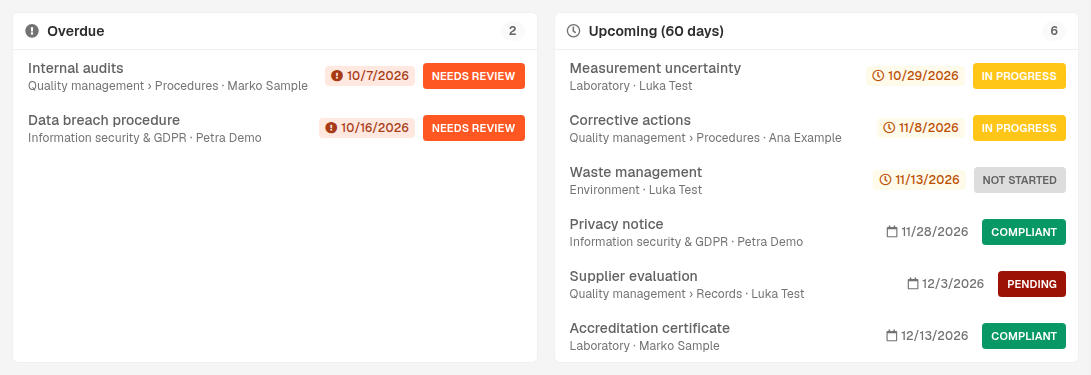 The Overdue and Upcoming lists
5. Show only one standard
Click All standards in the top bar and choose a standard, for example ISO 9001. The overview then counts only the documents of that standard and hides areas that have none. Choose All standards again to see everything.
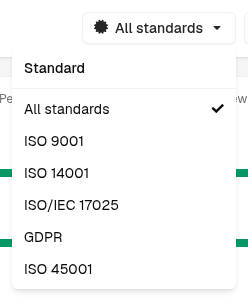 Choosing a standard
6. Open an area
Click an area in the list on the left, for example Quality management. At the top you see what the area is about, then its content: info blocks, links, groups and documents. Click a group’s name to open or close it.
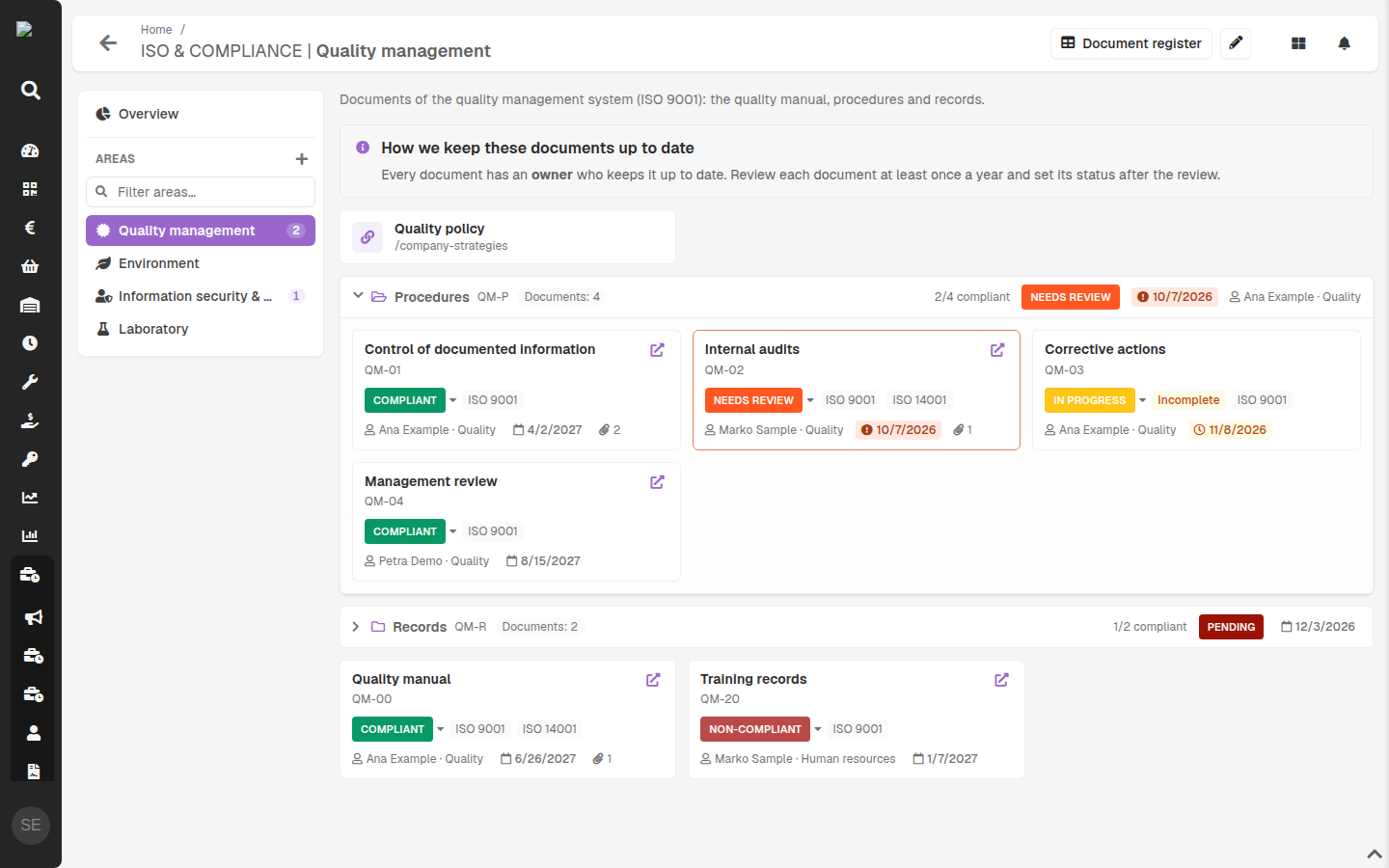 The Quality management area
A closed group shows a summary of its documents: how many of them are compliant (for example 2/4 compliant), the status of its least compliant document, and the date that is due first.
A long list of areas? Type part of a name into Filter areas… above the list.
7. Read a document card
Every document is shown as a card. From top to bottom it shows:
- the title and code (for example QM-02). The arrow icon in the corner opens the document itself, wherever it is stored;
- the status — the coloured label, explained in the next step;
- Incomplete in amber when the document has no link and no files yet;
- the standards it belongs to, as grey labels;
- the owner and department, the date that is due next (the next review or the deadline, whichever comes first), and a paperclip with the number of attached files.
The date tells you at a glance how urgent a document is:
- red with an exclamation mark — overdue; the whole card gets a red border;
- amber with a clock — due within the next 30 days;
- grey with a calendar — due later.
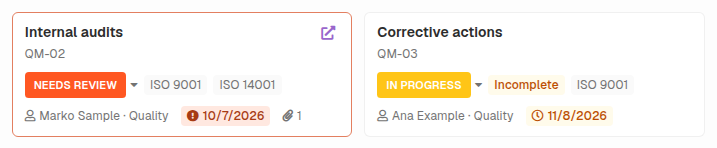 An overdue document and one that is due soon
8. What the statuses mean
Each document has one of these statuses. Click the status label on a card to see the list; how to change it is described in Keep documents up to date.
| Status | What it means |
|---|---|
| Not started | The document was added, but nobody has worked on it yet. Every new document starts here. |
| Pending | Waiting for something, for example an approval, a signature or input from someone else. |
| In progress | Someone is writing or updating the document. |
| Needs review | The document exists but has to be checked, for example because its review is due or something has changed. |
| Compliant | The document is up to date and meets the requirements. |
| Non-compliant | The document, or what it describes, doesn’t meet the requirements. You always have to add a note that explains why. |
| Not applicable | The requirement doesn’t apply to us. The document gets no due-date warnings and isn’t counted in the percentages. |
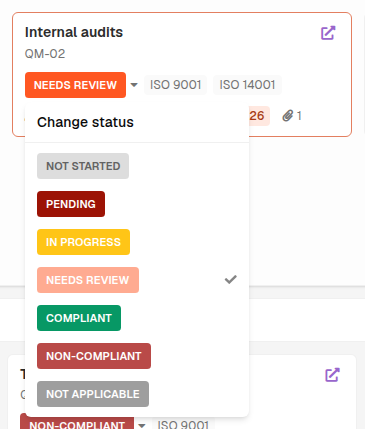 The statuses of a document
9. Open a document’s details
Click a document card to open its details. The top shows where the document is (area › group), its status and an Open document button. Below you find its Files and, further down, its Tasks and Comments. On the right are its owner, standards and review dates, the buttons to work with it, and the Status history — who changed the status, when and why.
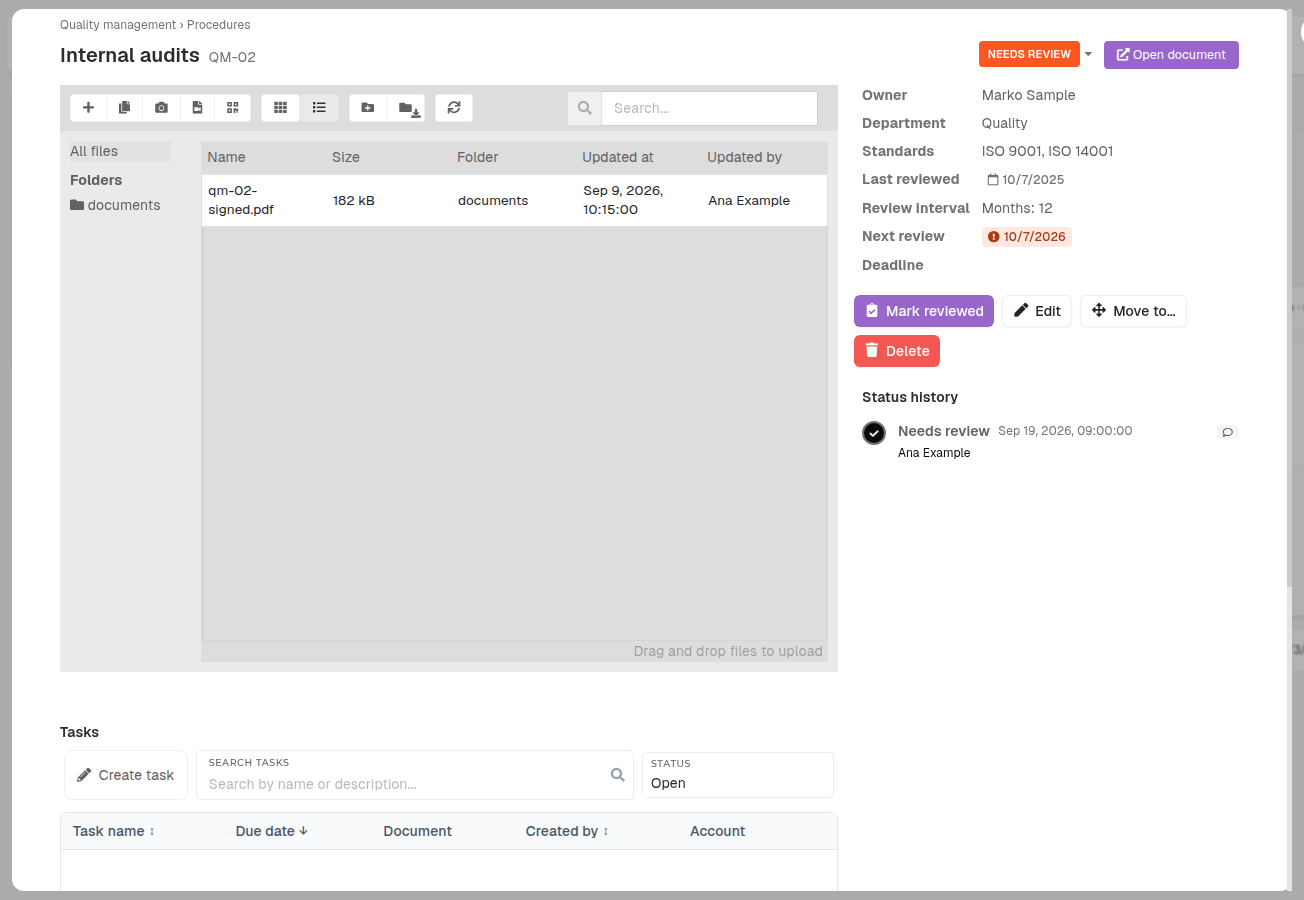 The details of a document
Close the details with the × in the top right corner.
NOTE
What you can do depends on your permissions. The pencil Edit layout only appears for people who may change the structure. If you are the owner of a document, you can usually still change its status, review dates and link. If a button from these guides is missing, ask your administrator.
What next?
- Set up an area — add areas, groups, documents, links and info blocks, and put them in order.
- Keep documents up to date — change statuses, record reviews and handle non-compliance.
- Use the document register — all documents in one table.