Appearance
Create a new price list version
A price list keeps its prices in versions, each valid for its own period — e.g. one per year. Create a new version when prices change, usually by copying the current one and adjusting it.
1. Open the price list
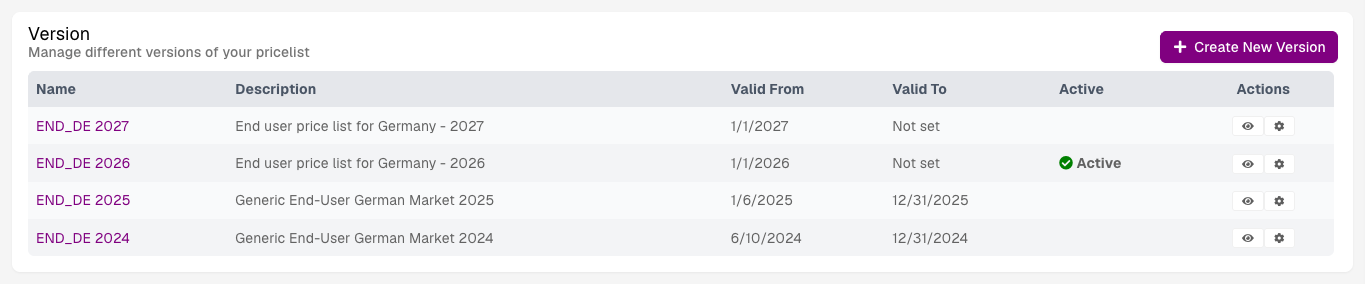
Go to Price lists and click the edit icon next to the price list that needs new prices. Its versions are listed under Manage different versions of your pricelist. Click Create New Version.
 The versions of a price list
2. Name the version
The wizard suggests a Name and Description with next year in them, based on the price list’s name. Change them if needed and click Next.
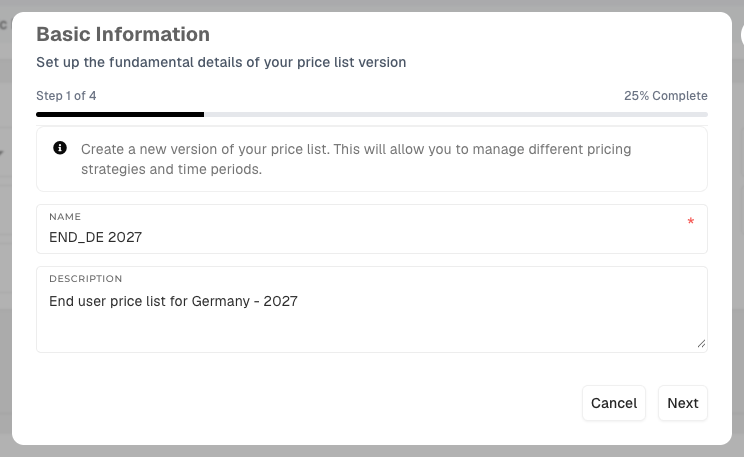 Step 1 — Basic Information
3. Set the validity period
Enter Valid from — the day the new prices start to apply. Leave Valid to empty if the version has no planned end date.
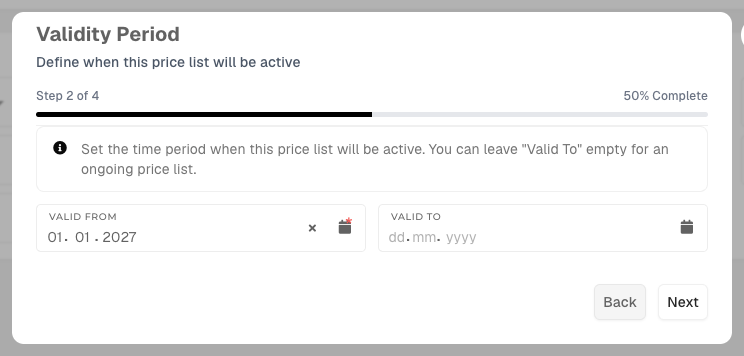 Step 2 — Validity Period
4. Choose where the prices come from
Pick one option:
- Copy products and prices from source version — the usual choice. Select the version to copy in Source price list version; the price list’s active version is preselected.
- Copy products and prices from MSRP price list — start from the recommended retail prices instead, copied from the version shown in MSRP price list.
- Do not copy — start with an empty version and add products yourself.
Check the Currency rate (taken from the latest version), then click Next.
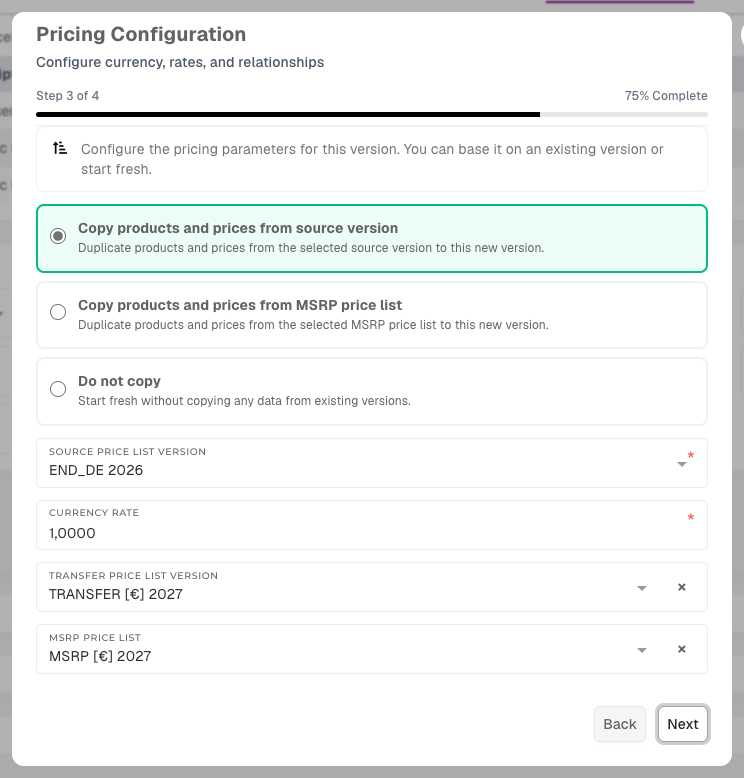 Step 3 — Pricing Configuration
Transfer price list version and MSRP price list are filled in for you: the versions of this price list’s Transfer and MSRP price lists that are valid on your Valid from date. A version valid from 1 January 2027 is therefore linked to the 2027 Transfer and MSRP versions, even while those are not active yet.
 Transfer and MSRP versions picked for the Valid from date
NOTE
Only a super admin can change Transfer price list version and MSRP price list. Everyone else sees them read-only, and they are linked automatically when the version is created.
5. Review and create
Check the summary. Click Back to change anything, or Create to create the version.
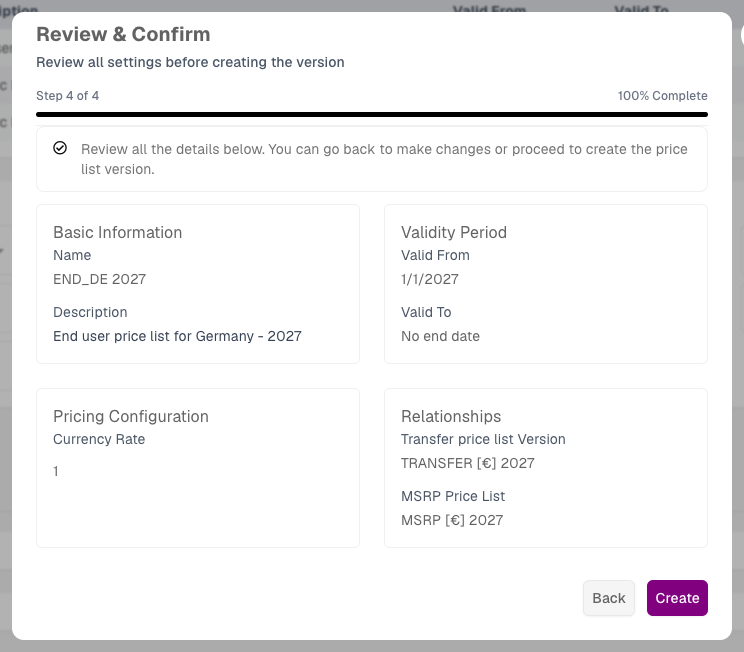 Step 4 — Review & Confirm
6. Wait for the prices to be copied
The new version appears at the top of the versions table. While its products and prices are being copied, its Active column shows Loading.
 The new version in the table
TIP
Click the version’s name to open it in the Price list manager and adjust its prices.