Appearance
Tables
Every list in the ERP uses the same table: the same toolbar, columns, sorting and pagination, wherever you find it.
1. Use the toolbar
Above the table: the filter icon opens columns and filters, the chart icon toggles statistics, the refresh icon reloads the table, and the kebab menu (⋮) holds more actions. On the right: + adds a record, the import and export icons move data in and out, and the bell shows notifications.
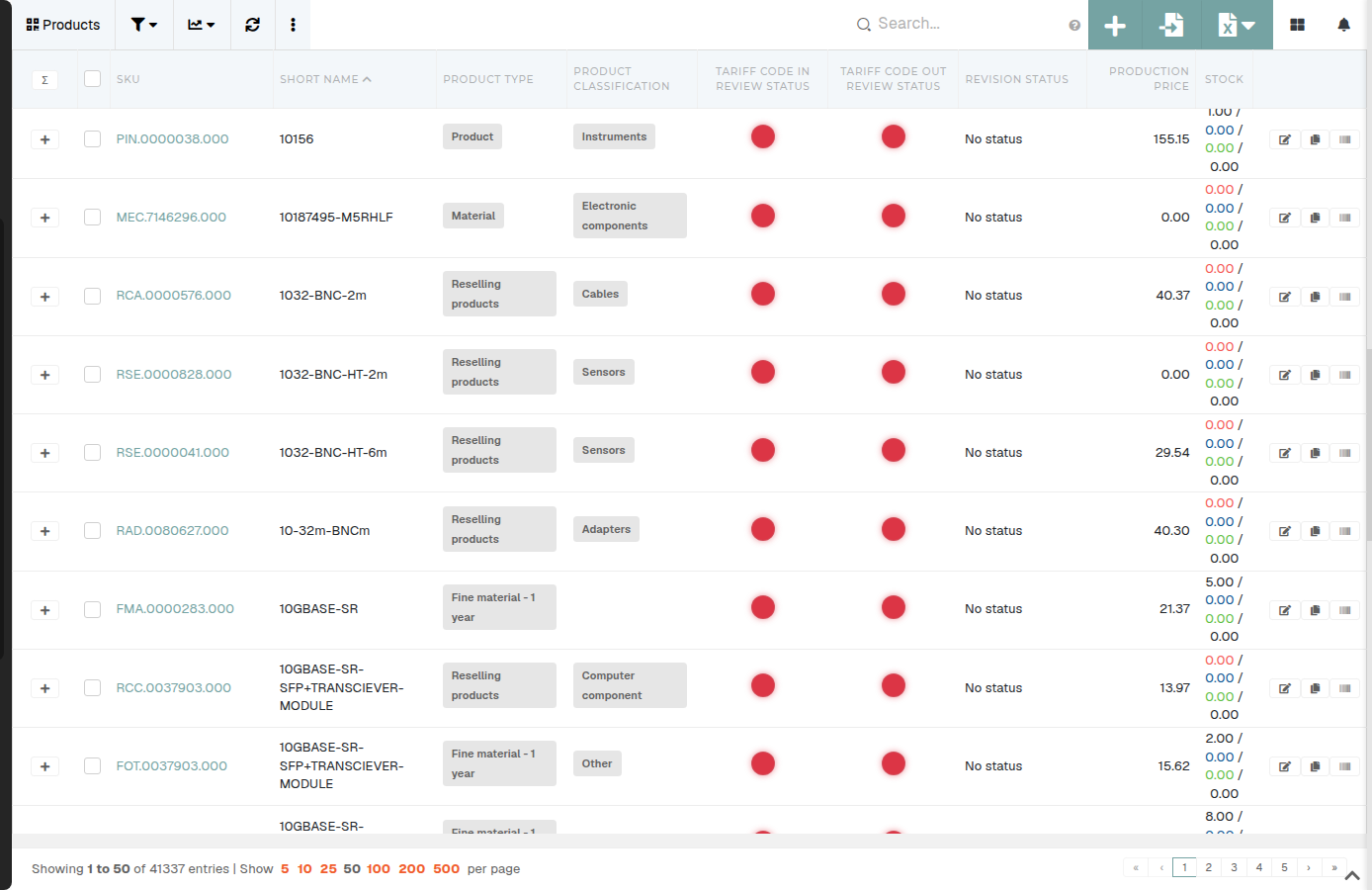 The table toolbar
2. Sort and resize columns
Click a column header to sort by it; click again to reverse the order. Drag a header’s edge to resize it.
 A sorted column
3. Change pages
Pick how many rows to show per page, and use the page numbers or arrows to move between pages.
 Pagination controls
TIP
Some tables let you select multiple rows for a bulk edit — useful, but double-check your selection first, since it changes every selected record at once.