Appearance
Update products from a file
Import updates the custom fields of existing products from an Excel or CSV file. It doesn’t create new products — each row finds its product by SKU.
1. Open the importer
Click Import in the toolbar.
 The Import button
2. Upload the file
Click Download template to get a file with the right columns, fill in one row per product, then drop the file in or click Choose file.
 The upload step
3. Map the columns
Choose which product field each column goes into. SKU is required — it finds the product to update. Leave columns you don’t want to change on Do not import.
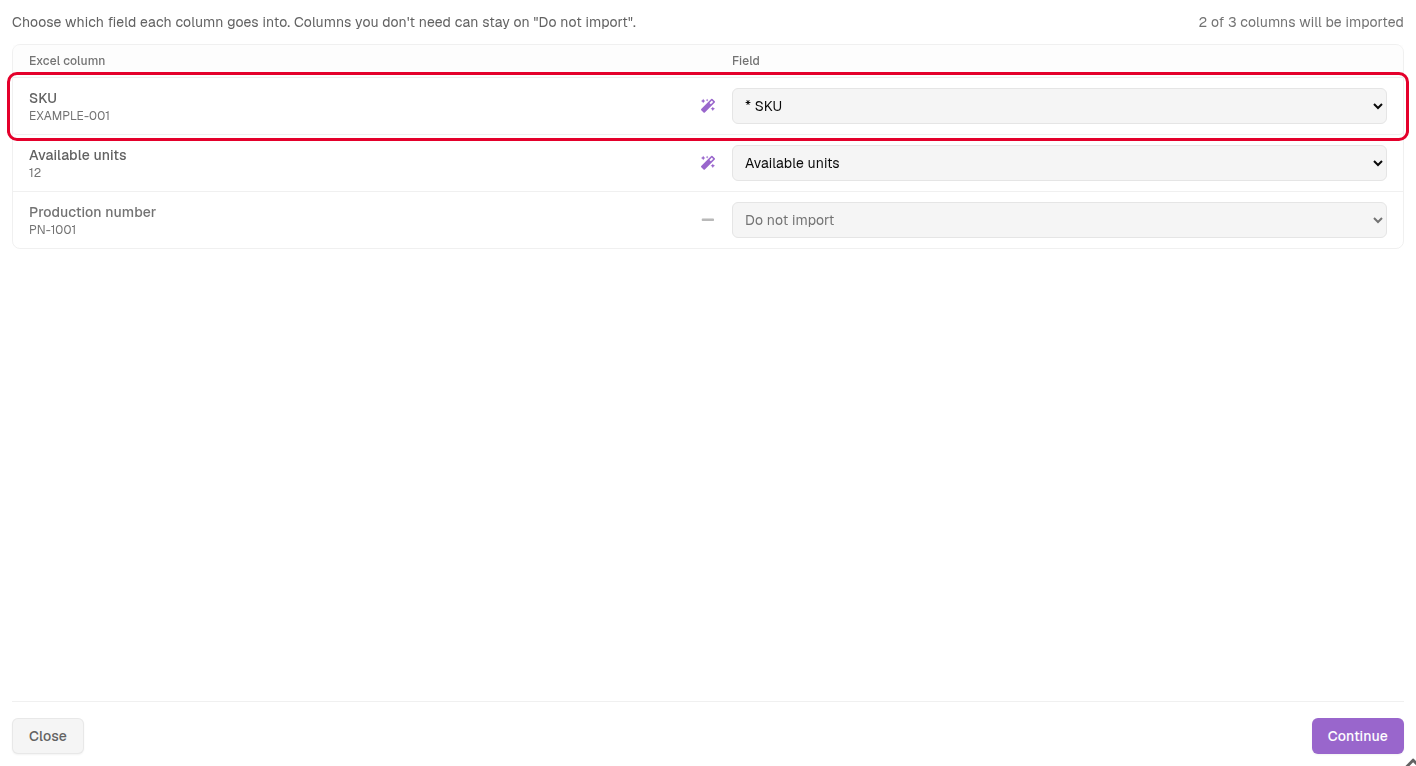 Mapping the columns
4. Review and import
Click Continue, check the rows, then click Import … rows. A row is not imported when:
- Not found — no product has that SKU.
- Locked — the product is locked.
If the same SKU is in several rows, only the last row is saved.
WARNING
An empty cell in an imported column clears that field on the product. Import only the columns you want to change.
NOTE
You need permission to edit products to see Import.