Appearance
Display model columns
Developer-facing configuration describing how a given model field should render as a table column elsewhere in the app.
1. Open Display model columns
Go to Users and permissions > Display model columns. Each row defines how one model field should be rendered as a column.
 The Display model columns toolbar
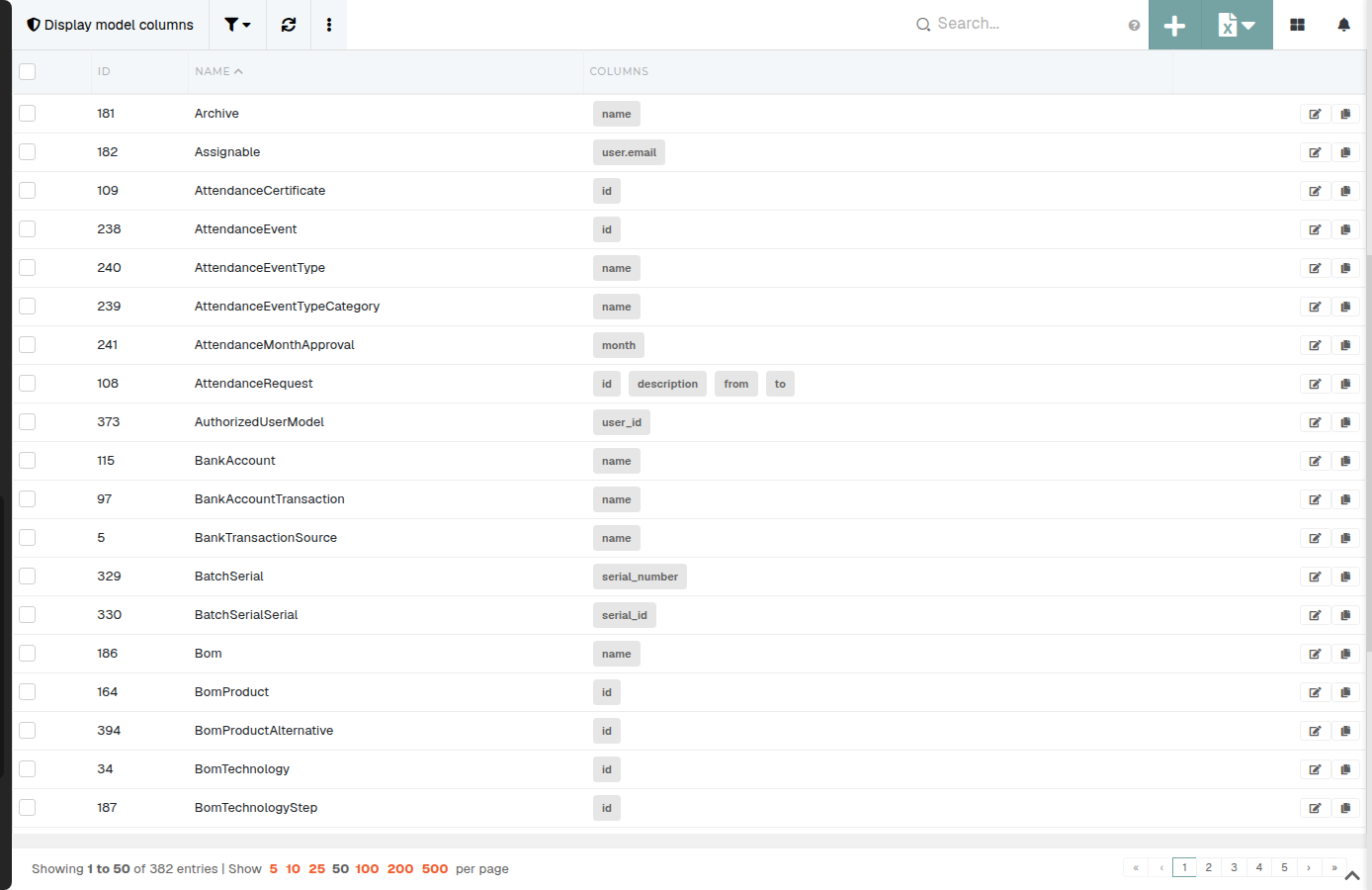 The Display model columns table
2. Open an entry
The field type (for example a text input or a select) can only be chosen when the entry is created, not changed afterward.
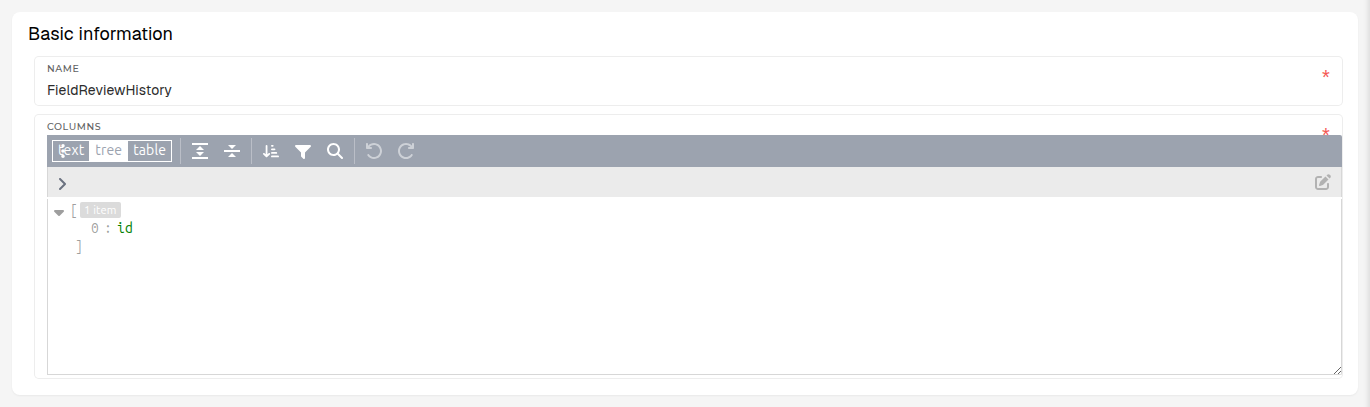 A display model column entry