Appearance
Purchase order suggestions
System-generated reorder suggestions, ranked by how soon each product's reorder point is reached, with one-click actions to turn them into purchase orders.
1. Open Purchase order suggestions
Go to Purchases > Purchase order suggestions. The urgency badge shows how soon to act: green (stock is optimal), yellow (prepare an order), or red (order today).
 The Purchase order suggestions toolbar
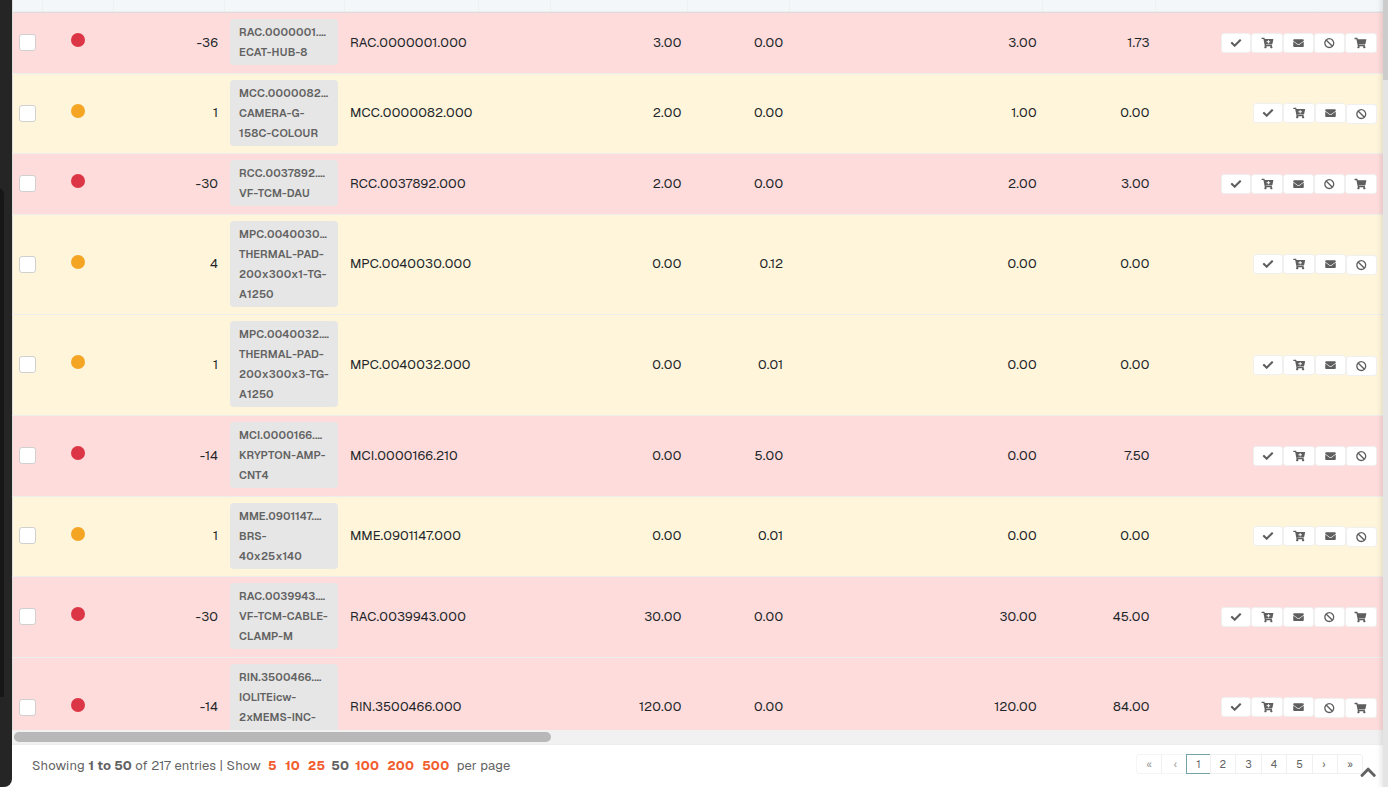 The Purchase order suggestions table, with urgency badges
2. Act on a suggestion
Select one or more rows to Confirm (creates and emails a purchase order to the supplier), Create purchase order (creates one without emailing it), Send inquiry, or Reject a suggestion.
 Bulk actions after selecting suggestions
3. Recalculate suggestions
Click Recalculate to open the MRP settings and re-run the suggestion calculation with the current filters as its scope.
 The Recalculate button
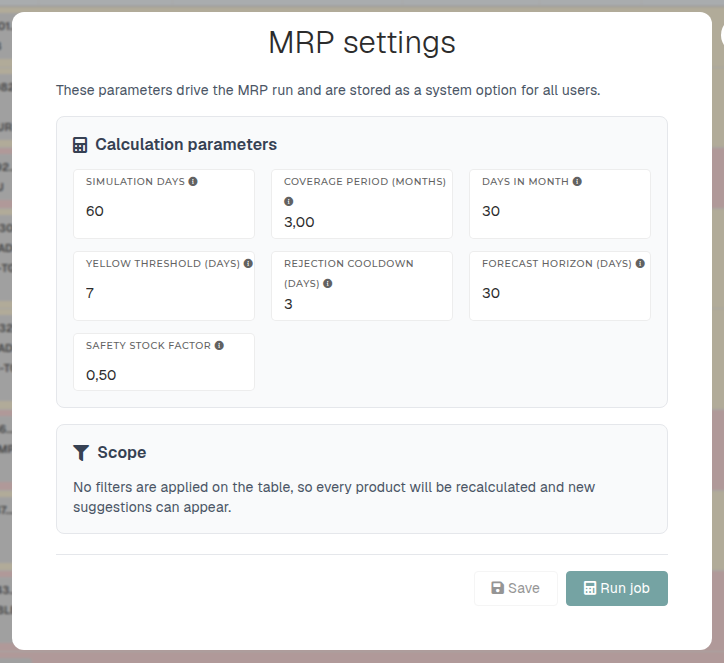 The MRP settings modal
CAUTION
Confirming a suggestion creates a real purchase order and can email it to the supplier immediately — this cannot be undone.