Appearance
Tag sales orders
Sales orders have their own Tags, separate from CRM tags. Use them to mark orders you want to find again — for example priority customers or orders waiting on a decision.
1. Open the sales order
Open the sales order. The Tags field is at the top of the form.
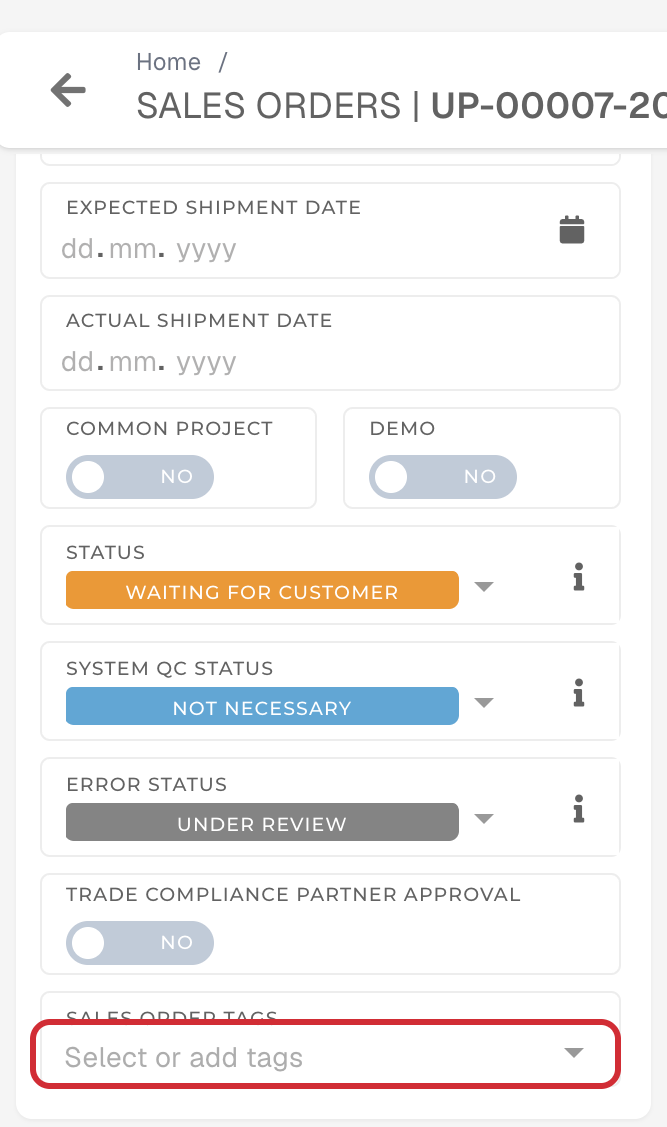 The Tags field on a sales order
2. Add a tag
Click Tags and pick a tag from the list, or type a new one and press Enter to create it.
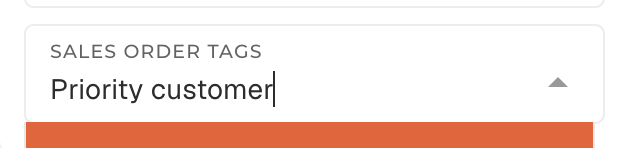 Typing a new tag
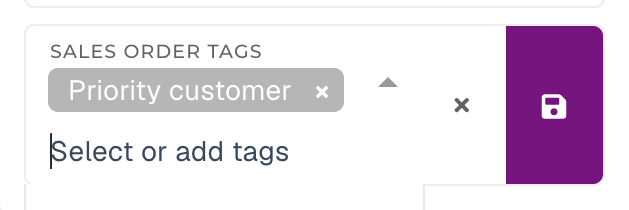 The new tag on the order
3. Save
Click Save. A confirmation appears, and the tag stays on the order.
 The save confirmation
TIP
Tags also appear as a column in the Sales orders list, where you can sort and filter by them.