Appearance
Product stock values
Every product that tracks stock shows several stock numbers: how much you hold, how much production can use, how much is still free, and how much is on its way. This guide explains where to find each value and how Booster ERP calculates it.
1. Open the Stock section of a product
Go to Products, open a product and scroll down to the Stock section. Click its title if it is collapsed.
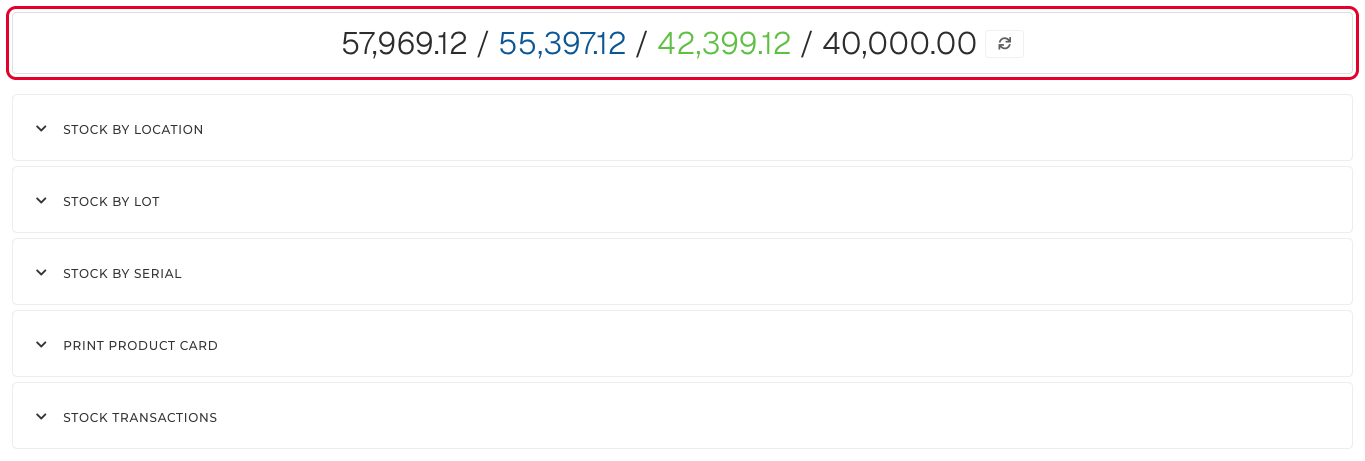 The Stock section with the stock line at the top
2. Read the stock line
The large line at the top shows the main stock values, separated by /. Hover a number to see its name.
 Total / Supply / Available / In delivery
From left to right:
| Value | Colour | What it means |
|---|---|---|
| Required for external orders | red when more is required than is in delivery | Shown first, only when open sales orders can't be covered from stock — see below. |
| Total stock | red at 0 or less | Everything you physically hold, in all warehouses except scrap. |
| Supply stock | blue, red below 0 | The part of the total that is in warehouses production (and promo) can take material from. |
| Available stock | green, red below 0 | Supply stock that is not yet promised to any work order. |
| In delivery or In production | — | Quantity on its way: ordered from suppliers, or being made for stock. Only one is shown — In delivery when nothing is in production, otherwise In production. |
| Your own stock types | — | One more number per product stock type your company defined — see below. |
3. How the values are calculated
All stock quantities come from stock transactions: every receipt adds to stock, every write-off takes away, and a transfer takes away from one location and adds to another.
- Total stock = the sum of all stock transactions of the product in every warehouse that is not a scrap (waste) warehouse. Goods transferred to promo are not counted.
- Supply stock = the same sum, but only for warehouses marked as production supply or promo supply.
- Available stock = Supply stock − the quantities virtually reserved (pre-reserved) for work orders. Virtual reservations are listed in the product's Virtual reservations section. Available stock can be negative when more is pre-reserved than is in supply.
- In delivery = the quantity still undelivered on purchase order items. Purchase orders in a status that is excluded in the purchase order settings (by default closed, canceled, delivered, inquiry sent and material order only) are not counted.
- In production = for open production and CNC work orders made for stock (not for a sales order): the item quantity − the quantity already received. Closed and canceled work orders, and statuses excluded from material requirements, are not counted.
- In finishing = stock in warehouses that cover material requirements but are neither production nor promo supply (finishing warehouses).
- Required for external orders = open sales orders are served from stock in the order of their expected delivery date; this is the largest shortfall along the way. It is refreshed by a separate recalculation, so it can lag behind the others.
NOTE
Physically reserved stock (moved to a work order's location) still counts in Supply stock and Available stock when that location is in a supply warehouse — unless your company turned on the option to ignore stock reserved on the same location.
4. Refresh the values
The values update by themselves whenever stock is booked, a purchase order or a work order changes. If a number looks out of date, click the refresh button next to the stock line to recalculate this product.
 The refresh button recalculates the product's stock
NOTE
The refresh button needs the permission to update products.
5. See where the stock is
Below the stock line, expand:
- Stock by location — quantity on each warehouse location (with serial numbers);
- Stock by lot — quantity per lot;
- Stock by serial — every serial number with its status and location;
- Stock transactions — every booking that changed the stock.
These lists add up to Total stock. Lots and serial numbers don't change any calculation — stock is always counted as a quantity.
6. Set the safety stock
In the Material management section of the product form, turn on Safety stock set and enter the Safety stock — the minimum quantity you always want to keep.
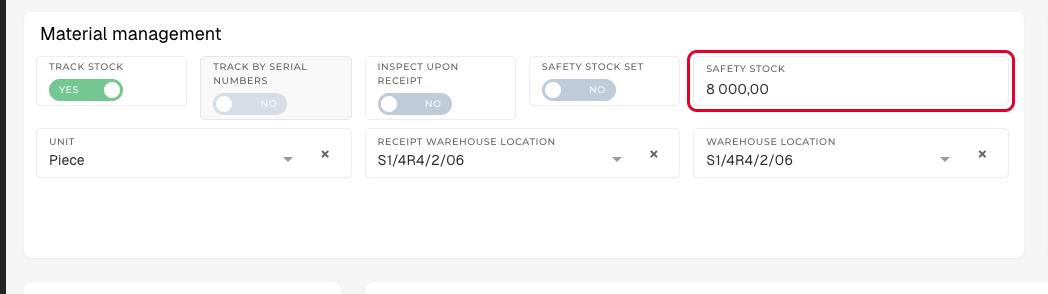 Safety stock in the Material management section
Safety stock is added to what has to be ordered (see Required quantity below), so purchasing keeps that much in stock. The Safety stock set switch is only a marker — the calculations use the Safety stock quantity either way.
NOTE
For CNC products, the safety stock is set automatically every night: one month of average use (at least 2), once the yearly use reaches 10 pieces.
7. Planning values in the product list
In Products, the Stock column shows the same stock line for every product. More stock values can be added as columns: open the table menu (the filter icon in the top bar) and switch them on.
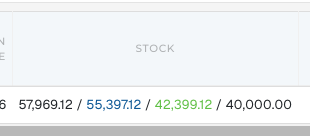 The Stock column in the product list
| Column | How it is calculated |
|---|---|
| Required quantity for production | For BOM lines of open work orders: the total quantity − what is already physically reserved − what is virtually reserved. In short: material still needed and not yet reserved. |
| Stock for requirements | Stock in warehouses that cover material requirements − virtual reservations of open work orders, never below 0. |
| Available stock without needs | Available stock − Required quantity for production: what stays free after every open work order gets its material. |
| Required quantity | Required quantity for production + Safety stock − Stock for requirements − In delivery − In production. A positive number is how much you still have to buy or make; zero or negative means you are covered. |
| Requirement due date | The earliest material due date of the open work orders that need the product. |
| Incoming date | When the next quantity arrives: the earliest confirmed delivery date of the open purchase orders, or the earliest expected finish of the work orders in production. |
| Average use | Everything written off from stock in the last year, divided by 12 — the monthly use. Revisions of the same product are counted together. |
| Average writeoff | Quantity on write-off documents booked in the last 12 months, divided by 12. |
| Stock coverage in months | (Available stock − Required quantity for production + In production + In delivery) ÷ Average use: how many months the free and incoming stock lasts. 0 means there is no use yet, not that there is no stock. |
| Stock depletion date | The day the product is expected to run out: starting from Supply stock, adding confirmed purchase order deliveries and subtracting planned work order use for the next 30 days, then the average use per day. Empty when there is no use. |
| In finishing | See above. |
TIP
Example: a material has Available stock 1,000, open work orders still need 400 (Required quantity for production), 2,000 are in delivery and the average use is 500 a month. Available stock without needs is 1,000 − 400 = 600, and the Stock coverage is (600 + 2,000) ÷ 500 = 5.2 months.
IMPORTANT
Average use, Average writeoff and Stock depletion date are recalculated by scheduled jobs (usually overnight), not when you click refresh — they can be up to a day old.
8. Product stock types
An administrator can define product stock types on the Product stock types page: each one is a named group of warehouses or locations. For every type, the stock line shows one more number — the product's stock in those warehouses. Hover the number to see the type's name.