Appearance
Creating received invoices
Enter a supplier’s invoice into the ERP as a received invoice.
1. Open the form
Go to Received invoices and click + in the top bar. Make sure the supplier already exists as a partner.
 The Add button on the Received invoices list
2. Fill in the main information
Pick the invoice type, the supplier, and enter the supplier’s own invoice number. The dates (issued, received, service, accounting, tax, planned payment) each track a different part of the invoice’s timeline.
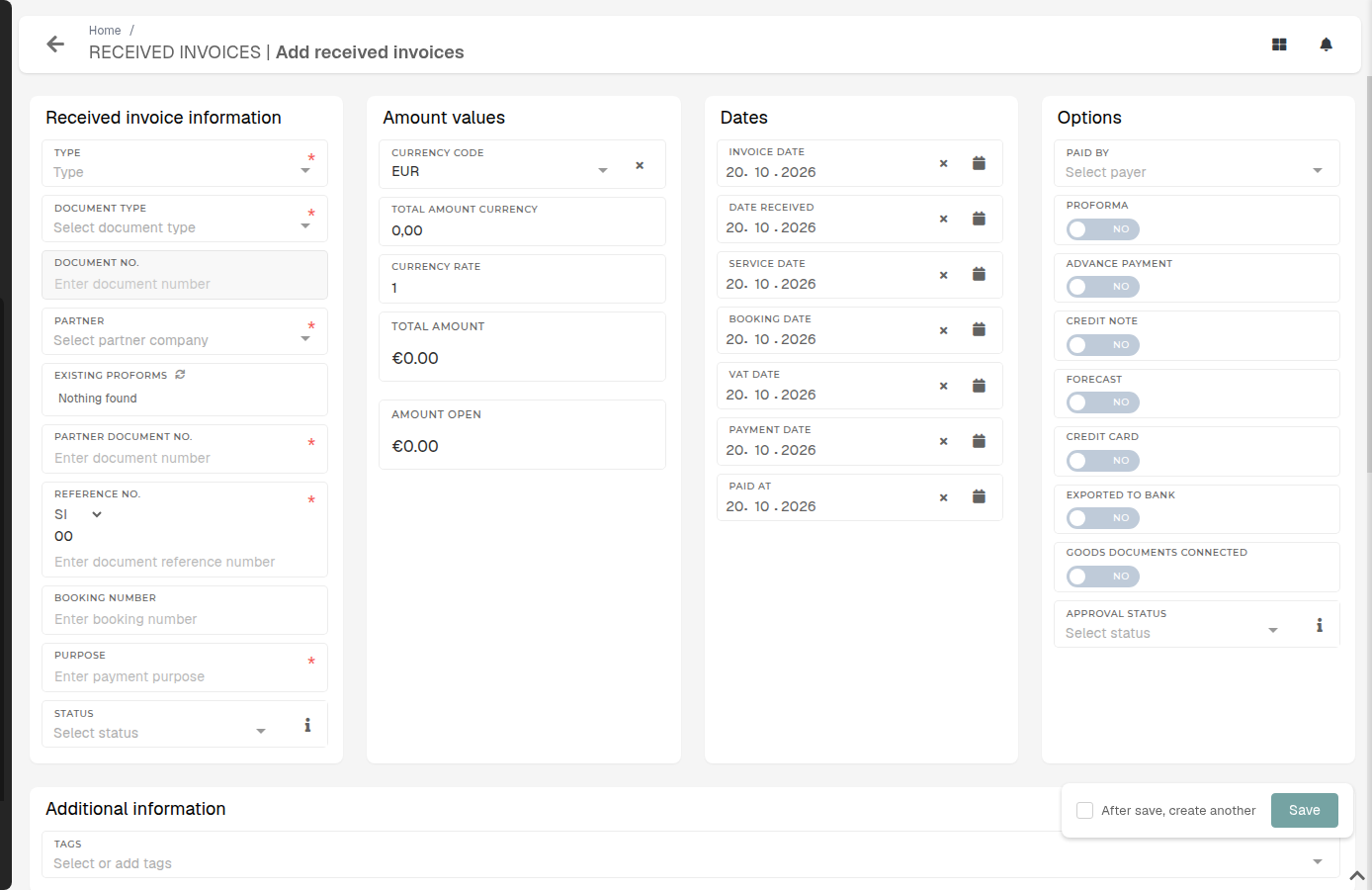 The new received invoice form
Click Add New to add a line item: pick the ledger account, describe the goods or service, and enter the net amount, tax percentage and quantity. The gross total and tax are calculated for you.