Appearance
Set up promo material
Two settings decide how a goods transfer treats promotional products and office supplies: which products count as promo material, and which warehouses hold promo stock. How a transfer then behaves is described in Transfer promo material.
1. Mark the product type as promo material
A product is handled as promo material when its product type has Promo writeoff with transfer switched on — for example Promotional products and Office supplies. Go to Product types, open the type and check the switch.
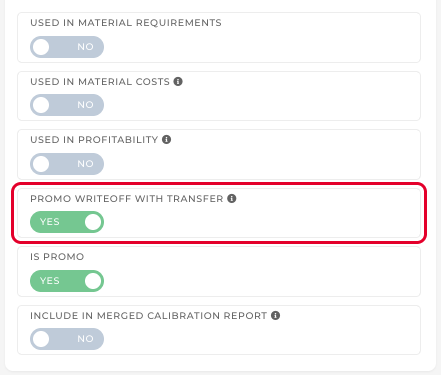 A product type marked as promo material
2. Mark the warehouses that hold promo stock
Promo material is kept in warehouses that have Promo stock switched on. Go to Warehouses, open the warehouse and check the switch under Settings.
 A warehouse marked as Promo stock
What the two promo switches on a warehouse mean:
- Promo stock — the warehouse keeps promo material. Promo transfers can only start from its locations, and moving promo material into it keeps the material in stock. Moving it anywhere else writes it off.
- Promo supply — the stock in this warehouse counts towards a product’s available stock. It has no effect on transfers.
CAUTION
Changing these switches changes how every future transfer of the product or warehouse is booked — including whether it writes stock off. Agree on it with logistics first.