Appearance
Fill CNC work orders
The ERP can plan CNC production by itself: it checks which machined parts will run short and creates (or tops up) CNC work orders for them. This happens automatically every night, and you can start it by hand with Fill CNC. This guide explains how the quantities are worked out.
1. Start it by hand
Go to Production → Production, click the gear button in the top bar and choose Fill CNC.
 The gear button on the Production page
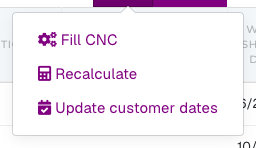 Fill CNC in the gear menu
 The calculation is started in the background
The calculation runs in the background — you can keep working. When it is done you get a notification (CNC work orders creation completed successfully, or an error message if something went wrong). New work orders then appear under Production → Work orders as type CNC.
NOTE
You do not have to press the button every day. The same calculation runs automatically every night (and on working days once more as part of the nightly production plan recalculation). Use Fill CNC when you want the result right away — e.g. after a big new order.
2. Which parts are included
Only parts that are made on the CNC machines are considered. A part is included when:
- it is a metal part or assembly, or a PVC assembly,
- its status is Released for production,
- it has a production BOM with technologies (operations), so the ERP knows how to make it,
- and something is actually missing for it (see the next step).
3. How much is missing
For every part, the ERP adds up what it has and subtracts what it needs:
| + in stock | available stock in warehouses marked Requirements supply, minus what is already reserved |
| + already being made | the quantity still to be produced on open production and CNC work orders |
| − needed by production | the quantity the BOMs of open work orders still need and have not reserved yet |
| − safety stock | the part's Safety stock — how many pieces should always be on the shelf |
If the result is below zero, that many pieces are missing, and that is how much the ERP will plan. If it is zero or more, nothing happens for that part.
Closed and canceled work orders (and statuses excluded from material requirements in the settings) are not counted.
4. Safety stock and order sizes come from consumption
Before planning, the ERP looks at how many pieces of the part were used (issued from stock) in the last 12 months — counting all revisions of the part. This is the yearly use.
It only does this for parts that have been released for production for more than 6 months; for newer parts yearly use is 0.
When the part is used at least 10 times a year:
- Safety stock = one month of use (yearly use ÷ 12, rounded up), at least 2 pieces.
- Smallest work order = the safety stock, but at least 5 pieces.
- Largest work order = the biggest of: half a year of use; 50 pieces if a piece takes less than 15 minutes on the CNC machine (40 if less than 30 minutes); 5 pieces. It is never more than 50 pieces.
When the part is used less than 10 times a year, there is no smallest or largest size: the work order is made for exactly the missing quantity, and the safety stock on the part is left as it is.
WARNING
For parts used at least 10 times a year, Fill CNC overwrites the Safety stock on the product with the calculated value. A safety stock you enter by hand on such a part will be replaced on the next run.
5. How the work orders are filled
For every missing part the ERP works in this order:
- Top up existing work orders first. It looks for CNC work orders for the same part that it created itself earlier, are still in status New and have no material reserved yet. Each of them is raised up to the largest work order size. A work order that can no longer be changed (already started or reserved) is skipped.
- Create new work orders for the rest. Whatever is still missing goes onto a new CNC work order in the CNC facility — no smaller than the smallest size and no larger than the largest. If more is missing than fits on one, several work orders are created.
- Tasks are added. Each new work order gets its tasks from the part's technologies straight away, so it can be planned in the production planner.
Work orders made by hand are never changed — only the ones the ERP created itself are topped up.
6. Example
A bracket was used 120 times last year and takes 10 minutes on the CNC machine:
- safety stock = 120 ÷ 12 = 10, smallest work order = 10, largest = max(60, 50) capped at 50;
- in stock 8, already on work orders 40, needed by production 55, safety stock 10 → 8 + 40 − 55 − 10 = −17, so 17 are missing.
There is an automatic CNC work order in status New for 40 pieces. It is raised to 50 (+10). The remaining 7 are below the smallest size, so a new work order for 10 pieces is created.
TIP
Want a part to be produced in bigger batches or kept in stock? It must be Released for production and have a production BOM with CNC technologies — otherwise Fill CNC skips it entirely.