Appearance
Update price on a sale order item
Change the price of an item on a sales order, from its sub-items.
1. Open the product list
On a sales order, the Product list section lists every item, with its quantity, unit price and subtotal.
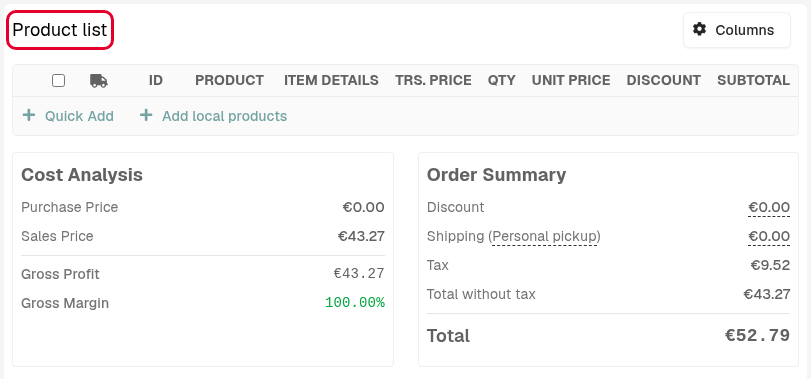 The Product list section
Click the + on an item to reveal its sub-items, serials and licenses. Prices can only be set on a sub-item, not the parent — editing one recalculates the parent’s price and the order total automatically. Setting a sub-item’s price to zero marks it as bundled (included in the parent, not charged separately).
NOTE
Requires the Update order sale items permission. If price lists are configured, a button next to the price field fills it in automatically from the matching list.