Appearance
Use the document register
The Document register lists every document of ISO & Compliance in one table — from all areas and groups. Use it to find documents quickly, to see who owns what and which reviews are due, or to export the list to Excel, for example for an audit. To learn the words used here, see Get started with ISO & Compliance.
1. Open the document register
On the ISO & Compliance page, click Document register in the top bar. You also find it in the main menu under Company, next to ISO & Compliance.
 The Document register button
2. Read the table
Every row is one document. The documents whose next review comes first are at the top, so the most urgent ones are always in view. Click a column header to sort by that column instead.
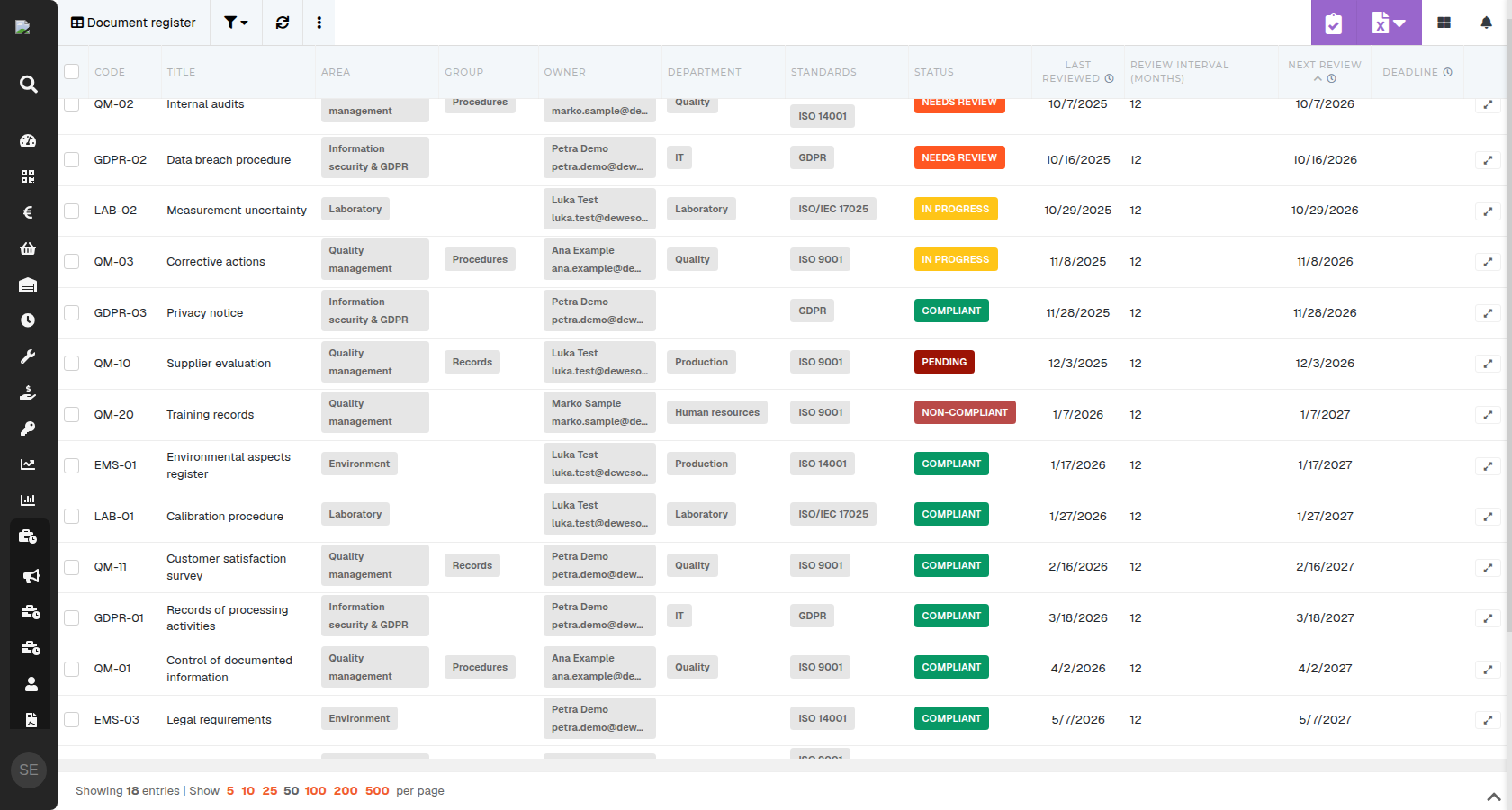 The document register
- Code and Title — how the document is numbered and called.
- Area and Group — where the document is on the ISO & Compliance page.
- Owner and Department — who keeps it up to date.
- Standards — the norms it belongs to.
- Status — its current status (see What the statuses mean).
- Last reviewed, Review interval (months), Next review and Deadline — its review plan.
3. Filter the list
Click the funnel next to Document register in the top left. On the left you see all columns: tick or untick a column to show or hide it, and click the funnel next to a column to filter by it. The filter appears under Selected filters — pick the values you want, for example the status Needs review, and click Apply.
 Filtering by status
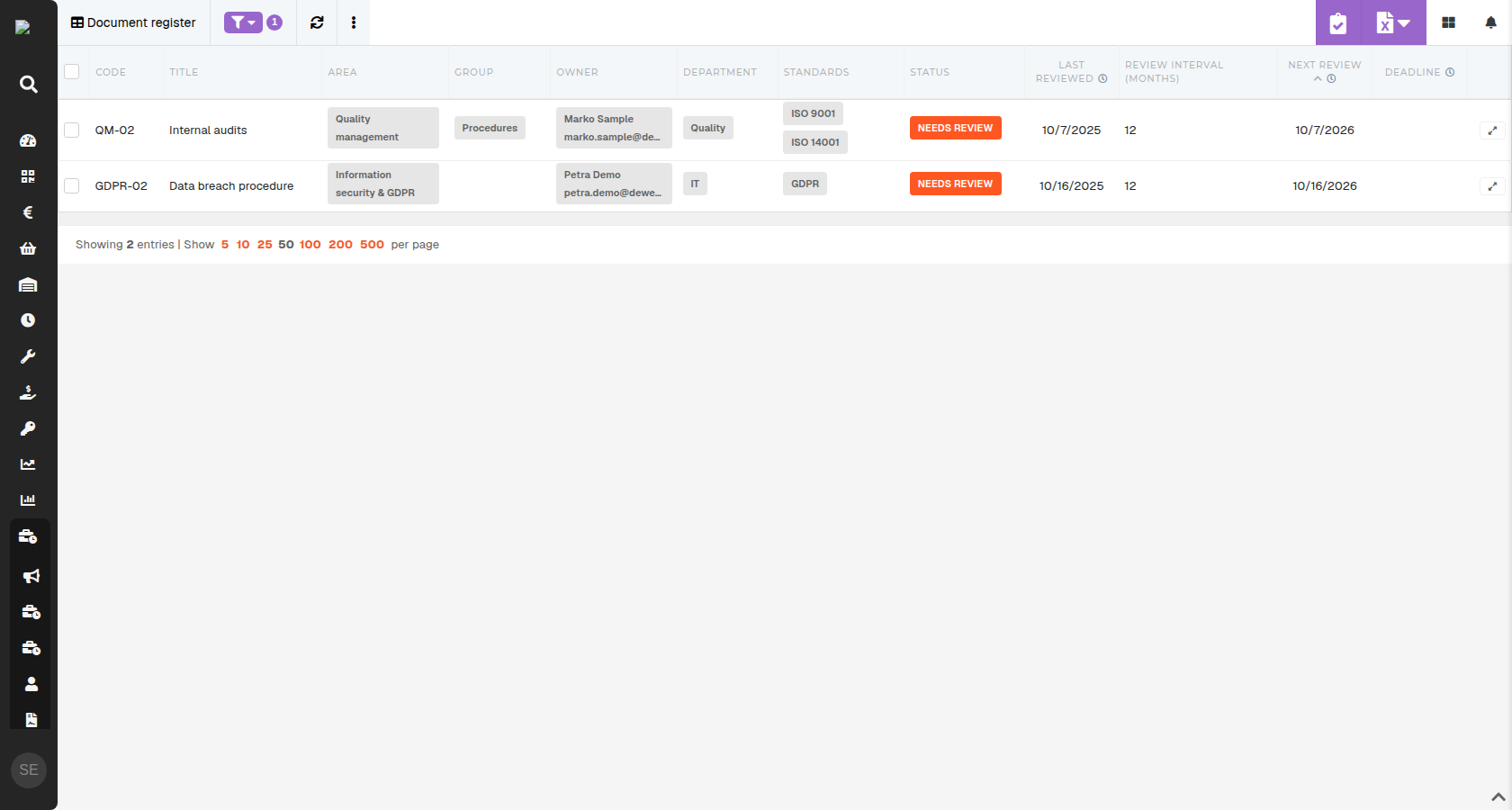 Only the documents that need a review
The funnel turns purple and shows how many filters are active. To see all documents again, open the funnel and click Clear. Want to use the same filter often? Type a name into Enter new filter name on the right and click + to save it.
4. Open a document
Click the arrow button at the end of a row — or double-click the row — to open the document’s details, the same window as on the ISO & Compliance page. There you can change its status, mark it reviewed or attach files (Keep documents up to date).
 The button that opens a document
5. Export to Excel
Click the Excel button in the top right and choose Default Export. You get the rows of the table as an Excel file — with the filter you applied, which is handy for an audit.
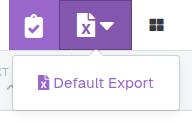 Exporting the register to Excel
6. Go back to ISO & Compliance
Click the clipboard button in the top right (Back to ISO & Compliance) to return to the areas.
 Back to ISO & Compliance
What next?
- Get started with ISO & Compliance — the page, its words and the statuses.
- Set up an area — add areas, groups, documents, links and info blocks.
- Keep documents up to date — change statuses, record reviews and handle non-compliance.