Appearance
Statuses
Defines the status values used across document types, each with its own display color and category.
1. Open Statuses
Go to Admin > Statuses. Each row is one status value, identified by its name and slug.
 The Statuses toolbar
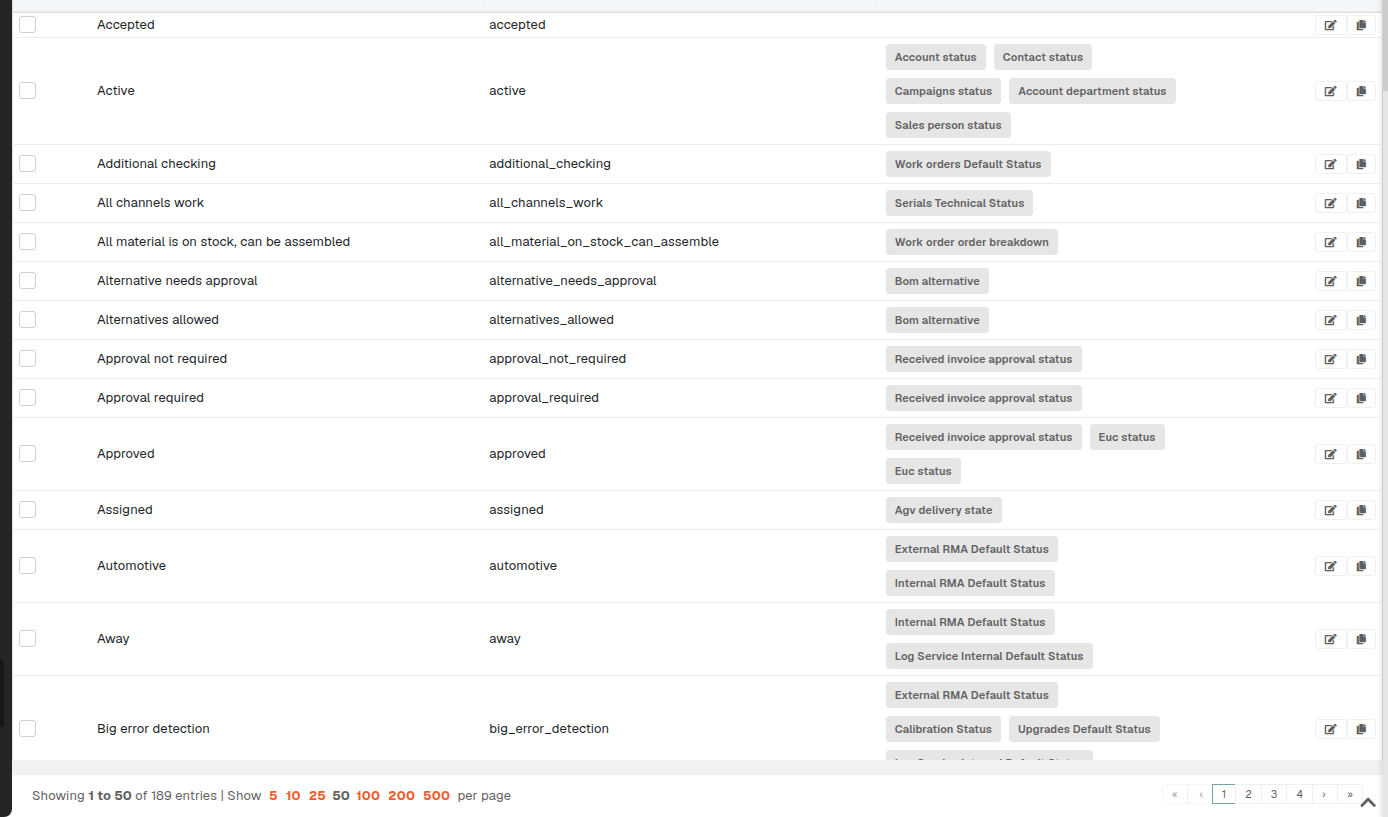 The Statuses table
2. Open a status
The name and slug identify the status; the slug can't be changed once the status exists.
 A status's name and slug
Further down, assign the status to one or more status categories, each with its own display color and font style — this controls how the status badge looks wherever it appears in the app.