Appearance
Update an existing upgrade order
Open an upgrade order to move it through its process — there’s no separate Cancel button here, canceling is just another status.
1. Open an upgrade order
Go to Upgrade and click the edit icon next to one. Set its status as it moves along — picking Canceled is how you cancel it, since there’s no dedicated Cancel button.
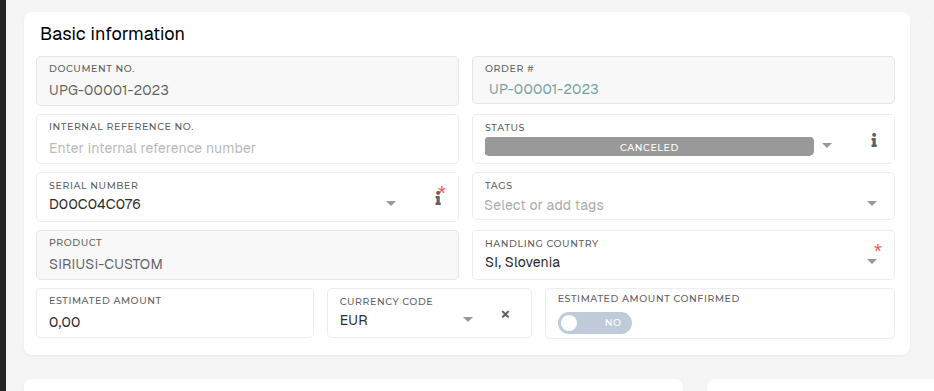 The upgrade order page
2. Notify the customer of the estimated amount
Click Estimated amount notification to ask the customer to confirm the estimated cost — this becomes available once the order isn’t locked, closed or canceled.
 The Estimated amount notification button