Appearance
Order from purchase order suggestions
Turn a suggestion into a purchase order straight from the table: accept it as suggested, or first adjust the supplier, quantity, price and dates in the row. See Purchase order suggestions for what the page shows.
1. Accept a suggestion as it is
Every row is already a complete order line: supplier, Suggested quantity, Amount, currency and Wanted date are filled in by the calculation. If they are right, order it with one click in the row:
- Confirm (✓) creates the purchase order and emails it to the supplier.
- Create purchase order (cart) creates the purchase order without sending it, e.g. to check it first or send it yourself.
 The order buttons in a suggestion row
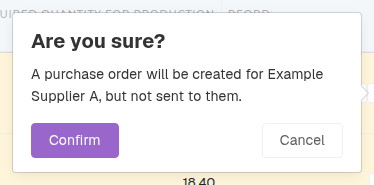 Confirm that the purchase order is created
Click Confirm in the popup. The purchase order is created at once, and the row shows a link to it (basket icon).
 The purchase order is created
2. Adjust the suggestion before ordering
Click a dashed value in the row to change it — it is saved immediately. Everything you set here goes onto the purchase order, so there is nothing left to fill in on the order itself:
| Column | On the purchase order |
|---|---|
| Supplier | The supplier the order goes to (only suppliers linked to the product are offered) |
| Suggested quantity | Quantity of the line item |
| Amount | Unit price. Left empty, the supplier's price for the product is used, then the last purchase price |
| Currency code | Currency of the order |
| Discount (%) | Discount on the line item |
| Wanted date | Wanted delivery date. Left empty, today plus the delivery time |
| Confirmed delivery date | Confirmed delivery date of the line item |
| Sales order | The sales order the purchase is for |
| Reference no. | Reference number of the order |
| Print text | Text printed on the order |
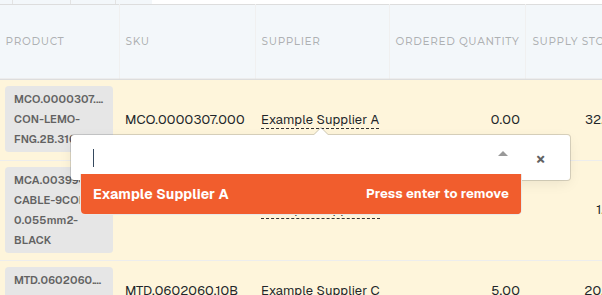 Pick the supplier — only suppliers linked to the product are listed
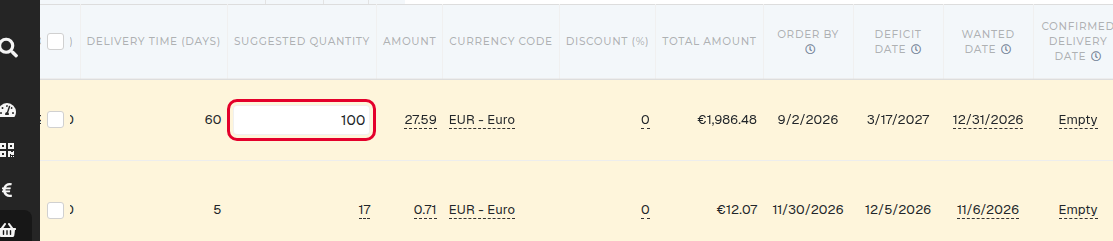 Change the quantity to order
3. Order several suggestions at once
Tick the rows on the left, then use the buttons in the top bar: Confirm, Create purchase order, Send inquiry or Reject. You get one purchase order per supplier (and per sales order), with all its products as line items. Their reference numbers and print texts are combined on the order.
 Bulk actions for the selected suggestions
IMPORTANT
A suggestion can only be ordered when it has a Supplier, a Suggested quantity above 0, a price (Amount, the supplier price or a last purchase price) and a Wanted date that is not in the past. Confirm also needs an ordering e-mail on the supplier. All suggestions for one supplier must use the same currency. If something is missing, the order is not created and a message tells you what to fix.
TIP
Send inquiry (envelope) e-mails the supplier a request for price and delivery time instead of ordering; the suggestion stays open, so you can order it later. Reject (⊘) hides a suggestion you do not want — the product is skipped by the next recalculations for a while (Rejection cooldown in the MRP settings).
NOTE
Confirmed and rejected suggestions are locked. Find which suggestions to order quickly with saved filters: see Useful filters for purchase order suggestions.