Appearance
Copy roles to other users
Give one or more colleagues the same roles as an existing user in one go — for example when a new team member needs the same access as someone already on the team.
1. Open the user whose roles you want to copy
Go to Users and open the user that already has the right roles. Then click Copy roles at the top of the page.
 The Copy roles button on the user page
2. Pick the users who should get these roles
In Copy roles to users, search for and select one or more users. You can select as many as you need.
3. Choose how to copy
- Add — the selected users keep the roles they already have and get these roles on top.
- Overwrite — the selected users end up with exactly these roles; any other roles they had are removed.
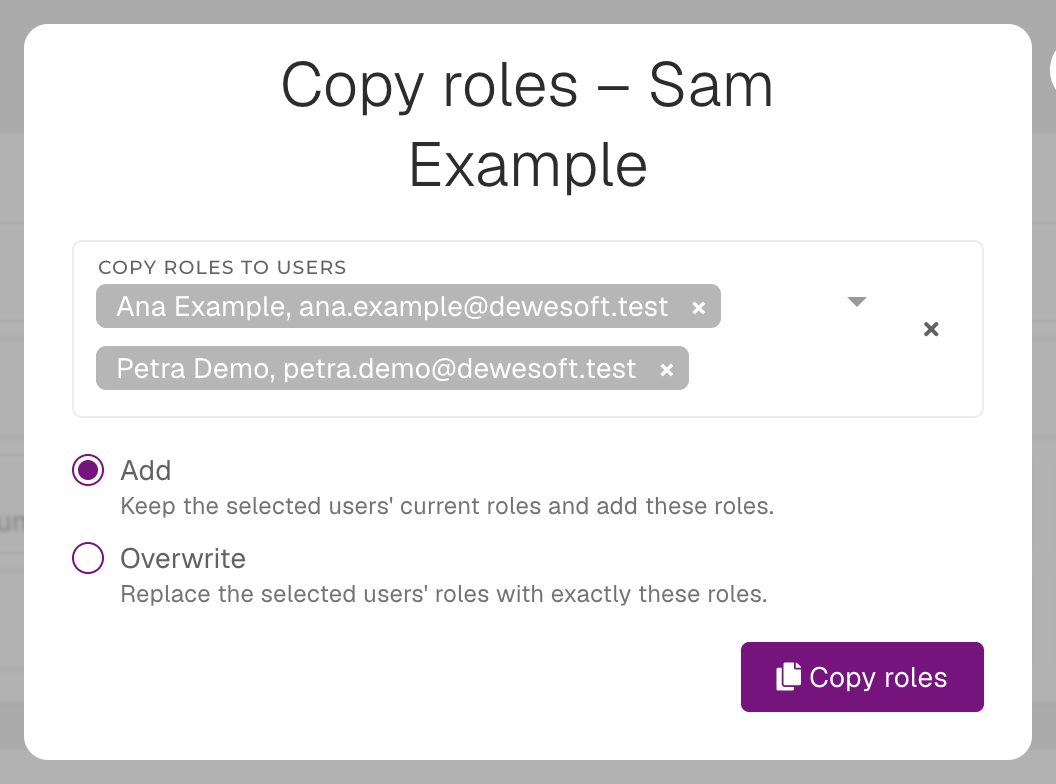 Users selected, with the Add option chosen
WARNING
Overwrite removes roles from the selected users. Use it only when they should have exactly the same access as this user.
4. Copy the roles
Click Copy roles. A Roles copied message confirms the change, and the selected users get the new access straight away.
 The Roles copied confirmation
NOTE
The Copy roles button is only shown to users who are allowed to edit users.