Appearance
Product configurator data
Every product has a Configurator data section. Its settings decide how the product behaves in the online configurator: whether it opens as a system you build, a slice you add to a rack, a piece of software or a plain product, what is added to the cart with it, and how it is drawn. This guide describes every setting in that section.
1. Open the Configurator data section
Go to Products, open a product and scroll down to Configurator data. Click the title to expand it. Change the settings and click Save data at the bottom of the section.
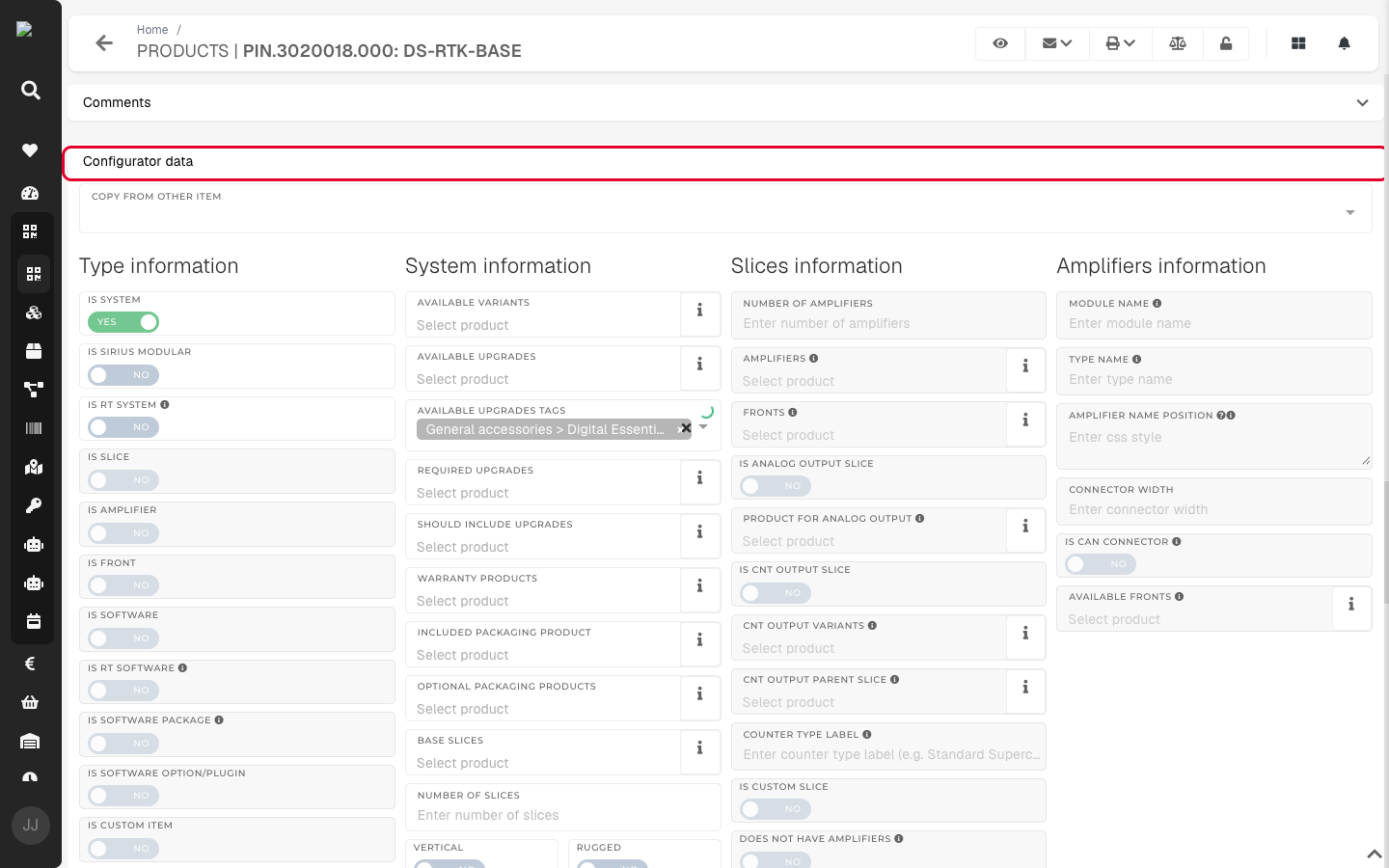 The Configurator data section of a system product
TIP
Copy from other item at the top of the section fills in every setting from another product. Use it for a new product that works like an existing one, then change what is different.
NOTE
Editing the section needs the permission to update product configurator data. Without it, the settings are shown read-only.
Most settings only apply to some product types. A setting that does not apply to the type you selected is greyed out. Select the type in Type information first, and the settings for that type become editable.
2. Type information: choose what kind of product it is
The type decides which screen the configurator opens for the product and which other settings can be filled in.
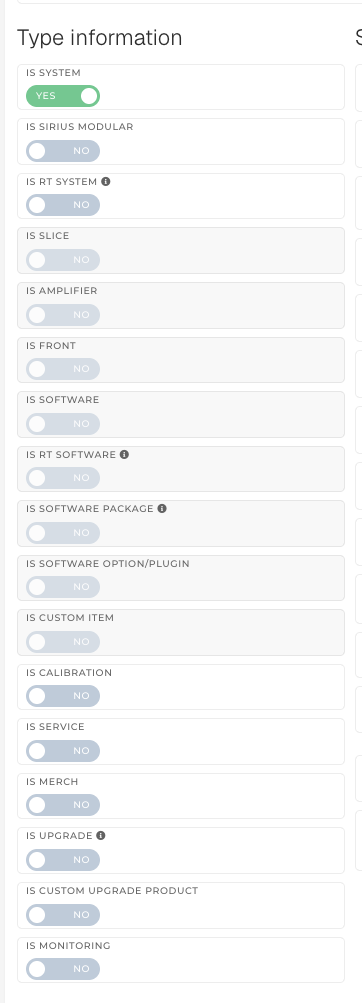 Type information
| Setting | Can be set for | What it does in the configurator |
|---|---|---|
| Is system | Any product | The product opens in the system builder, where the customer configures slices, upgrades, accessories and software. It cannot be added to the cart straight from the menu; it must be configured first. |
| Is Sirius Modular | Any product (also turns on Is system) | A single-slice modular SIRIUS. The system is drawn with a generic modular image, its slice cannot be removed, the price comes from the slice and the order code is built from the chosen amplifiers. |
| Is RT system | Systems | The device can run DewesoftRT. The system builder gets a Software RT tab with the RT software set in RT software information. |
| Is slice | Any product | Clicking it in the menu adds the slice to the system that is open. If that system is not a SIRIUS rack, the customer sees Please select SIRIUS Rack system…. |
| Is amplifier | Any product | An amplifier that can be placed in a slice slot. Only products with this setting can be chosen as amplifiers on slices. |
| Is front | Any product | A front connector for an amplifier. It has no add-to-cart button of its own. |
| Is software | Any product | The product opens in the software builder. It cannot be added to the cart straight from the menu. |
| Is RT software | Software | DewesoftRT licence. In the software builder the Available software options card is hidden, and the licence is linked to the serial as the RT licence. |
| Is software package | Any product | A software package (DSA, Monitoring…) offered inside the software builder. |
| Is software option/plugin | Any product | A software option or plugin offered inside the software builder. |
| Is custom item | Any product | The product page asks for a Responsible person in HQ and a Custom item name. The order cannot be sent until a responsible person is chosen. The item may have a price of 0. |
| Is calibration | Any product | The customer must enter the serial numbers to calibrate. A cart with calibrations can only hold calibrations and upgrades, and the order type becomes Calibration. |
| Is service | Any product | Marks the product as a service. It has no visible effect in the configurator. |
| Is merch | Any product | Promotional merchandise. A cart that holds only merch becomes a Merch order, and stock is checked. |
| Is upgrade | Any product | An upgrade for an existing device. The customer enters serial numbers, which are checked against Eligible products when enter serials. A cart with upgrades can hold only upgrades. |
| Is custom upgrade product | Any product | After entering the serials the customer gets a box to describe the upgrade they want, which is then quoted. The order type becomes Upgrade. |
| Is monitoring | Any product | A monitoring (NEMOSENSE) system. Its order code is built differently and some upgrades cannot be combined. |
IMPORTANT
A product can only have one of these main types: Is system, Is slice, Is amplifier, Is front, Is software, Is software package, Is software option/plugin, Is custom item. When one is on, the others are greyed out. Is Sirius Modular is the only one that combines with Is system. The remaining switches (calibration, service, merch, upgrade, monitoring) can be combined freely.
3. System information
Settings for products marked Is system (some also for Is Sirius Modular and slices).
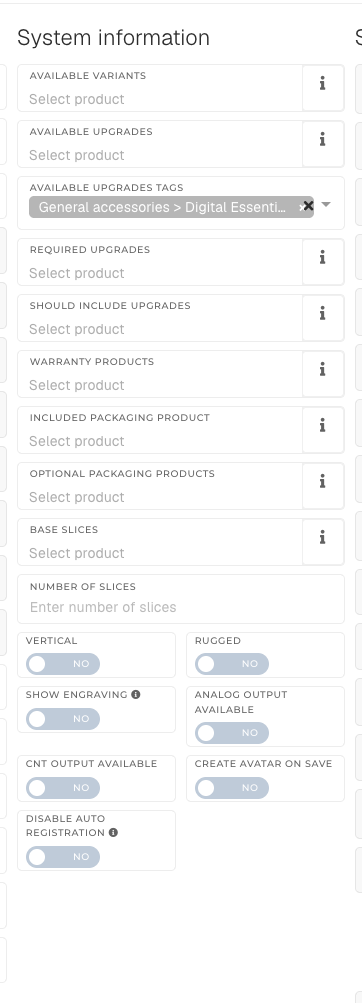 System information
| Setting | Can be set for | What it does in the configurator |
|---|---|---|
| Available variants | Systems | The Upgrades tab shows Available variants, so the customer can switch to another version of the system. |
| Available upgrades | Systems, slices | Turns on the Upgrades tab and fills Available upgrades & calibrations. On a slice, adds the button to choose slice upgrades. |
| Available upgrades tags | Systems, slices | Same as Available upgrades, but every product with the tag is offered, grouped in a list named after the tag. |
| Required upgrades | Systems, slices, monitoring | Always added to the system, listed under Required hardware upgrades. The customer cannot remove them. |
| Should include upgrades | Systems, slices, monitoring | Added to the system by default. The customer can remove them. |
| Warranty products | Systems | Extended-warranty products for the system. They are not offered in the configurator at the moment. |
| Included packaging product / Optional packaging products | Systems | Packaging for the system. Not used by the configurator. |
| Base slices | Systems | The base slices the customer can pick on the system picture (Change base slice). The first one is included in the price; any other adds its own price. |
| Number of slices | Systems | How many slice slots are drawn on the system picture. |
| Vertical | Systems | Slices and amplifiers are drawn standing up, and the connector chooser opens to the side. |
| Rugged | Systems | Marks a rugged system. It has no visible effect in the configurator. |
| Show engraving | Systems | Meant to show the engraving and PWR label on the slices (see Engraving text below). The configurator does not read this setting at the moment; engravings are shown by default. |
| Analog output available | Systems | The slice upgrade dialog offers an analog output (AO) switch. |
| CNT output available | Systems | The slice upgrade dialog offers a counter output (CNT) switch with a counter-type dropdown. |
| Create avatar on save | Systems | When the customer adds the system to the cart, a picture of the configured system is saved and used as the picture of the order item. |
| Disable auto registration | Systems | Licences of software ordered with this system are not registered automatically. |
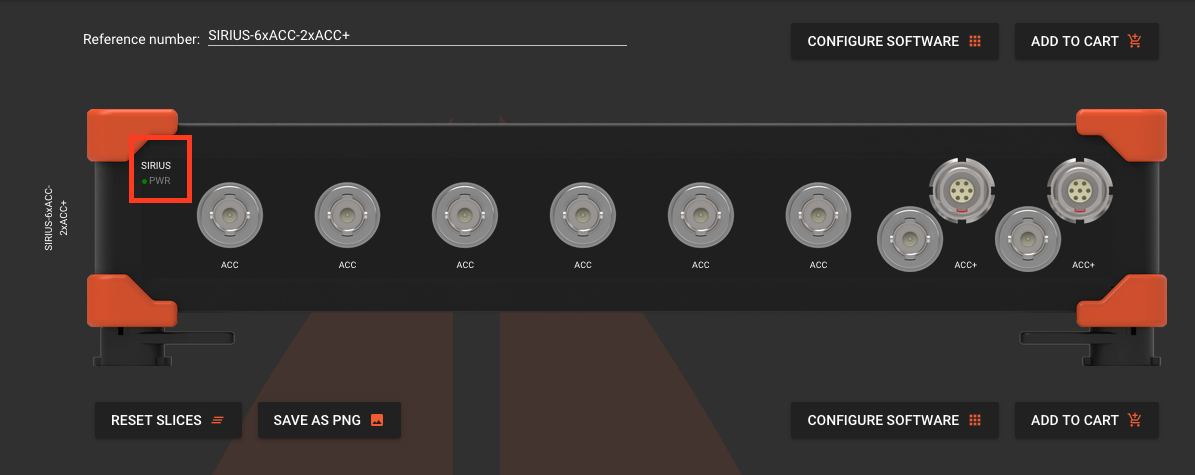
Configurator: engraving text on a slice
4. Slices information
Settings for products marked Is slice or Is Sirius Modular. They decide which amplifiers and connectors the slice has and how it is drawn.
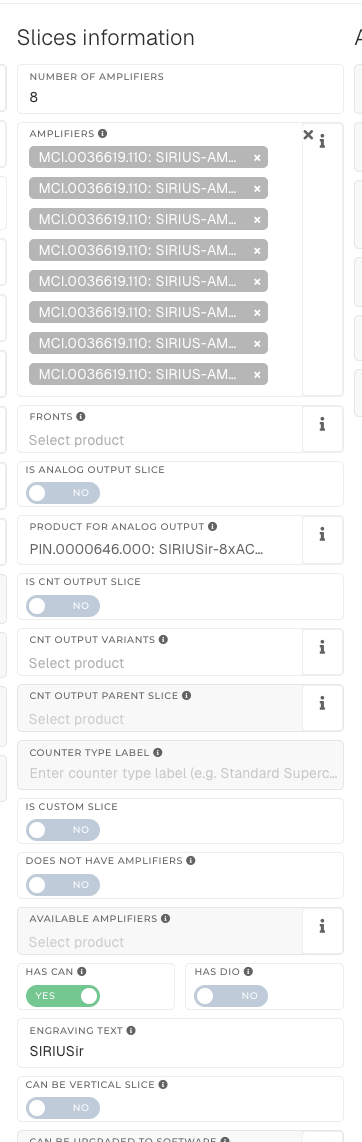 Slices information
| Setting | Can be set for | What it does in the configurator |
|---|---|---|
| Number of amplifiers | Slices | Meant as the number of amplifier slots in the slice. The configurator does not read this setting at the moment and always draws 8 slots. |
| Amplifiers | Slices (not custom) | The amplifiers placed in the slots, in order. The same amplifier can be added more than once. |
| Fronts | Slices (not custom) | The front connectors on those amplifiers, in the same order. |
| Is analog output slice | Slices | This slice is the analog output (AO) version: the AO switch is on and the name gets -8xAO. |
| Product for analog output | Slices that are not AO slices | The AO version of this slice. It replaces the slice when the customer turns on analog output. |
| Is CNT output slice | Slices | This slice is the counter output (CNT) version: the CNT switch is on and the name gets -8xCNT. |
| CNT output variants | Slices that are not CNT slices | The CNT versions offered in the counter-type dropdown. The dropdown appears only when at least two are set. |
| CNT output parent slice | CNT slices | The normal slice to switch back to when the customer turns CNT off. |
| Counter type label | CNT slices | The name of this version in the counter-type dropdown. Empty uses the product short name. |
| Is custom slice | Slices | The customer chooses the amplifiers and connectors in each slot. The price is the sum of the chosen amplifiers. |
| Does not have amplifiers | Slices | Shows a plain picture of the slice instead of drawing it from amplifiers. |
| Available amplifiers | Custom slices | The amplifiers the customer can choose from for a custom slice. |
| Has CAN | Slices | Adds a CAN connector slot at the end of the slice. |
| Has DIO | Slices | Draws a DIO connector strip next to the slice. |
| Engraving text | Slices | The text engraved on the slice. For custom slices it is also the start of the generated name. |
| Can be vertical slice | Slices | The slice can also be used in a vertical system (e.g. PWR MCTS on R4 or R8); a rotated picture is made for it. |
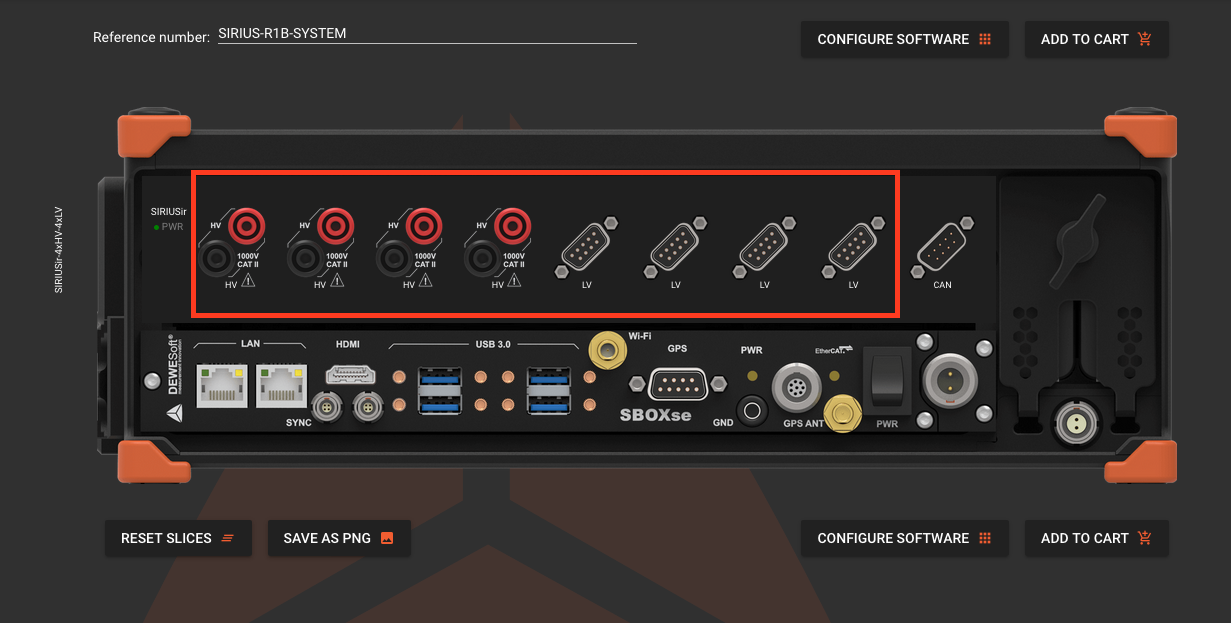
Configurator: amplifiers and fronts in a slice
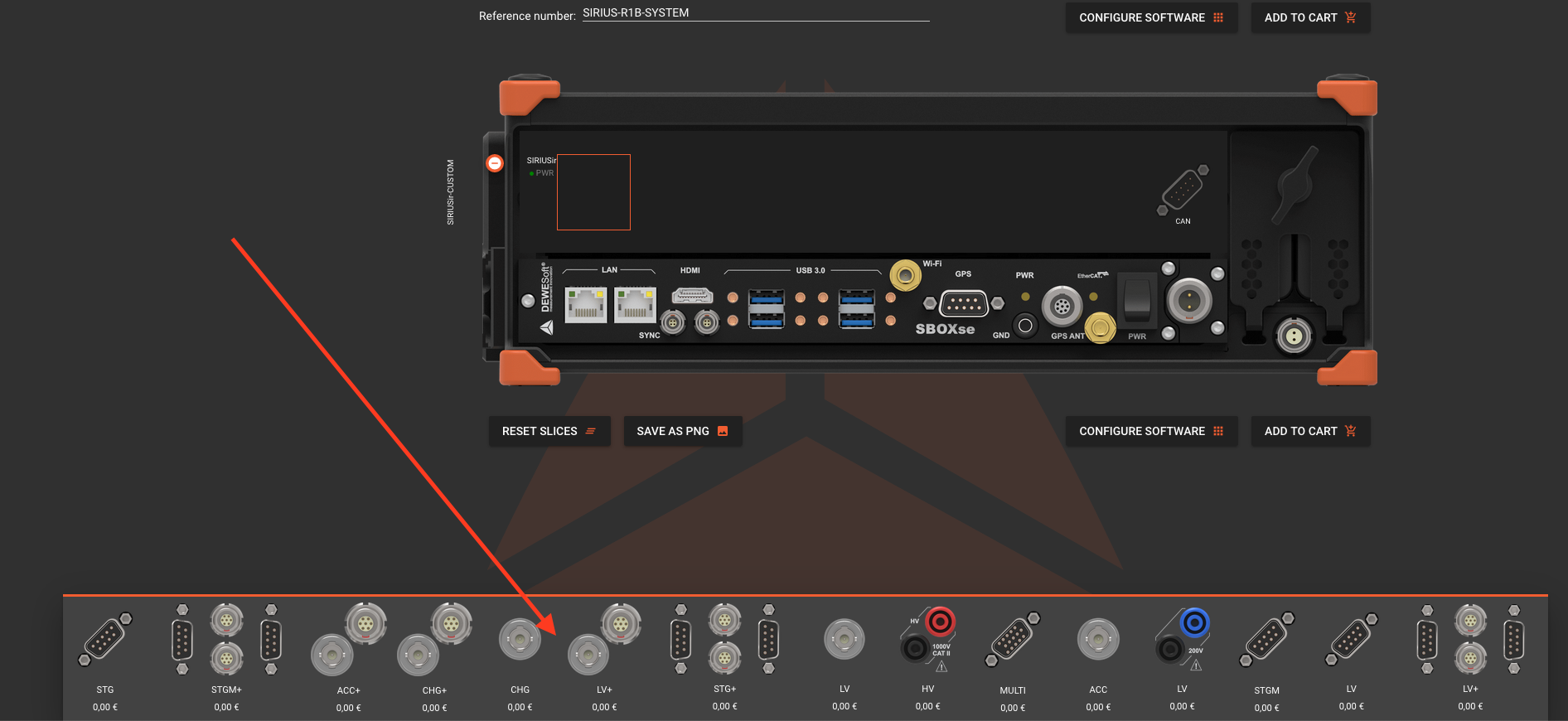
Configurator: choosing amplifiers for a custom slice
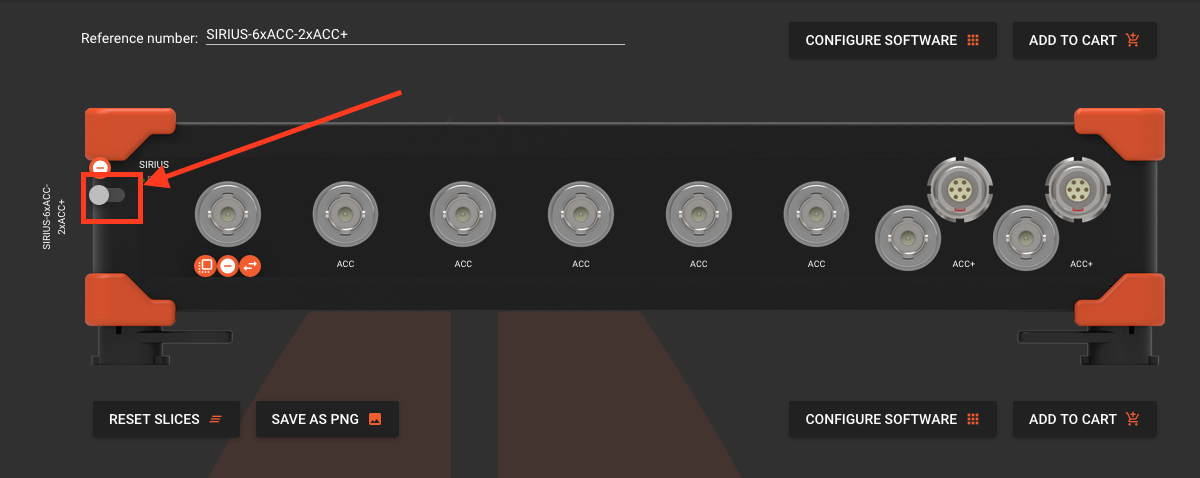
Configurator: analog output on a slice
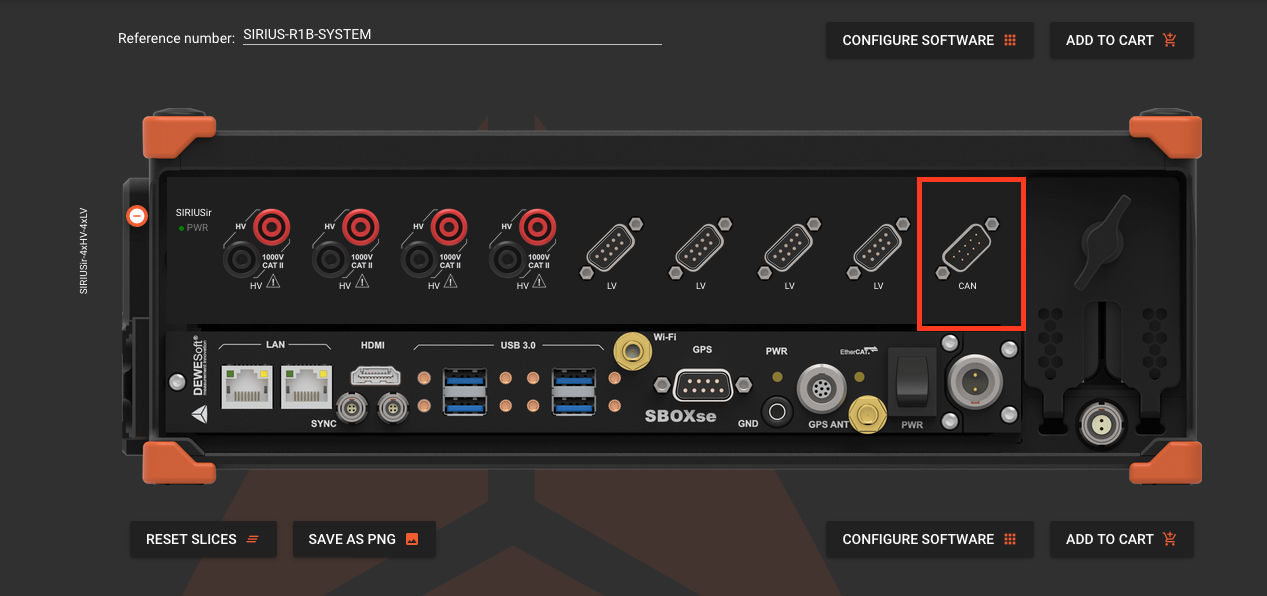
Configurator: CAN connector at the end of a slice
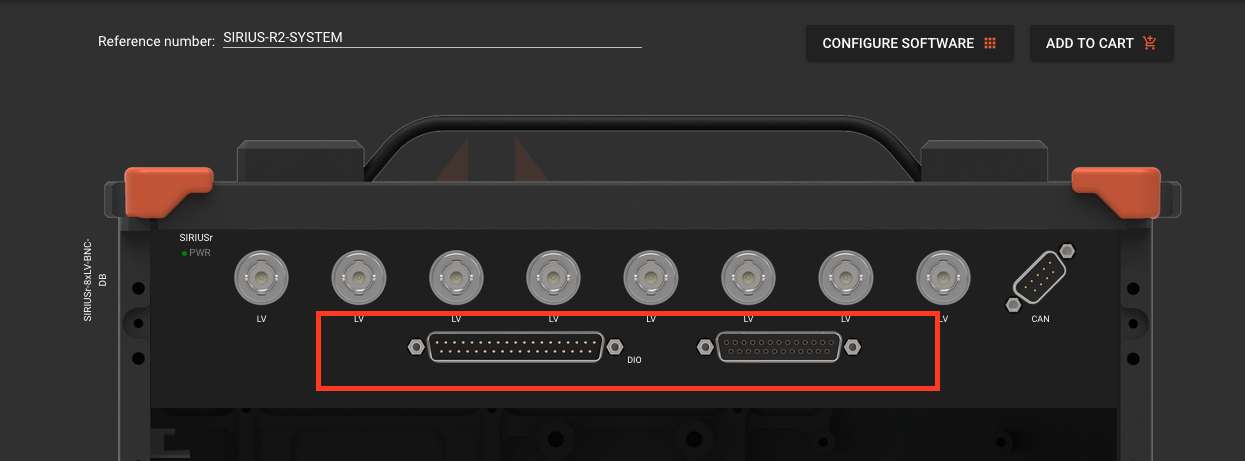
Configurator: DIO connector next to a slice
5. Amplifiers information
Settings for products marked Is amplifier or Is front.
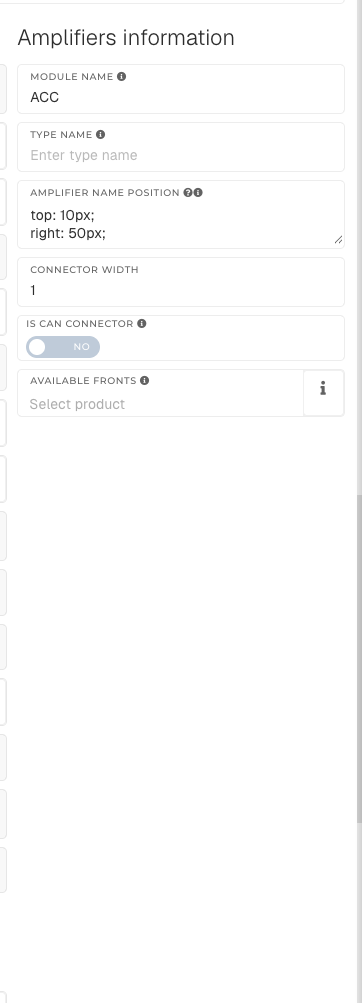 Amplifiers information
| Setting | Can be set for | What it does in the configurator |
|---|---|---|
| Module name | Amplifiers, fronts | The name shown on the slot and in the connector chooser. Amplifiers are sorted by it, and custom slice names are built from it. |
| Type name | Amplifiers, fronts | Added after the module name in the generated slice name. |
| Amplifier name position | Amplifiers, fronts | Meant as the position of the name on the slot (a CSS style such as top: 10px; left: 5px;). The configurator does not read this setting at the moment. |
| Connector width | Amplifiers, fronts | How many slots the amplifier takes (1 or 2). |
| Is CAN connector | Amplifiers | This is the product used for the CAN slot on slices with Has CAN. |
| Available fronts | Amplifiers | The front connectors the customer can choose for this amplifier. |
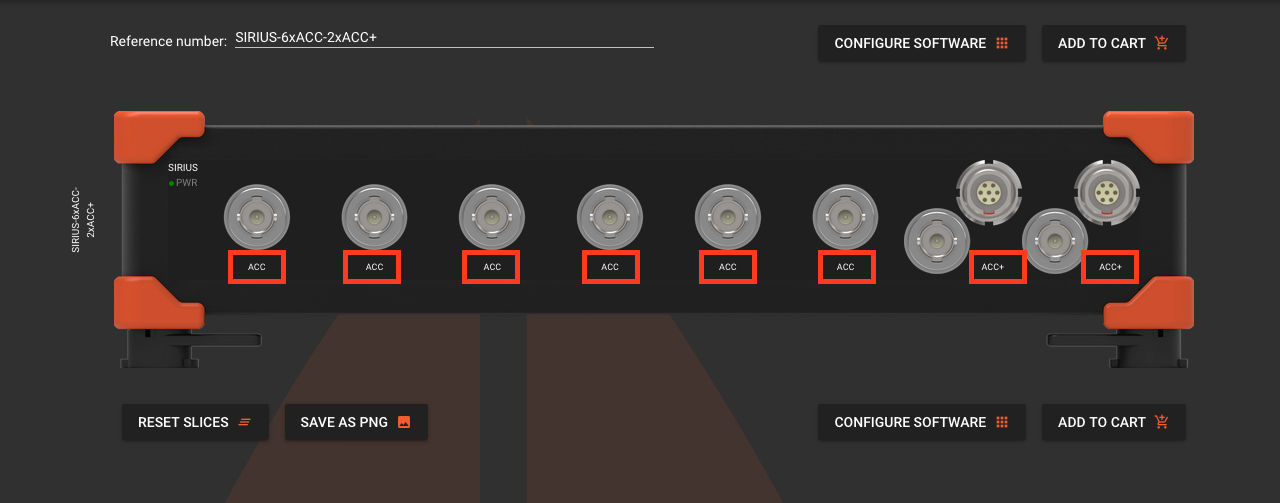
Configurator: module and type name on an amplifier
6. Software information
Which software comes with a system, and which options a software or package offers.
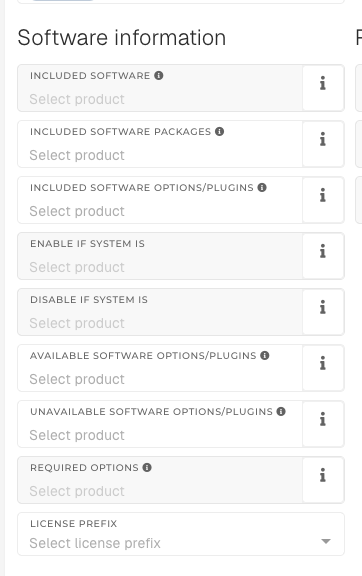 Software information
| Setting | Can be set for | What it does in the configurator |
|---|---|---|
| Included software | Systems | Software that comes free with the system, shown on its Software tab. |
| Included software packages | Systems, slices, software, packages | Packages that come free with the product. |
| Included software options/plugins | Systems, slices, software, packages | Options that come free with the product. |
| Enable if system is | Software options | The option is offered only inside these systems, not when software is bought on its own. |
| Disable if system is | Software options | The option is hidden inside these systems. |
| Available software options/plugins | Software, packages | Only these options are offered with the software. |
| Unavailable software options/plugins | Software, packages | These options are not offered with the software. |
| Required options | Software options | Options this option needs (e.g. CEA-ADVANCED needs CEA-BASE). Choosing the option adds them; removing a required one also removes this option. |
| License prefix | Any product | The first letters of the licence key. DWS marks rental software, which logged-in customers can extend with Extend licenses. |
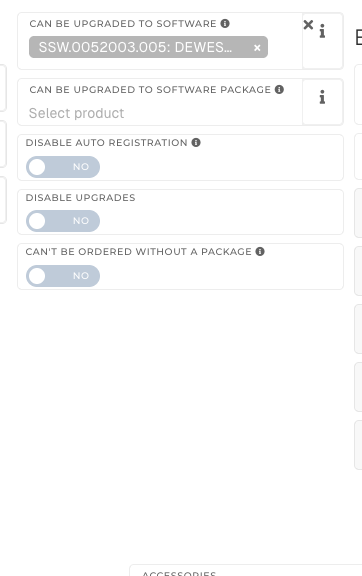 Software upgrade settings
| Setting | Can be set for | What it does in the configurator |
|---|---|---|
| Can be upgraded to software | Software, packages | The software this licence can later be upgraded to. |
| Can be upgraded to software package | Software, packages | The packages offered as upgrades in the software builder. |
| Disable auto registration | Software, packages | Licences for this software are not registered automatically. |
| Disable upgrades | Any product | Marks software that should not be upgraded. It has no visible effect in the configurator. |
| Can't be ordered without a package | Software | The order cannot be sent unless the cart also has a software package (Some software can only be ordered together with a software package). |
7. RT software information
For systems marked Is RT system: the DewesoftRT software, packages and options that come free with the system. They are shown on the Software RT tab.
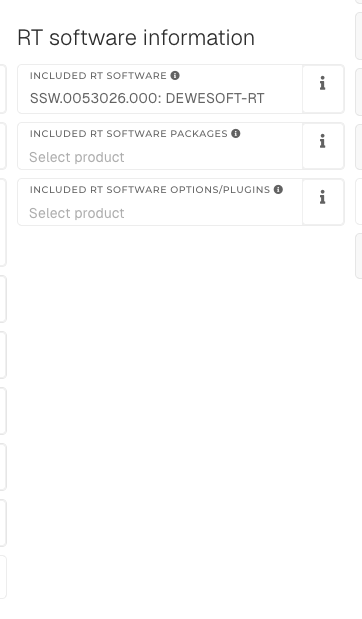 RT software information
8. Ethercat configuration
Values used by the EtherCAT calculator in the configurator, which checks that every device on an EtherCAT chain gets enough power.
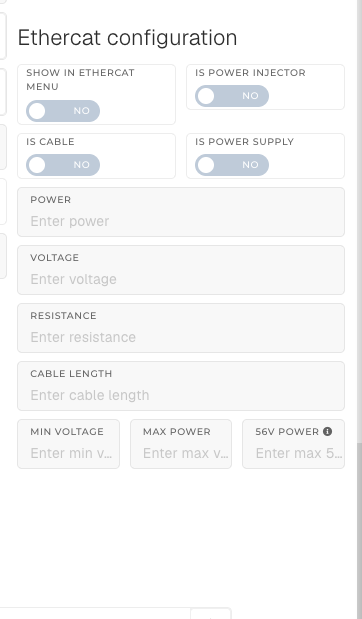 Ethercat configuration
| Setting | Can be set for | What it does in the configurator |
|---|---|---|
| Show in ethercat menu | Any product | The product is shown in the menu while the EtherCAT calculator is open. Such products in the cart are copied into the calculator. |
| Is power injector | Any product | Marks a power injector. Not used by the calculator at the moment. |
| Is cable | Any product | The product is offered in the calculator's cable dropdown. |
| Is power supply | Any product | The product is offered in the power-supply dropdown. |
| Power, Voltage | Power supplies, power injectors | The supply's output used in the calculation. 56 V switches the calculator to 56 V mode. |
| Resistance, Cable length | Cables | Used to calculate the voltage drop over the cable. |
| Min voltage, Max power | Products shown in the ethercat menu | What the device needs to run. |
| 56v power | Products shown in the ethercat menu | The device's power when the supply is 56 V (for PoE). |
9. Style info
How a system is drawn. Each value is a CSS style, e.g. top: 18.5%; left: 5%;. Change it only together with a developer or someone who knows the system pictures.
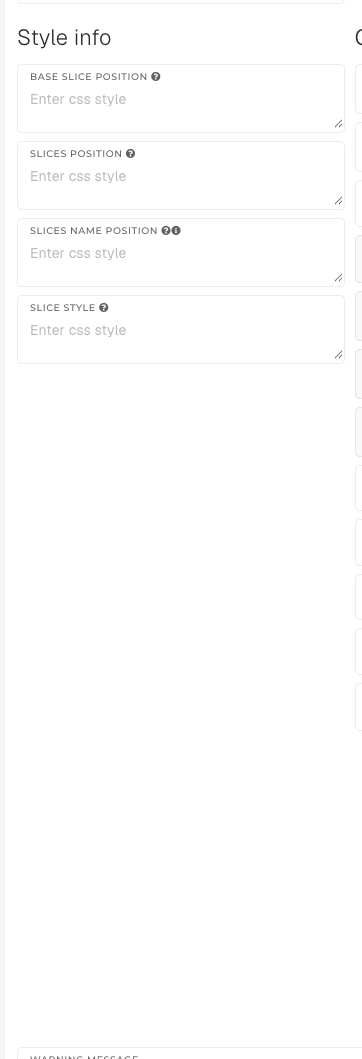 Style info
| Setting | Can be set for | What it does in the configurator |
|---|---|---|
| Base slice position | Systems | Where the base-slice picker sits on the system picture. |
| Slices position | Systems | Where the slices are placed on the system picture. |
| Slices name position | Systems | Where the slice name label is placed. |
| Slice style | Systems | Size and spacing of each slice. |
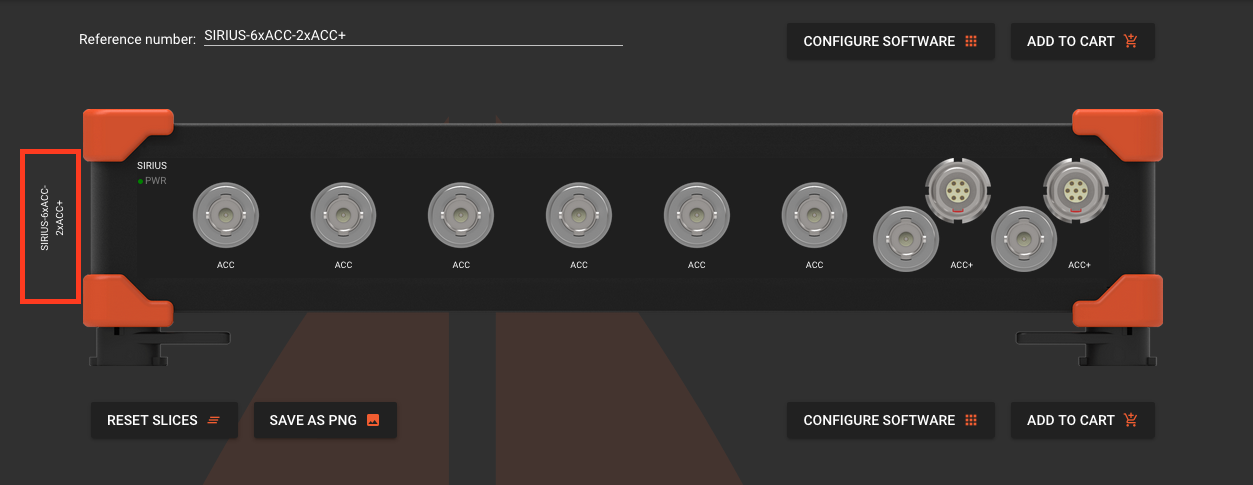
Configurator: slice name position
10. Other information
Settings for any product type: cables with a length, serial numbers, licences, what is added to the cart, warranty and price lists.
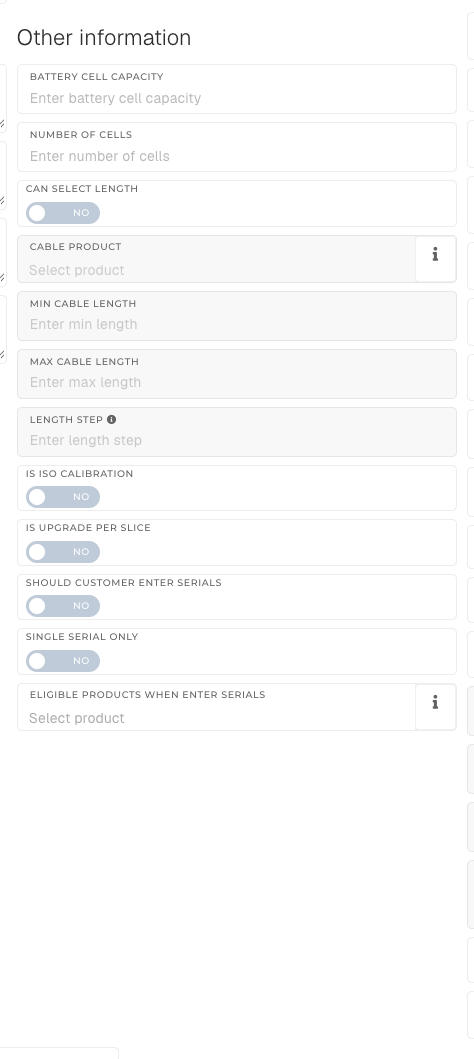 Other information: length, serials, licences
| Setting | Can be set for | What it does in the configurator |
|---|---|---|
| Battery cell capacity, Number of cells | Any product | Battery data. Not used by the configurator. |
| Can select length | Any product | The customer enters a cable length. The name gets -Xm and the price is the cable price times the length. |
| Cable product | Products with Can select length | The cable whose price is used per metre. |
| Min cable length, Max cable length, Length step | Products with Can select length | Limits for the length the customer can enter, and the step (e.g. 0.5 → 0.5, 1, 1.5…). |
| Is ISO calibration | Any product | Turns on the factory spec checkbox when the customer enters serials for a calibration. |
| Is upgrade per slice | Any product | The upgrade is counted once for every slice it fits in the system. If no slice fits, the customer gets an error. |
| Should customer enter serials | Any product | The customer must enter the serial numbers of their devices. Stock, price, scope of supply and weight are hidden. |
| Single serial only | Any product | Only one serial number can be entered. |
| Eligible products when enter serials | Any product | The devices (systems or slices) the entered serials must belong to. |
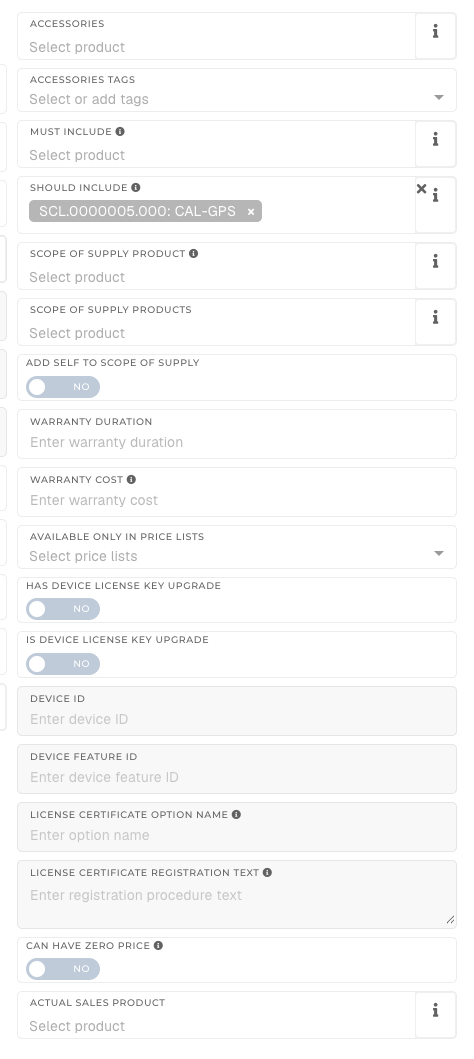 Other information: cart, warranty, price lists
| Setting | Can be set for | What it does in the configurator |
|---|---|---|
| Accessories, Accessories tags | Any product | Products (or every product with the tag) offered on the Accessories tab of a system and in the accessories list of a product. |
| Must include | Any product | Added to the cart together with this product. The customer cannot remove them or change their quantity. |
| Should include | Any product | Added to the cart together with this product. The customer can remove them. |
| Scope of supply product | Any product | Shown in Scope of supply instead of this product. |
| Scope of supply products | Any product | Extra products listed in Scope of supply. |
| Add self to scope of supply | Any product | The product lists itself in Scope of supply. |
| Warranty duration | Any product | Makes the product a warranty extension: the customer must enter a serial, which is checked, and the warranty of that serial is extended once invoiced. |
| Warranty cost | Any product | Warranty price as a percentage per year. Not used by the configurator. |
| Available only in price lists | Any product | Only customers on one of these price lists see the product. Empty means everyone. |
| Has device license key upgrade | Any product | The device supports a licence-key upgrade (e.g. higher sample rate). |
| Is device license key upgrade, Device id, Device feature ID | Any product | The product is that upgrade. When it is sold, a licence key for the given device and feature is generated. |
| License certificate option name | Device licence upgrades | Printed as TYPE on the licence certificate. Empty uses the product name. |
| License certificate registration text | Device licence upgrades | Printed as the registration procedure on the licence certificate. |
| Can have zero price | Any product | The product can be ordered at a price of 0 (e.g. Dewesoft X Base). Otherwise an order with a product without a price is blocked. |
| Actual sales product | Any product | The product that is actually sold instead of this one. Not used by the configurator. |
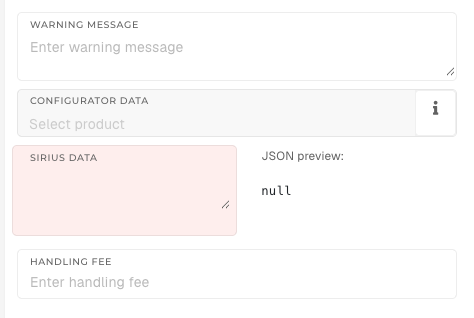 Other information: warning and system data
| Setting | Can be set for | What it does in the configurator |
|---|---|---|
| Warning message | Any product | Shown in a red box on the system builder and product page, and as a popup in the software builder. |
| Configurator data | Read-only | The configuration a custom SIRIUS product was made from. Used to reuse the same product when someone orders the same configuration again. |
| Sirius data | Super admins only | Technical data used for licences, e.g. a licence time limit. |
| Handling fee | Any product | Handling fee charged for the product in the web shop (e.g. for rentals). |