Appearance
Email reports for service errors
Let a team know by email when an internal service (INT) records certain service errors — for example, tell the accessories team whenever a cable is found not working. The report is set up per facility: you choose a reporting resource (the group of people who get the email) and the combination of service errors that should trigger it.
1. Prepare the reporting group
The email goes to everyone in the Users field of a work resource. Go to Work resources and open (or create) a resource of type Service internal reporting — for example INT reporting - Accessories. Add the people who should get the report to Users and make sure the resource has the right Facility, then click Save.
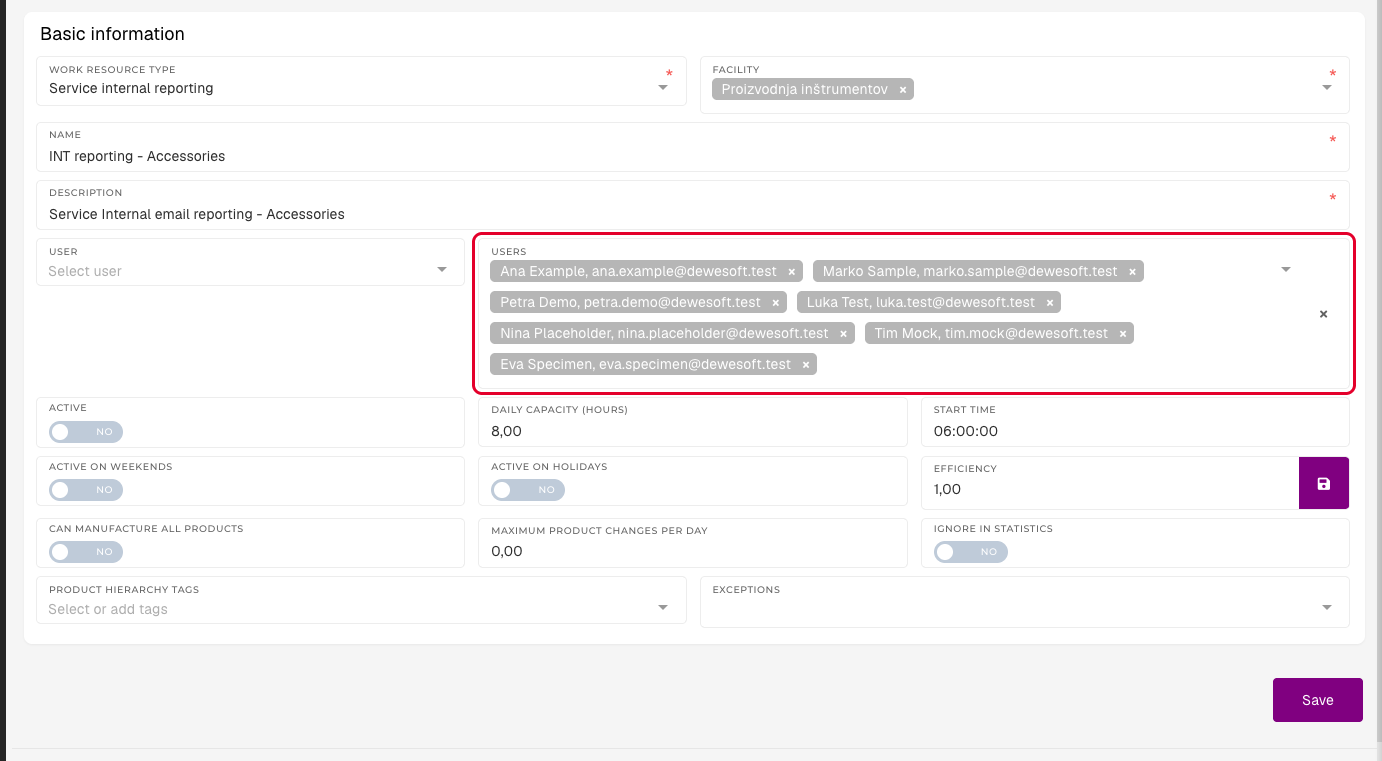 A reporting resource and the users who get the email
TIP
Use one reporting resource per team (for example INT reporting - Accessories, INT reporting - Calibration), so each team only gets the reports that concern them.
2. Open the facility
Go to Production facilities, open the facility and expand Service Error Reporting at the bottom of the page. On the right, Current Reports lists the reports that already exist.
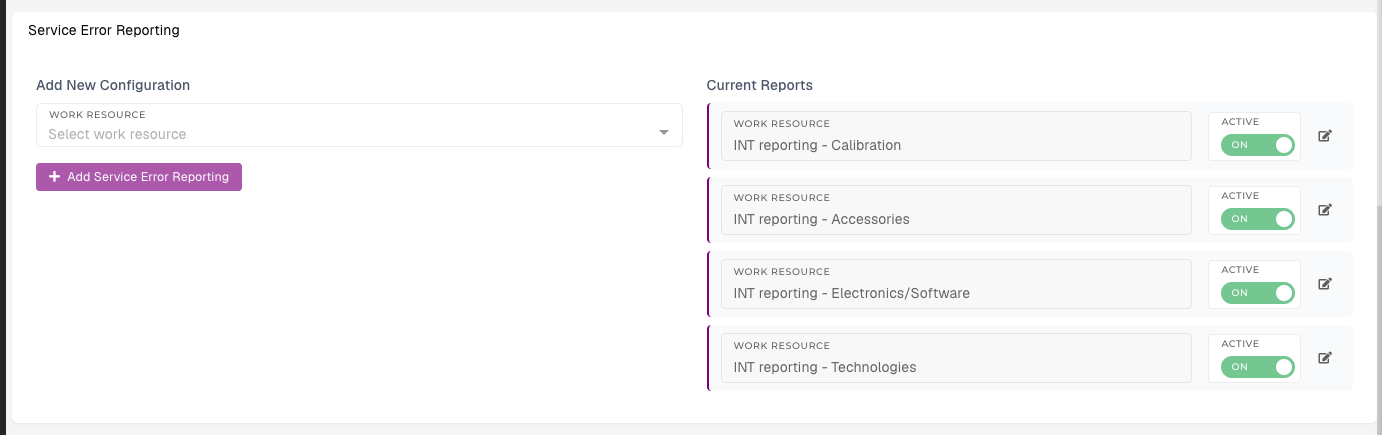 The Service Error Reporting section of a facility
3. Add a report
Under Add New Configuration, pick the reporting resource in Work resource and click Add Service Error Reporting.
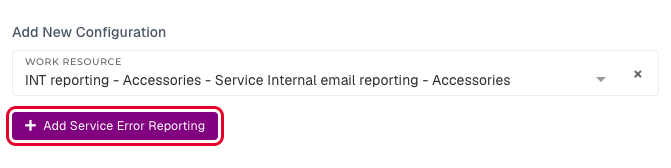 Pick the resource, then add the report
4. Choose the service errors
The Service errors editor opens for the facility and resource. Click the service errors that should trigger the email — they appear on the right under Your Condition. Clicking an error from a group also adds its group (for example Smoke under Accessories adds Accessories too).
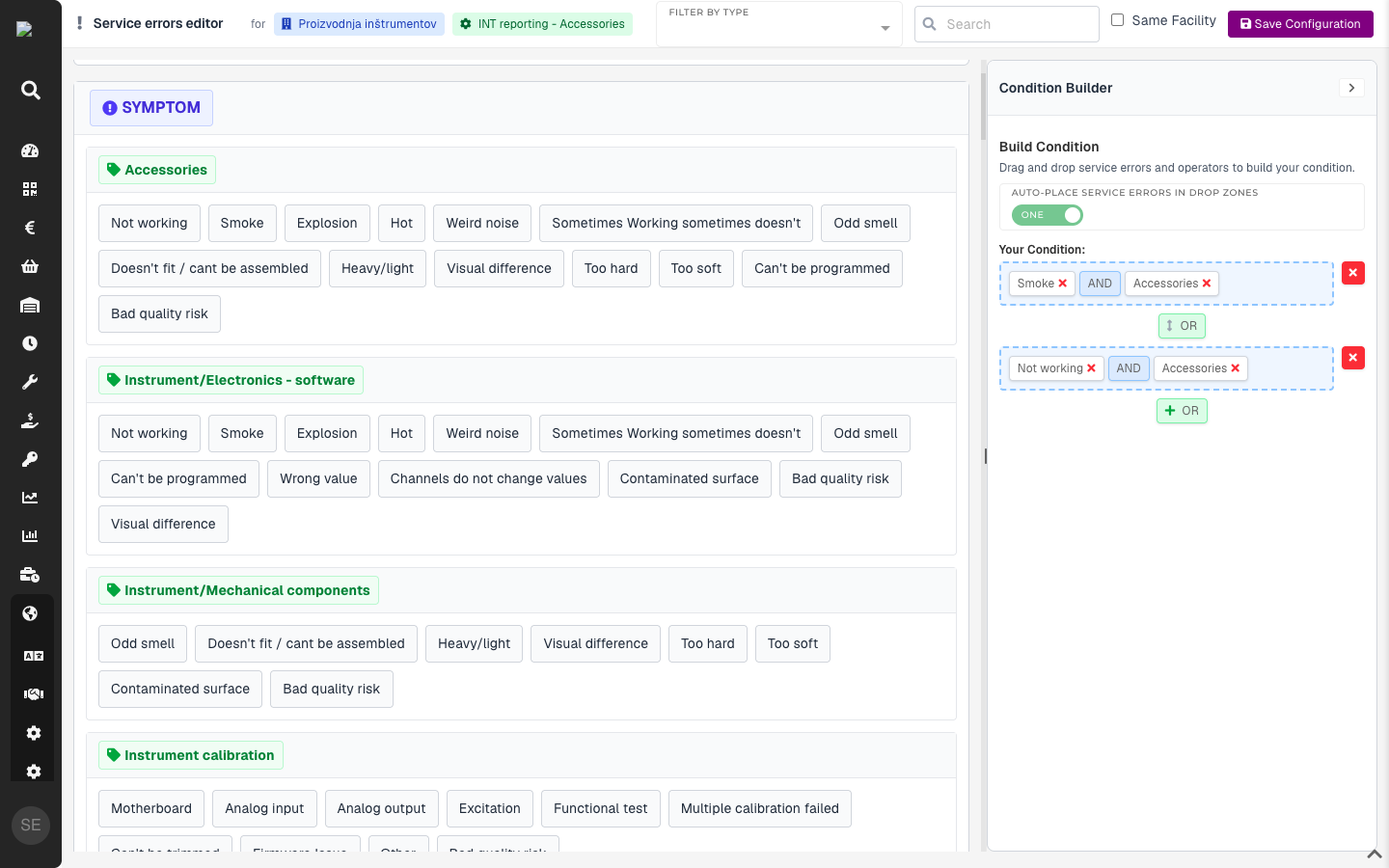 Selected service errors and the condition they build
How the condition reads:
- Errors in the same box must all be on the INT (AND).
- Boxes are alternatives — any one box is enough (OR).
- With Auto-place set to ONE, each error you click starts a new box. Set it to MANY to add the next error to every box, or drag an error into an existing box to combine it.
- Click × on an error to remove it, or + OR to add an empty box.
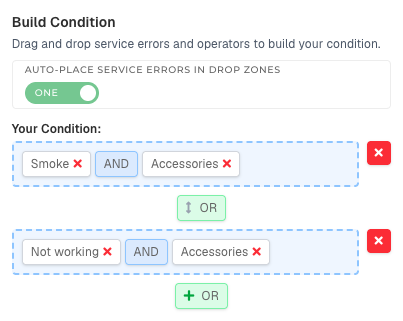 Two boxes: Accessories AND Smoke, OR Accessories AND Not working
5. Limit to this facility and save
Tick Same Facility to send the email only for INTs whose serial was produced in this facility — without it, the report applies to INTs from every facility. Then click Save Configuration — you are taken back to the facility, where the new report is listed under Current Reports.
 Same Facility and Save Configuration
6. Turn a report off or change it
In Current Reports, switch Active off to pause a report without deleting it. Click the edit icon to open it in the editor again — change the errors and click Save Configuration.
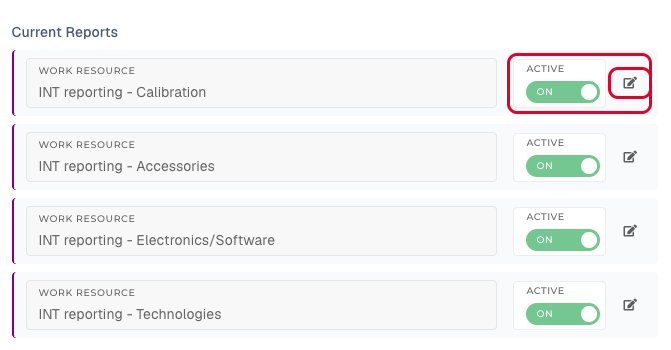 Active switch and edit button
NOTE
When the email is sent: when someone saves a level 2 or level 3 error-tracking task of an INT with the result Kalo or Finish (level 3 also Away), the errors they selected are compared with every active report. For each report whose condition matches, everyone in the resource's Users gets the email Dewesoft - Internal service reporting, followed by the INT number, with the claim note PDF attached.
The person who saved the task does not get the email themselves.