Appearance
Multi-factor authentication
The first time you log in from a device you haven’t used before — a new computer or phone — you’ll be asked to set up two-factor authentication.
NOTE
This process is always required when logging in from a device you haven’t logged in from before, and has to be repeated if your two-factor authentication is ever reset.
1. Open the login page
You can sign in with your Google account, or with your e-mail address and password.
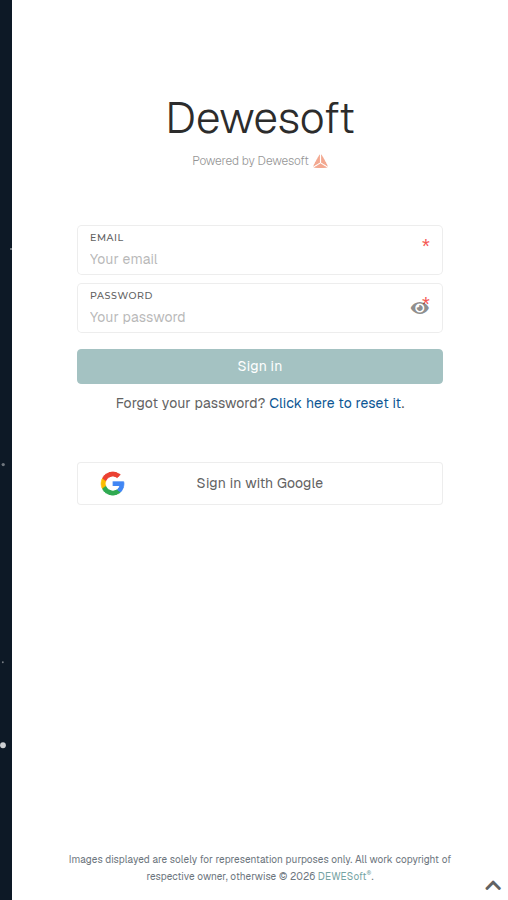 The login page
TIP
For first-time login on a new device, signing in with Google is recommended.
2. Sign in with Google
Click Sign in with Google. You’ll be redirected to Google to confirm the authorization, then back to the ERP.
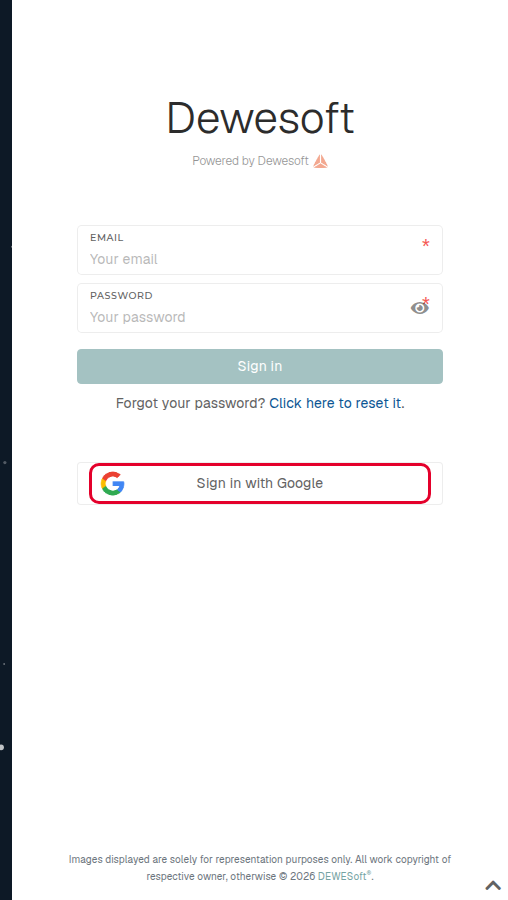 The Sign in with Google button
Back on the ERP, a QR code is generated for you. Save it to an authenticator app (such as Google Authenticator) — you’ll need that app for every later login. Once it’s saved, click Continue and enter the code the authenticator app shows you.
3. Or sign in with e-mail and password
Enter your e-mail, then your password.
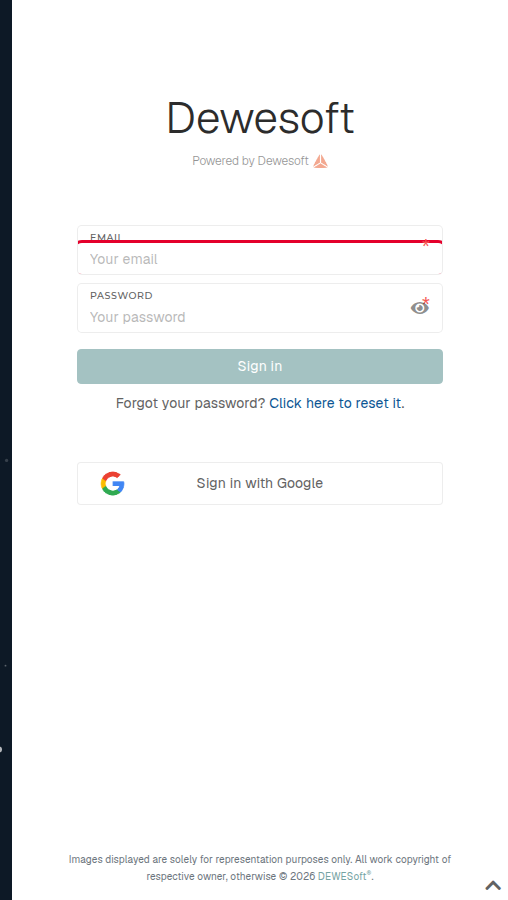 The e-mail and password fields
If the credentials are correct, a verification code is e-mailed to you — enter it on the form that follows. A QR code is then generated the same way as with Google: save it to an authenticator app for later logins.
NOTE
From this point on, login works the same regardless of which method you started with.
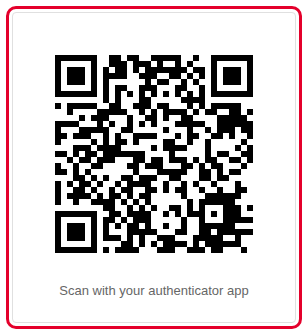 An example of the QR code screen (illustrative placeholder — not a real authentication secret)
4. Save your backup codes
Once first-time login is complete, you’ll receive 10 single-use backup codes. Use one if you ever forget your password or your authenticator app isn’t available — each code works only once. You can download them as a text file, print them, or copy them to your clipboard.
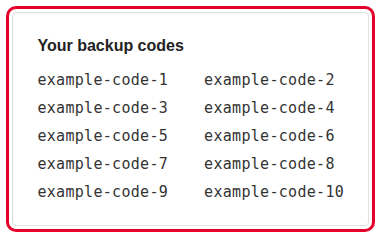 An example of the backup codes screen (illustrative placeholder codes)
CAUTION
These codes can be used to bypass both your password and your two-factor authentication — keep them private and never share them with anyone.
5. Using a backup code
On the two-factor verification step, click Use another method, then Use a backup code, and enter one of your unused codes.
NOTE
If you lose or run out of codes, or think your backup codes were stolen, contact support — they’ll reset your two-factor authentication.
6. Logging in again: e-mail and password
Once a device has completed first-time login, later logins are quicker.
NOTE
This is for a device that’s already completed first-time login — see above if it’s your first time on this device.
Enter your e-mail address and click Continue, then enter your password. A verification code is e-mailed to you — enter it on the form that follows. You’re then asked for the code from your authenticator app, same as every other login. A correct code shows a success message, then redirects you to the ERP dashboard.
7. Logging in again: Google
Click Continue with Google, then enter the code from your authenticator app.
NOTE
If your Google account isn’t authorized yet, you’ll be asked to authorize it before being redirected back to the verification form.
Once the correct code is entered, you’re redirected to the ERP dashboard.
IMPORTANT
The authenticator app code is required on every login — if your two-factor authentication is ever reset, the full first-time setup above has to be done again, even on a device that had already completed it before.