Appearance
AGV Control Panel
The AGV Control Panel monitors and manages automated guided vehicle deliveries around the warehouse, from planning a delivery to watching it complete.
Three things to keep in mind before changing anything:
- Press Refresh first. Sections don’t update automatically unless you turn that on.
- Read the pop-up before you confirm. Most buttons here ask for confirmation because they change something.
- Don’t guess. If you’re not sure what an action does, check before clicking it.
1. The six sections
- Station Buffers — the worker stations, their presence, and what’s queued for them. View-only; a good first place to spot a missing AGV node or an overfilled station.
- Work Order Items For Delivery — items waiting to be planned for robot delivery. Use Create to convert one into a delivery manually, if automatic planning didn’t pick it up.
- Delivery Items — items already planned but not yet assigned to a cart. Group them into a trip with Mission — a cart holds up to 8 slots.
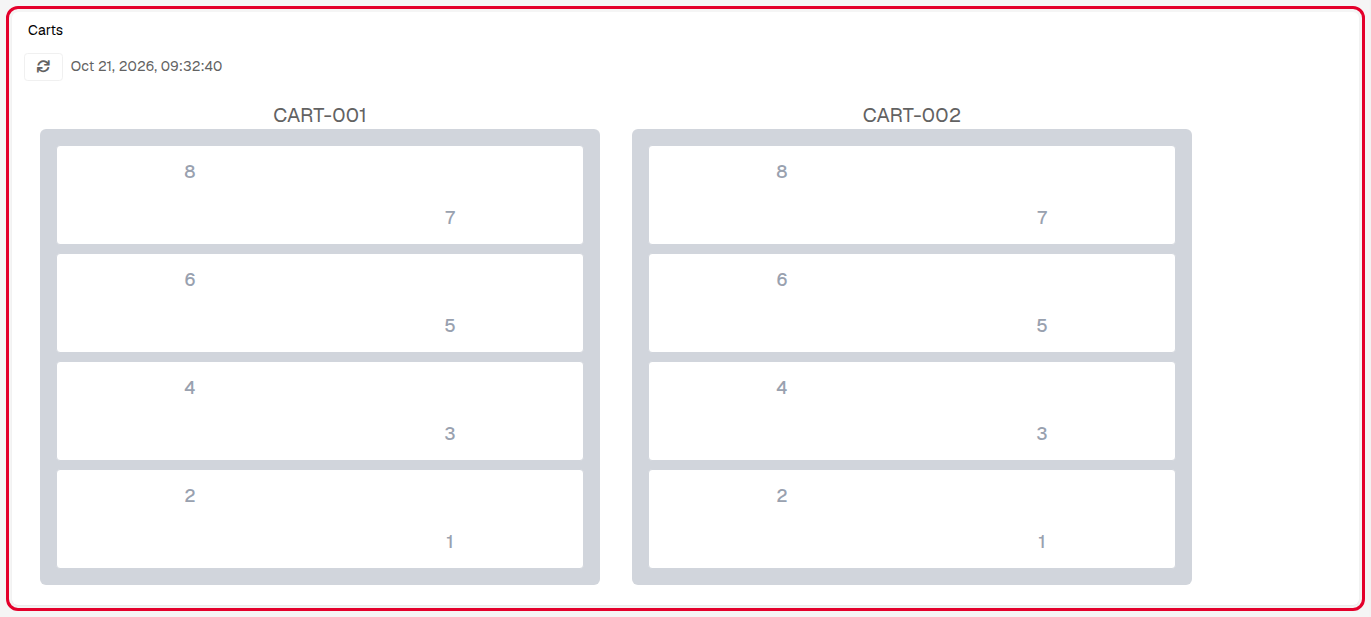 The Carts section — the physical AGV cart inventory
Carts — the physical AGV cart inventory. Lets you remove a phantom box from the system’s records when the cart itself doesn’t actually have it.
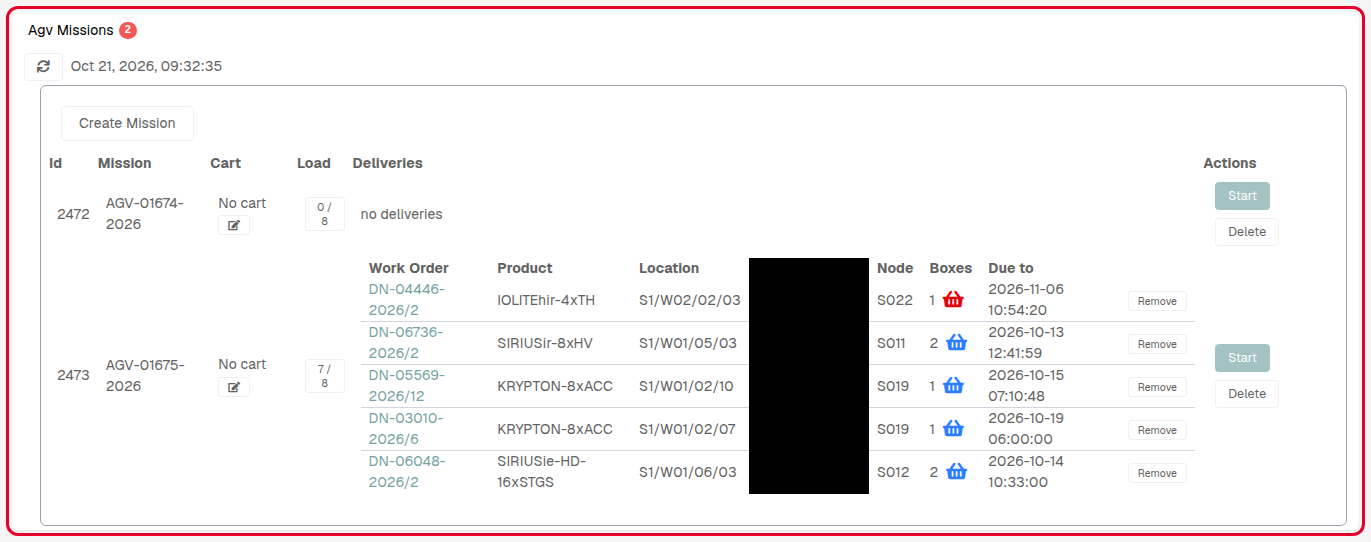 The Agv Missions section — preparing a mission before sending it off
AGV Missions — missions being prepared: assign a cart, add items, then Start to send it off.
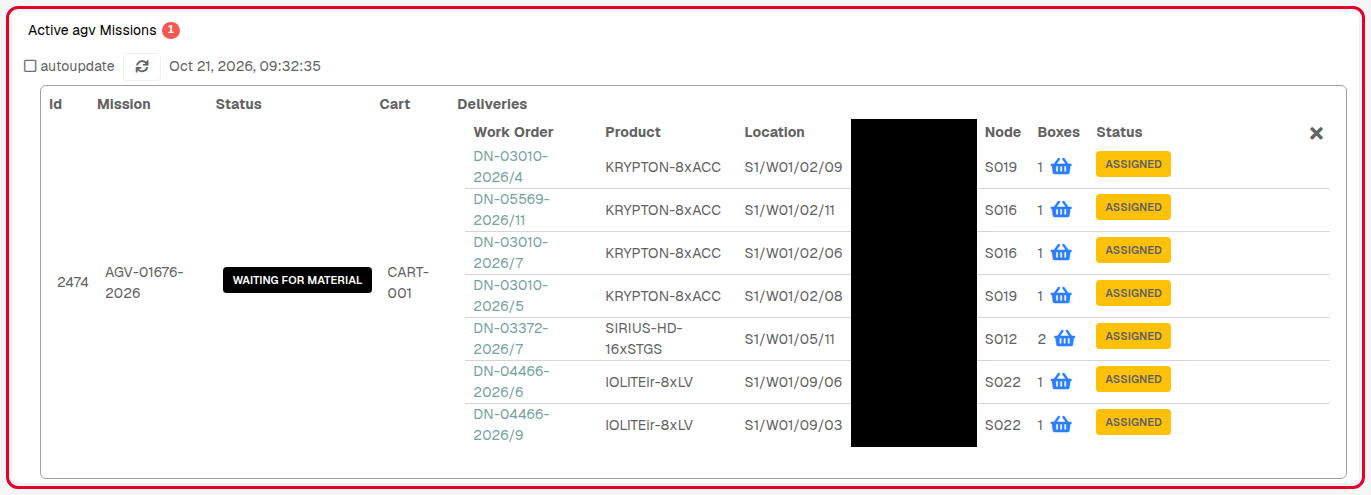 The Active AGV Missions section — missions in progress
Active AGV Missions — missions in progress, with Abort, Return to wall, Manual deliver and Force close for when something goes wrong.
2. Who does what
- The runner loads and returns carts physically.
- Operators accept deliveries at their station.
- Planners handle the automatic grouping logic, and step in when it doesn’t trigger.
3. Status terms
- A mission moves through New → Waiting → In Progress → Returning → Closed.
- An item moves through New → Assigned → In Transit → Delivered → Completed.
NOTE
When asking for help, give the mission or item number, the box identifier, and the exact error message — along with what you expected to happen versus what actually did.