Appearance
Transfer promo material
Promotional products and office supplies are moved with an ordinary goods transfer, but the system treats them differently depending on where they go. Moving them between promo stock warehouses keeps them in stock; handing them out to anywhere else (a colleague, a department, a booth) writes them off.
Which products count as promo material and which warehouses hold promo stock is set up on the product types and warehouses — see Set up promo material.
1. Start a new goods transfer
Go to Goods transfers, click +, and in the Items section click Manage goods transfer items.
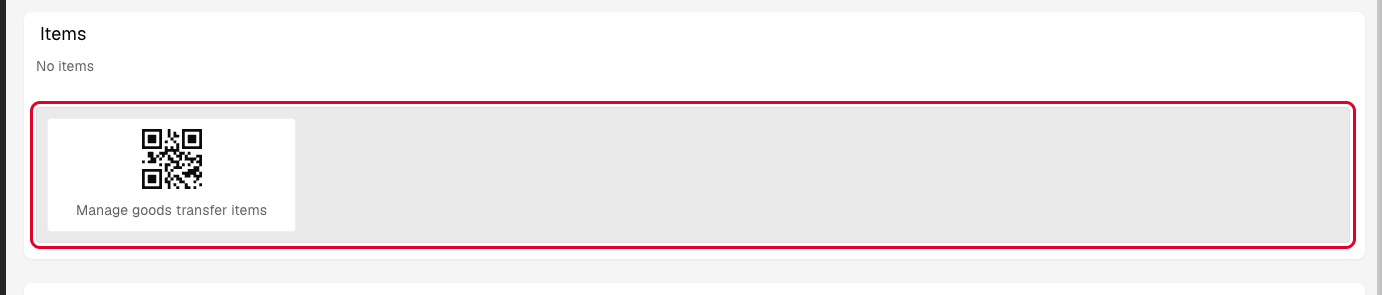 The Items section of a new goods transfer
2. Pick the promo product
Click Product and search for the product by its code or name. The list underneath then shows only promo stock locations that have the product, with the quantity in each.
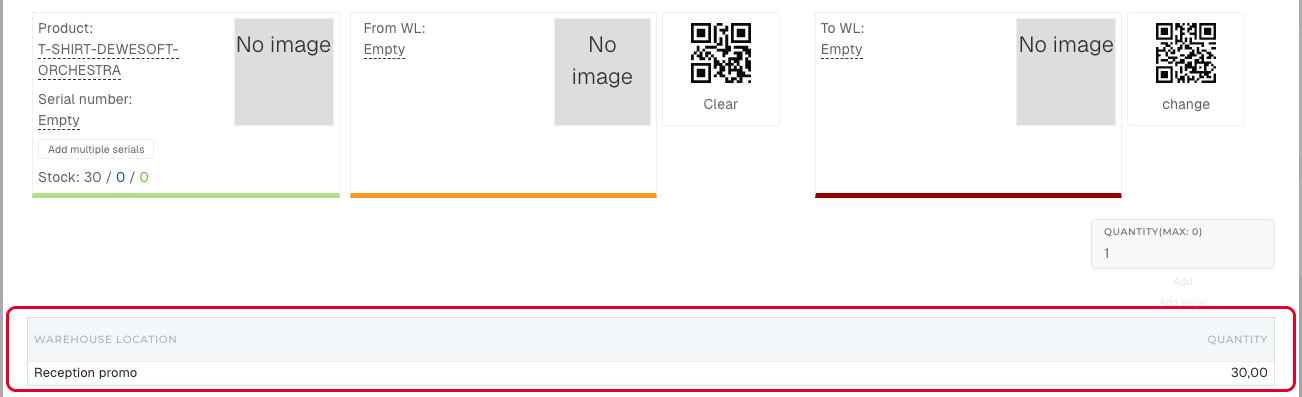 A promo product and the promo stock locations that hold it
3. Choose where it comes from
Click the location to take the product from. It fills in From WL.
IMPORTANT
Promo material can only be transferred from a promo stock location. If you pick any other location in From WL, you get “You cannot transfer promo or office supply material from non promo warehouse!” and the field is cleared.
4. Move it to another promo stock location — it stays in stock
To restock another promo shelf or warehouse, pick a location of a Promo stock warehouse in To WL and add the quantity (+1, +5, the maximum, or type it under Quantity and click Add). This is an ordinary transfer: the material is still counted in stock, just in a different place. No warning is shown.
 A line to a promo stock location — no write-off
5. Hand it out — anywhere else writes it off
To give promo material to colleagues, tick them under To warehouse location (this list of everyone’s personal location appears as soon as the product comes from a promo stock location) and click Add selected — one line per person. You can also pick any location in To WL that is not in a promo stock warehouse.
 Pick the colleagues who get the material
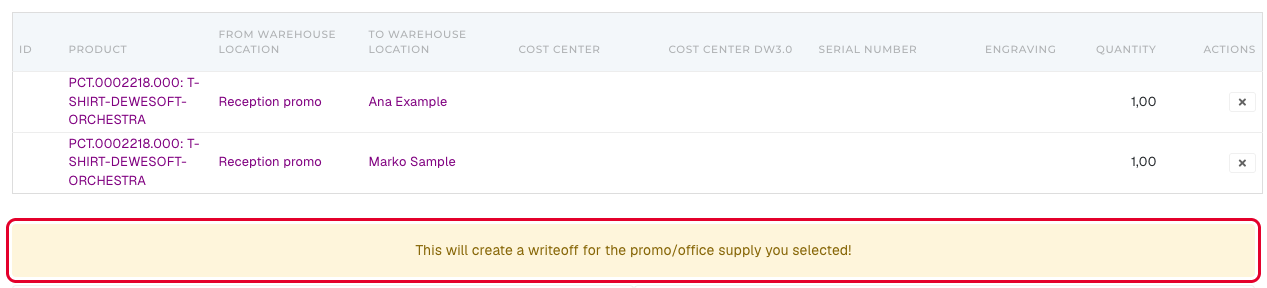 Lines to colleagues and the write-off warning
The yellow warning “This will create a writeoff for the promo/office supply you selected!” tells you the material will leave the stock. When you save, the transfer is booked as a promo write-off (movement type 502):
- the quantity is taken off the promo stock location, and the product’s total stock goes down by that amount;
- the material is recorded on the recipient’s location, so you can see who got it, but it no longer counts as stock;
- on the product card the transfer appears as an outgoing movement only.
6. Confirm and save
Click Confirm to close the dialog — the warning stays in the Items section of the form — then click Save.
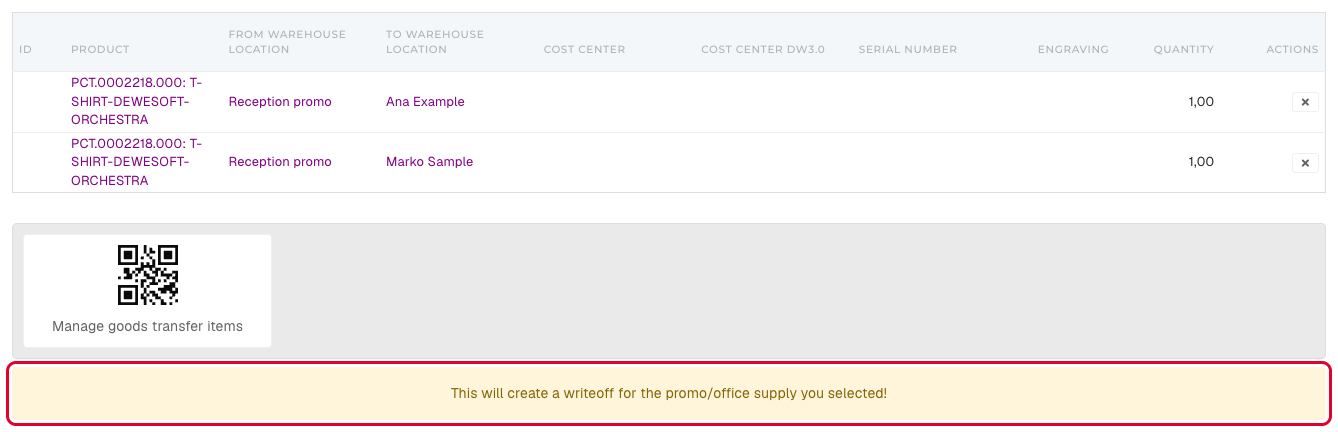 The new transfer, ready to save
WARNING
Keep restocking and handing out in separate transfers. If even one line of a transfer goes to a promo stock location, the whole transfer is booked as an ordinary transfer and nothing is written off — even though the warning is shown.
NOTE
A transfer with promo material can only contain promo material: adding another product gives “You can only add promo or office supply material!”. Transfers that belong to a work order item show no warning and are never booked as promo write-offs.