Appearance
Filters
Filters narrow any table down to the rows you want, and can be saved for reuse.
1. Open columns and filters
Click the filter icon in the toolbar. Fields you can filter on show a funnel icon next to their name.
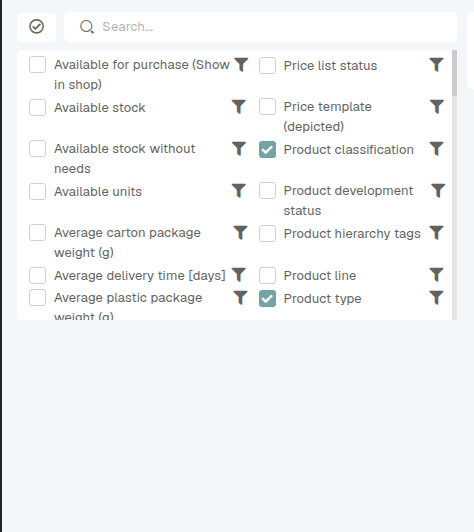 Fields you can filter on
2. Apply a filter
Click a field’s funnel icon to add it, fill in its value, then click Apply filter. Clear removes every filter at once; the x on one filter removes just that one.
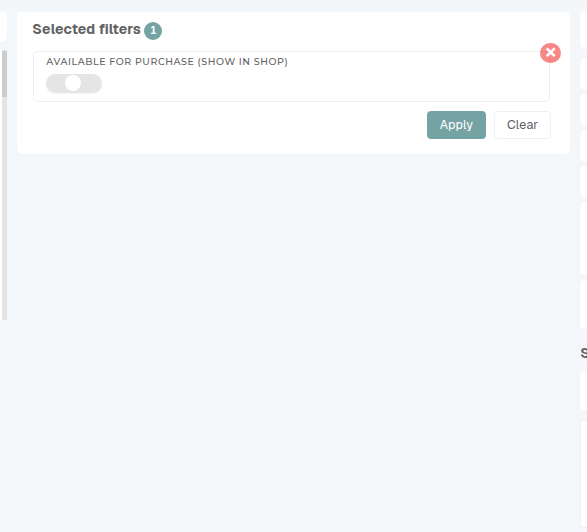 A filter ready to apply
3. Save a filter for reuse
Name it and click + to save it. Saved filters are listed on the right, and stay available across logins.
 Naming a filter to save
 A saved filter
’s star sets it as your default; the pen renames it; the share icon shares it with other users; the trash deletes it. See Get a daily e-mail report from a filter for the clock icon.
4. Reset everything
Reset filters and sort clears every filter and column sort in one click.
 Reset filters and sort