Appearance
Keep documents up to date
Documents need regular care. After you work on a document you set its status, at the planned time you review it, and when something doesn’t meet the requirements you write down why. This guide shows how — usually you do this as the owner of a document. New to the page? Start with Get started with ISO & Compliance.
1. Find the documents that need your attention
Start on the Overview. The lists Overdue, Upcoming (60 days), Non-compliant and Incomplete documents tell you what to do next. Click a document in a list to open it.
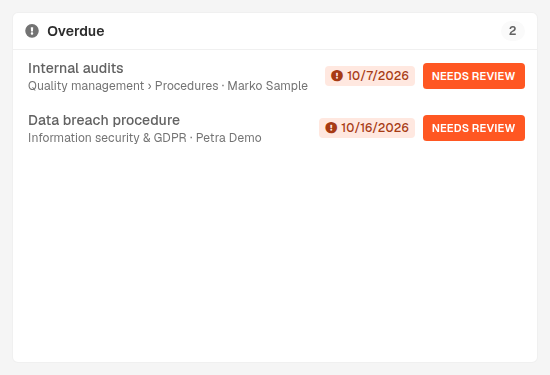 An overdue document on the Overview
The document’s area opens, together with the document’s details.
2. Mark a document as reviewed
When you have checked a document and it is still correct, click Mark reviewed in its details. Add a short note about the review if you like, then click Mark reviewed again.
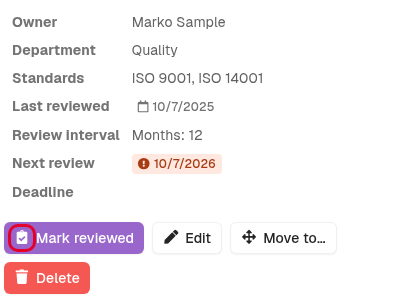 Mark reviewed in the details of a document
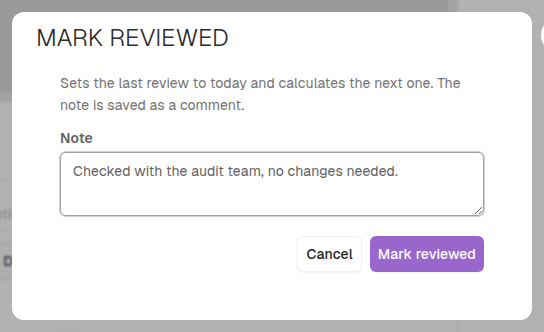 A note about the review
Last reviewed becomes today and Next review moves forward by the Review interval (12 months unless set differently). The document drops off the Overdue list, and your note is saved under Comments.
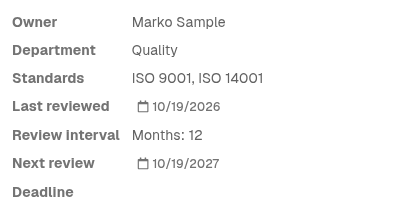 The review dates after the review
3. Change the status
Click the status label — on the document card or at the top of the details. A list of all statuses opens; the current one has a tick. Click the new status. The change is saved straight away and you see Status changed.
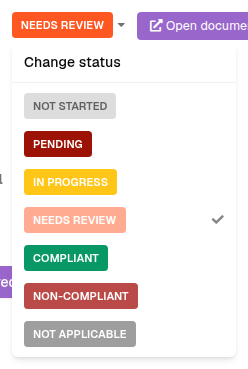 Changing the status
Every change is recorded in the Status history of the document: which status it got, who set it and when. Click the speech bubble next to an entry to read its note.
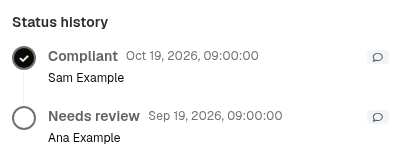 The status history
TIP
Not sure which status to pick? What the statuses mean explains each one.
4. Report a non-compliance
If a document — or what it describes — doesn’t meet the requirements, set its status to Non-compliant. You then have to explain what is wrong: write a Note and click Non-compliant. The note is kept in the status history, so everyone can see why.
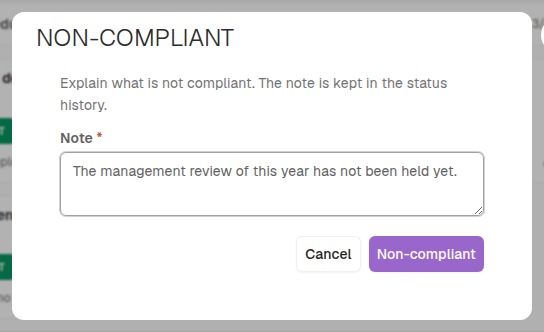 The note for a non-compliance
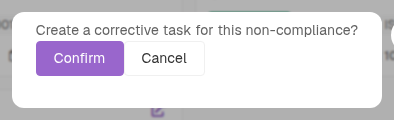 The offer to create a corrective task
Next, the ERP offers to create a corrective task — a to-do for fixing the problem. Click Confirm to open the usual task form; the task is linked to the document and shows up under Tasks in its details. Click Cancel if you don’t need one.
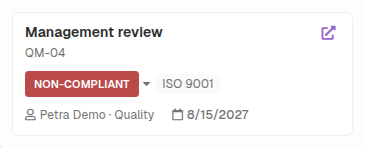 The document is now non-compliant
The document now appears in the Non-compliant list on the Overview until its status changes again.
5. Change the review dates or the deadline
Open the document’s details and click Edit. Under Review you can change Last reviewed, the Review interval (months), the Next review and the Deadline. Click Save when you are done.
 The review dates in the edit form
If you change Last reviewed or the interval, Next review is calculated again for you. Use Deadline for dates that must not move, such as the expiry of a certificate.
6. Attach files
Instead of a link you can keep the document itself in the ERP: drag files from your computer into Files in the details, or use the + button above the list. The card then shows a paperclip with the number of files, and the document is no longer marked Incomplete.
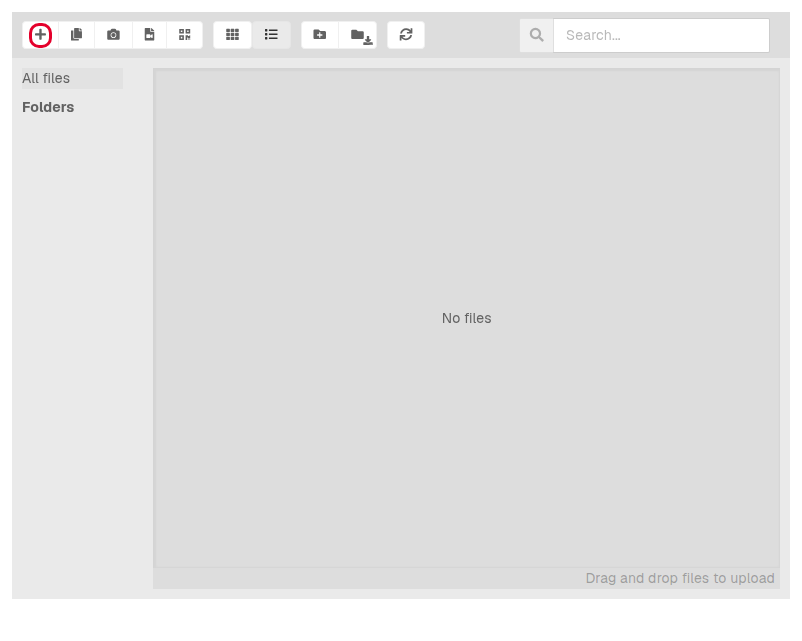 Files in the details of a document
Below the files you find Tasks (for example the corrective tasks of this document) and Comments, where you and your colleagues can write notes about the document.
NOTE
Owners can usually do all of this on their own documents — change the status, mark them reviewed, change the dates and the link — even without the right to edit the structure. Which of these you may do depends on the permissions your administrator gave you; on other people’s documents the buttons are hidden.
What next?
- Get started with ISO & Compliance — the page, its words and the statuses.
- Set up an area — add areas, groups, documents, links and info blocks.
- Use the document register — all documents in one table.