Appearance
Get a saved filter by email every day
Link one of your saved table filters to a scheduled job and you get its results by email every morning, as an Excel file. It works on every list with filters — this guide uses Purchase orders.
1. Save the filter you want to receive
On the list, click the filter icon next to the title to open Columns and filters. Pick the columns and filters you want, type a name under Saved filters and click +. The email shows the same columns, in the same order.
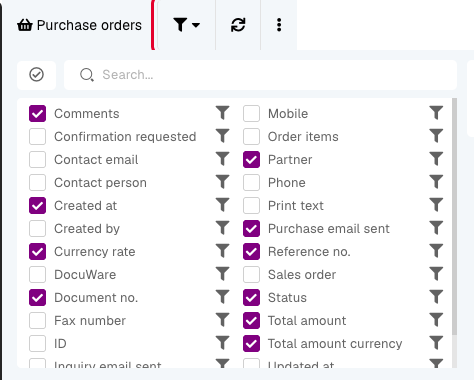 Columns and filters, opened from the filter icon
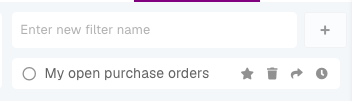 Your saved filters
2. Link it to the daily email
Click the clock icon on the saved filter. Under Select scheduled job pick Send daily filtered email report and click Link filter.
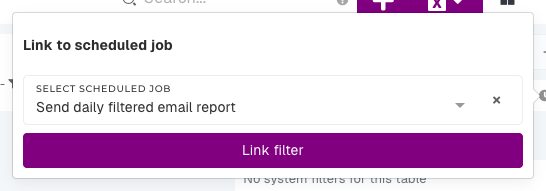 Picking the scheduled job
 The filter is linked
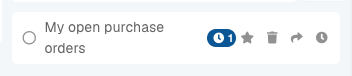 The clock badge shows how many jobs the filter is linked to
3. What you receive
Every morning (the job runs at 01:00) you get one email per linked filter, sent to the email address of your account:
- Subject: the filter name and the date, e.g. My open purchase orders — 2026-10-28.
- Attachment: an Excel file with every record that matches the filter, with the columns you had visible, in your column order.
- No results, no email: if nothing matches that day, nothing is sent.
- The email always uses the filter as it is saved at the time it runs.
4. Stop the emails
Click the clock icon again. Under Already linked to click × next to the job.
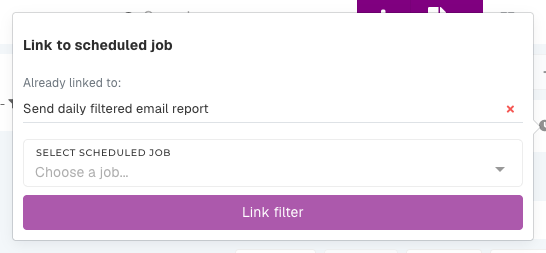 Unlinking the filter
NOTE
The clock icon only lists jobs if you may view scheduled jobs. If it says No scheduled jobs available for filter linking, ask an administrator for that permission.
TIP
To send a filter to other people — for example each buyer their own orders — an administrator can set up a system filter.