Appearance
Workflow approvals
Workflow approvals is a lead or approver’s dashboard for their own team — a calendar of every coworker’s attendance for the month, alongside the list of requests still waiting for a decision.
1. Open Workflow approvals
Go to HR > Workflow approvals. If you lead or approve more than one department, pick one from Choose hr department — leads of a single department skip straight to their team.
 The department and filters card
Choose employment type narrows the calendar to employees, students or contractors, and Show all employees of all departments expands it beyond the departments you lead.
2. Review your team’s month
Below the filters, the calendar lists every coworker and their attendance for the selected month — a ✅ for a handled day, 🔍 for one still waiting on a request. Use Previous/Next to change month, or Advanced view and Part events view to show more detail per day.
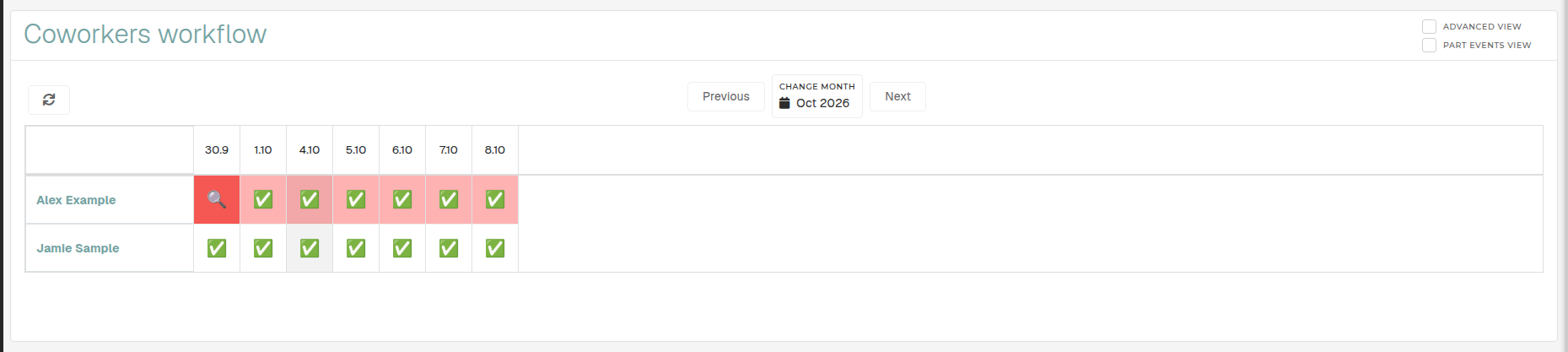 The team calendar
TIP
Hover a coworker’s name for their saldo, vacation balance and other details.
3. Check pending requests
The Workflow approval panel lists every coworker’s request still waiting on a decision, independently of which month the calendar shows above.
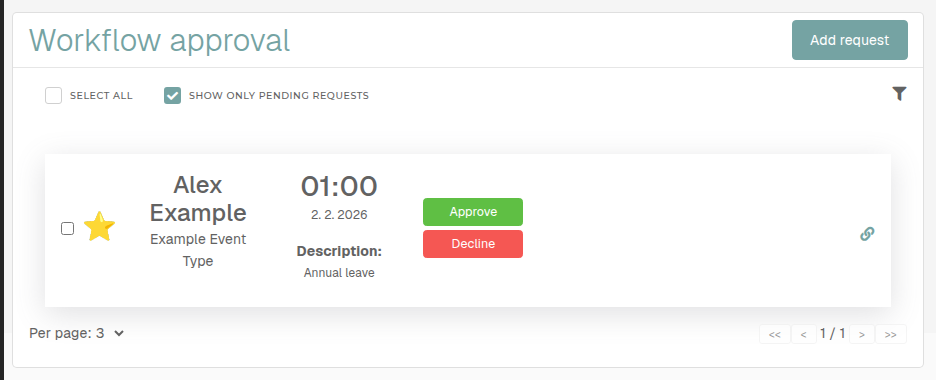 The Workflow approval requests panel
See Manage attendance requests for approving or declining a request, and Adding new attendance requests for the Add request button in the panel’s header.
4. Other actions
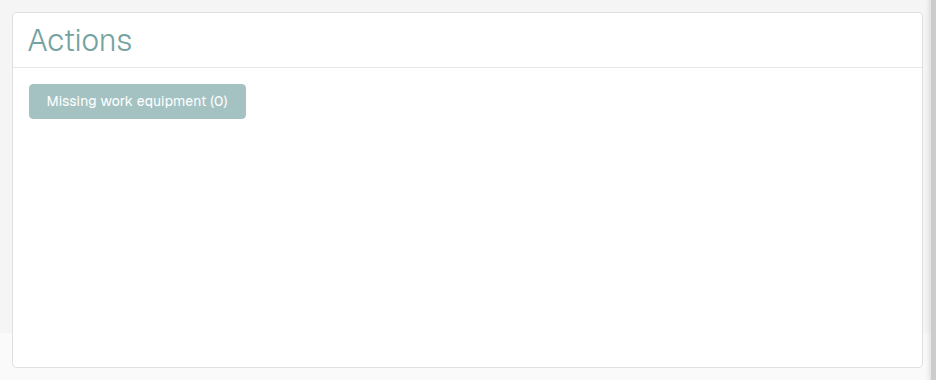 The Actions card
Leads with the right permission also see a Missing work equipment button here, listing coworkers who are still owed equipment or promotional material.
See Approving the month for locking in a past month once every event on it has been handled.