Appearance
Attendance requests
An attendance request is an employee’s request for time off, a business trip or similar — for a lead or approver to review. Once approved, it generates one attendance event per day in its date range.
1. Open Attendance requests
Go to HR > Attendance requests. The table lists every attendance request from every employee.
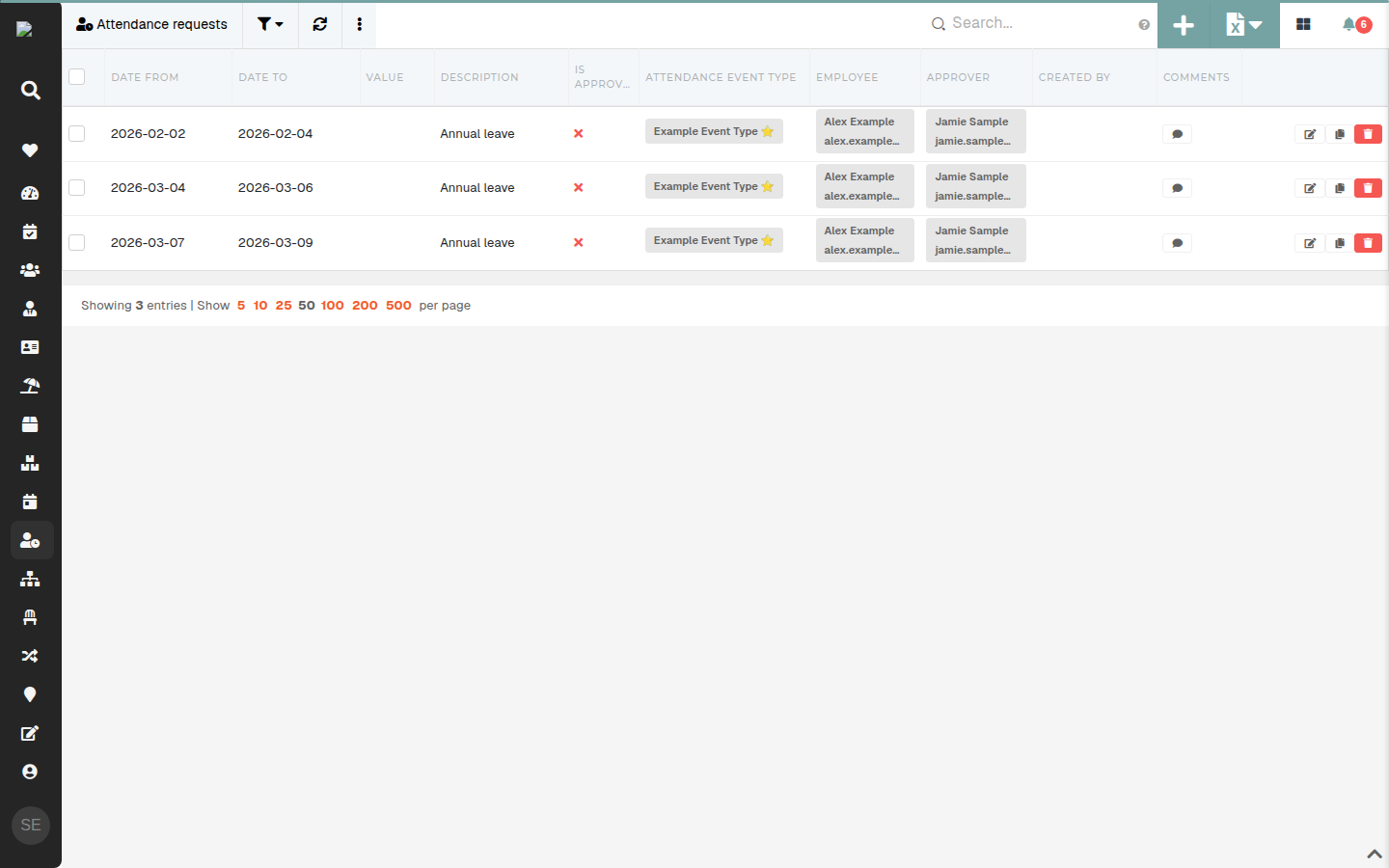 The Attendance requests list
2. Read the columns
By default the table shows:
- From and To — the date range the request covers.
- Value — a free-text value attached to the request, for example a number of hours.
- Description — the reason for the request.
- Is approved — whether the approver has approved it yet.
- Attendance event type — what kind of request this is.
- Employee — who the request belongs to.
- Approver — the lead reviewing the request.
Click the funnel icon in the top bar to filter the list, for example to show only unapproved requests.
3. Use the row actions
Each row has an edit icon to open the request, a copy icon to duplicate it, and a trash icon to delete it.
 The row actions
See Create a new attendance request and Delete an attendance request for those flows, and Update an attendance request for everything on the request’s own page.
See Attendance events for the individual events a request generates once approved.