Appearance
Adding new attendance requests
A lead or approver can submit an attendance request straight for a coworker from Workflow approvals, instead of asking the coworker to submit it themselves.
1. Open the Add request dialog
In the Workflow approval panel, click Add request.
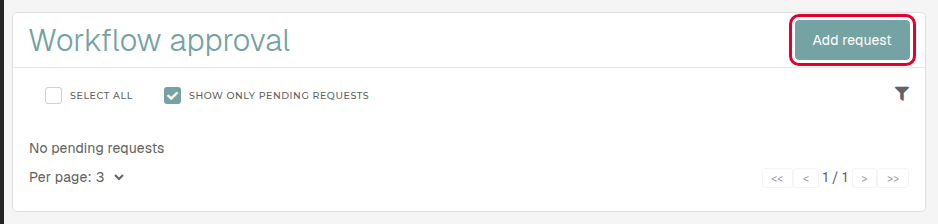 The Add request button
2. Pick the kind of request
Click one of the shortcut icons for the kind of request — for anything else, click … for the full list of event types.
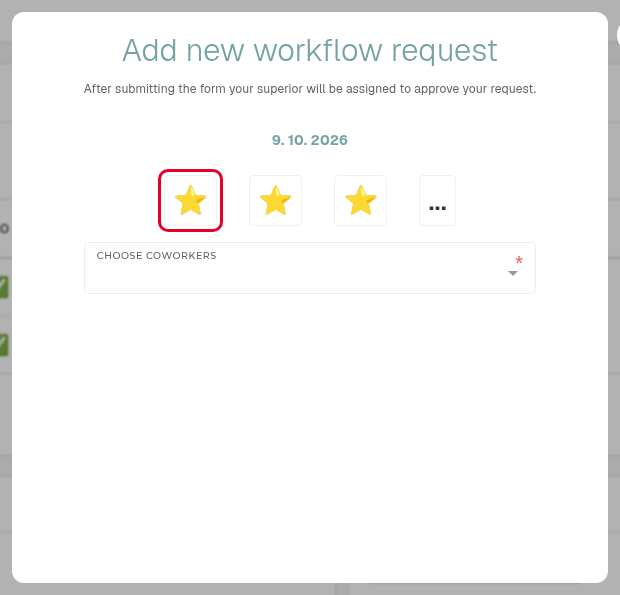 The request-type shortcuts
3. Pick who it’s for
Pick one or more coworkers under Choose coworkers. The From/to dates default to today — change them if the request covers different days.
 Picking the coworker
4. Describe the request and submit
Fill in a Description, then click Submit request. Requests a lead submits for a coworker are approved right away — no separate review step.
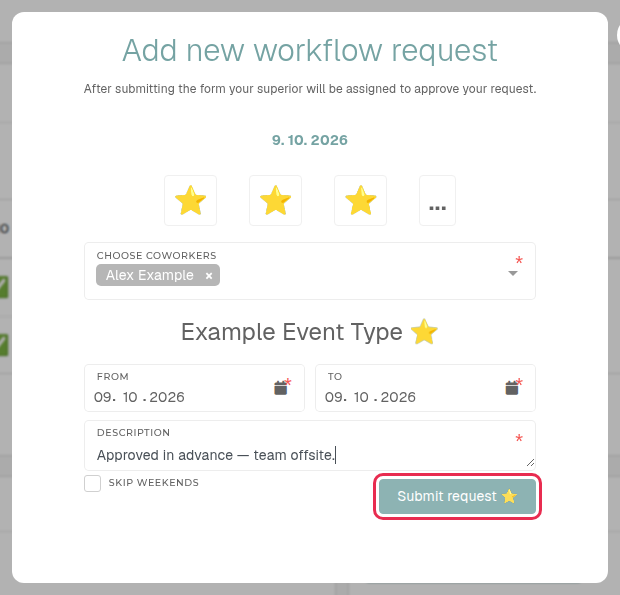 The filled-in request
NOTE
This is a shortcut for leads adding a request on a coworker’s behalf. For a coworker submitting their own request — with every field the request supports — see Create a new attendance request.