Appearance
HR dashboard
HR dashboard is the HR-wide version of Workflow approvals — instead of seeing only your own team, filter by any department, pick specific employees, or show everyone, then review the same team calendar and pending-requests panel.
1. Open HR dashboard
Go to HR > HR dashboard. Nothing shows below the filters until you pick a department, pick employees, or tick Show all employees.
 The filter card
2. Filter by a single department
Click Filter by department and pick one — its team, plus every child department, shows below.
 The department filter
3. Or filter by specific employees instead
Clear the department and pick one or more people under Filter by employees instead — picking either filter clears the other, since they can’t be combined.
 Filtering by specific employees
Choose employment type narrows the result to employees, students or contractors, and Show all employees overrides both filters above to show every employee company-wide.
4. Review the calendar and pending requests
Below the filters, the same team calendar and Workflow approval panel as Workflow approvals show every selected coworker’s attendance and requests.
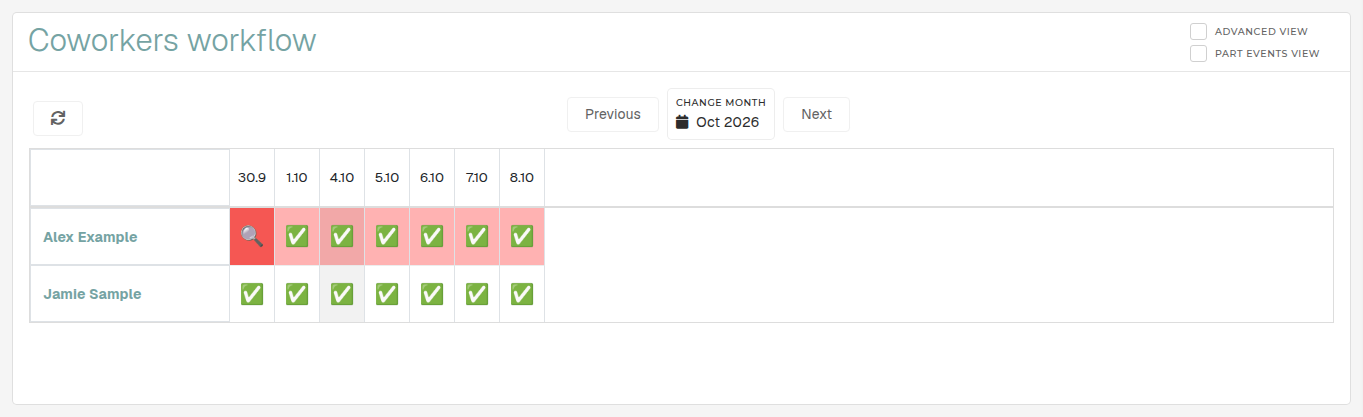 The team calendar
NOTE
See Workflow approvals for reading the calendar’s icons, approving a month, and managing requests — it all works identically here.
See Resolving a flagged day for handling a day the calendar flags as needing attention, a control only available from this HR-wide view.