Appearance
HR reporting
HR reporting gathers payroll, business-trip, headcount and attendance exports behind one tabbed page. Each tab needs its own permission, so a user only sees the tabs relevant to them.
1. Open HR reporting
Go to HR > HR reporting. Salary export opens first — switch tabs along the top for the other reports.
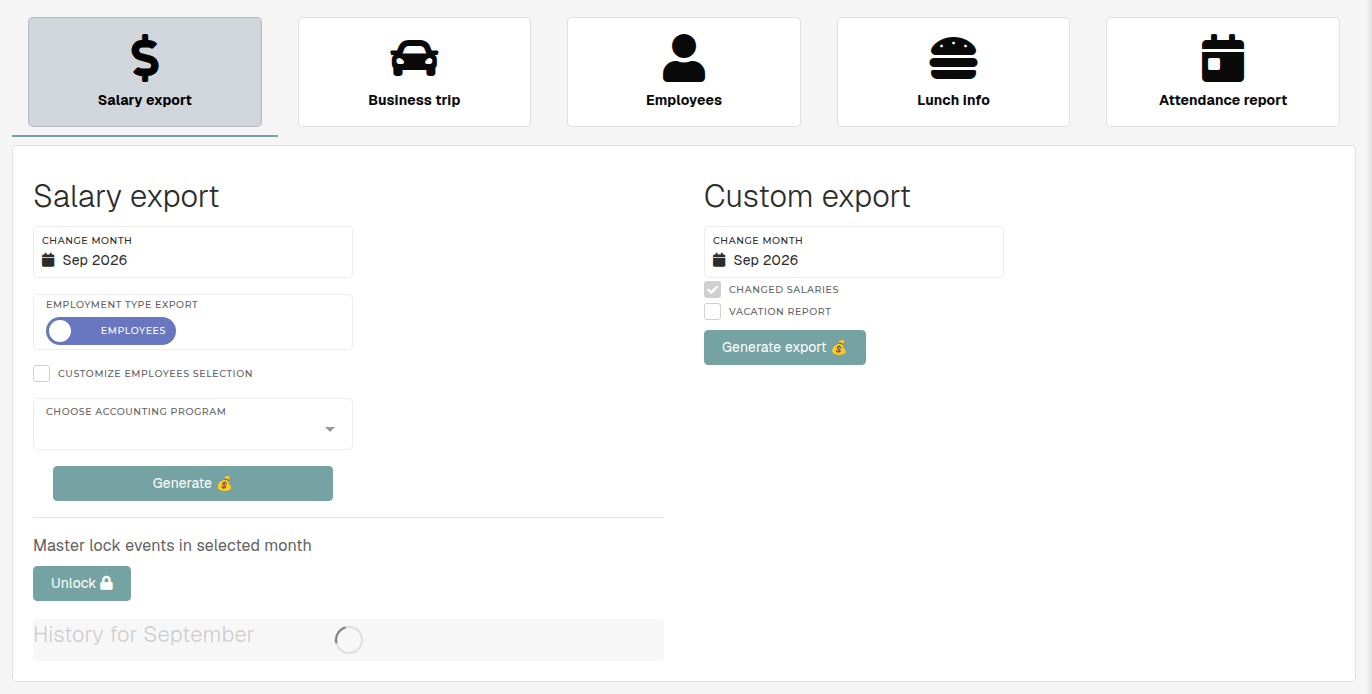 Salary export — the monthly payroll file for your accounting program
See Salary export for the employment-type switch, students-only options and the custom employee selection.
2. Business trip
The Business trip tab exports a month’s worth of logged business trips.
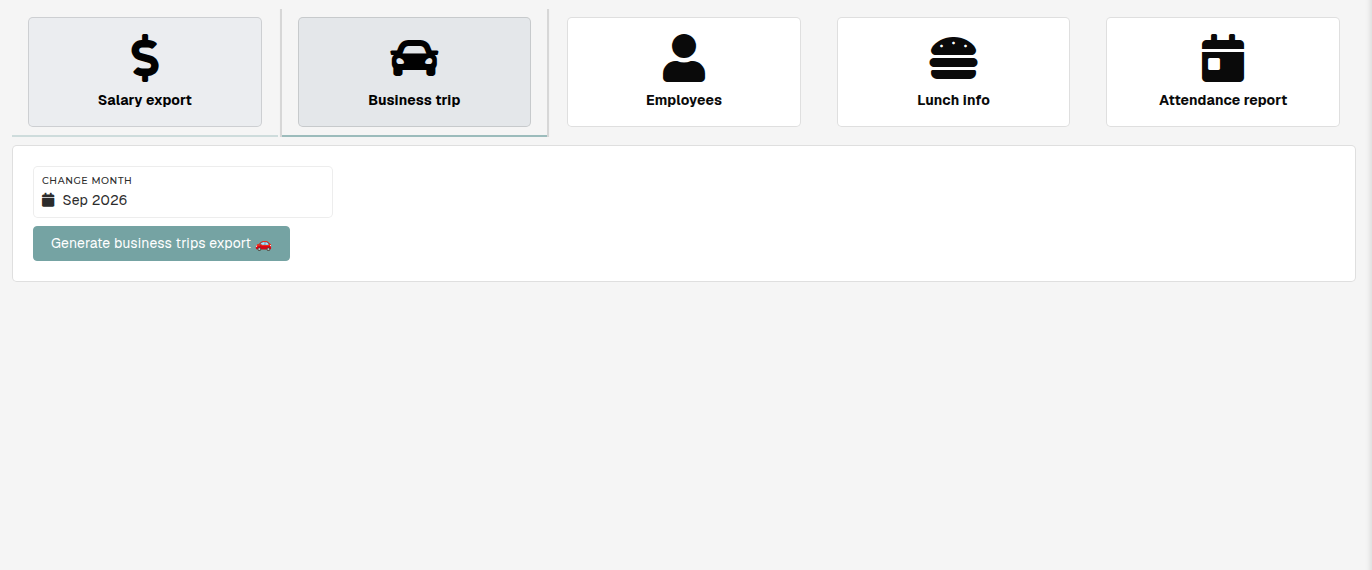 Business trip
See Business trip report.
3. Employees
The Employees tab is a small statistics dashboard — headcount, average age, hiring/departure trends and demographic charts for a chosen date — plus a handful of one-off exports below it.
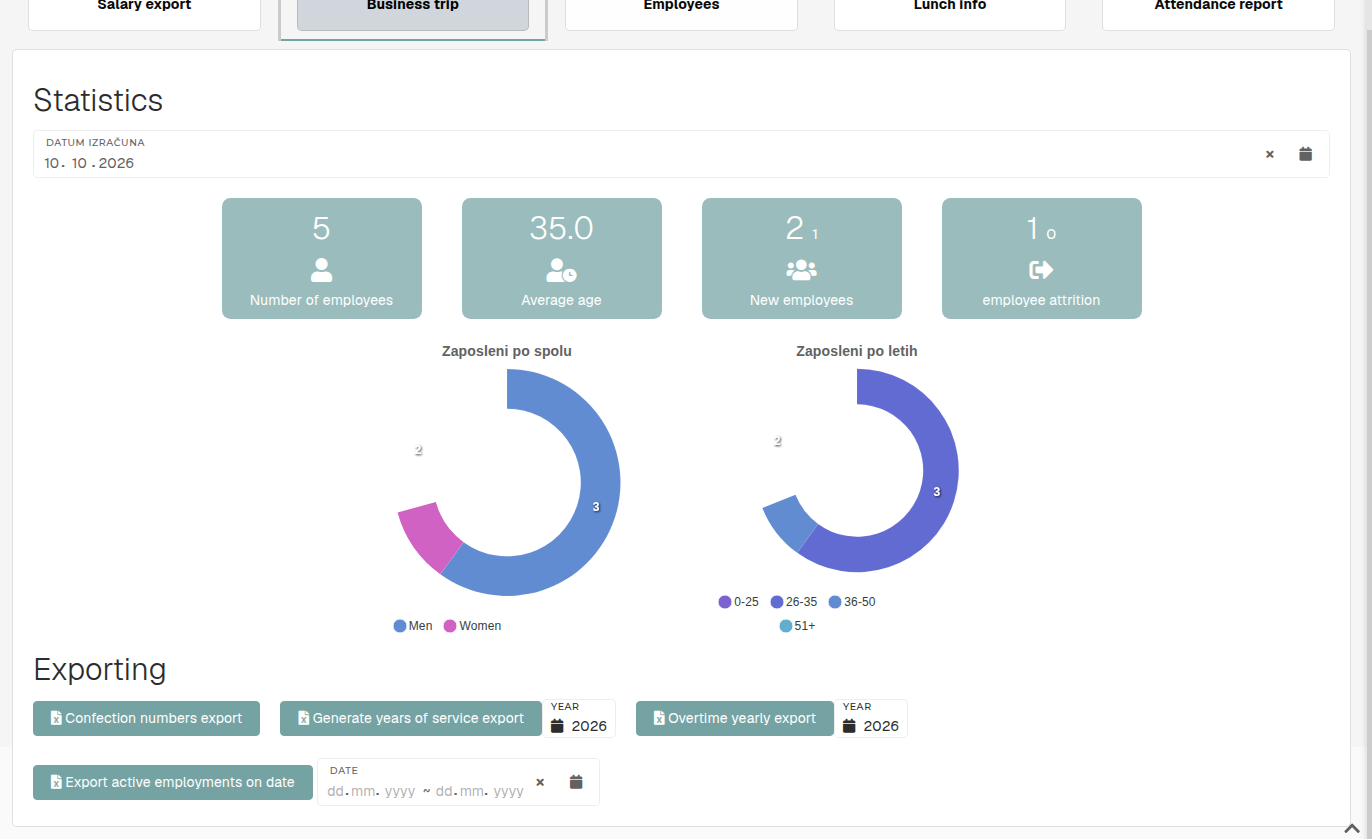 Employees
See Employees report.
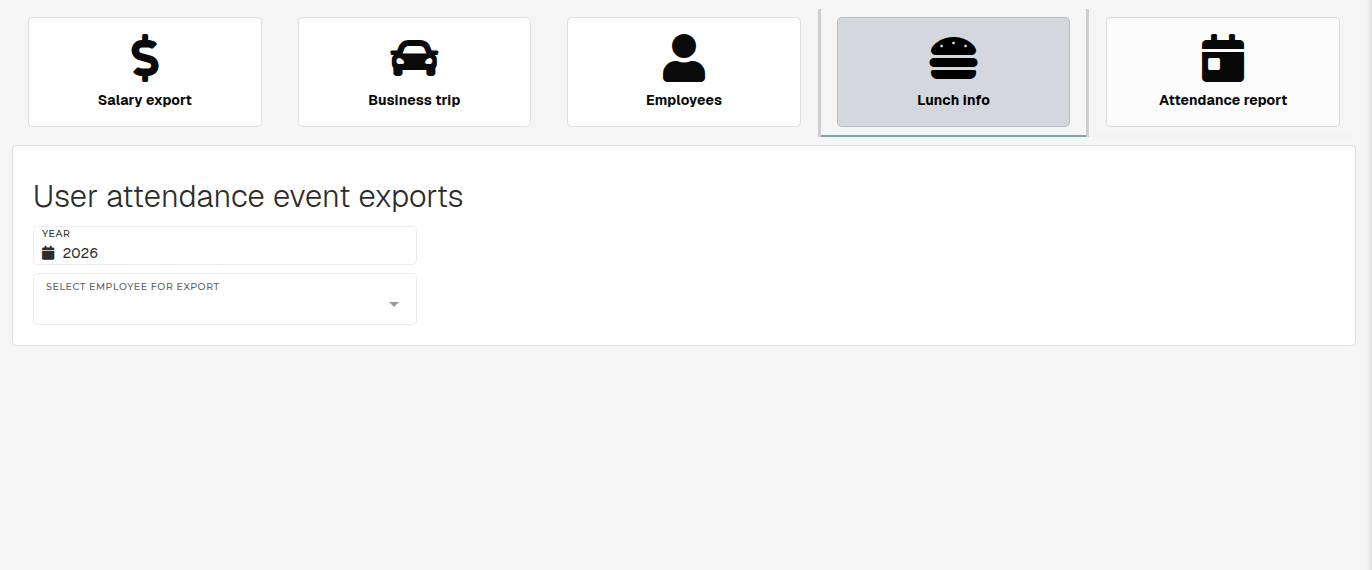
4. Lunch info
The Lunch info tab exports who had lunch, for a month or for a whole year.
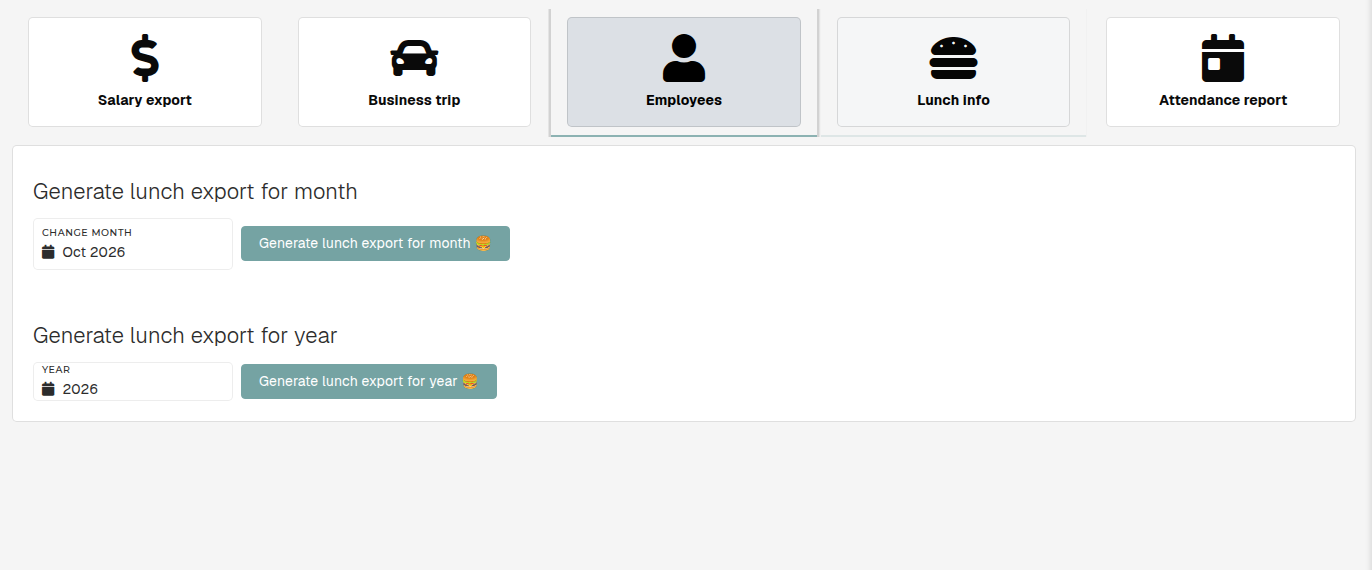 Lunch info
See Lunch info report.
5. Attendance report
The Attendance report tab exports one employee’s attendance events for a year — all of them at once, or one event type at a time. It needs its own View attendance events permission, separate from the tab itself.
 Attendance report
See Attendance report.