Appearance
Performance review groups
A performance review group is the review cycle or template an HR admin sets up — for example “Q1 2026 Review” — which the performance review dashboard then uses to generate individual employee reviews.
1. Open Performance review groups
Go to HR > Performance review groups. The table lists every review cycle set up in the company.
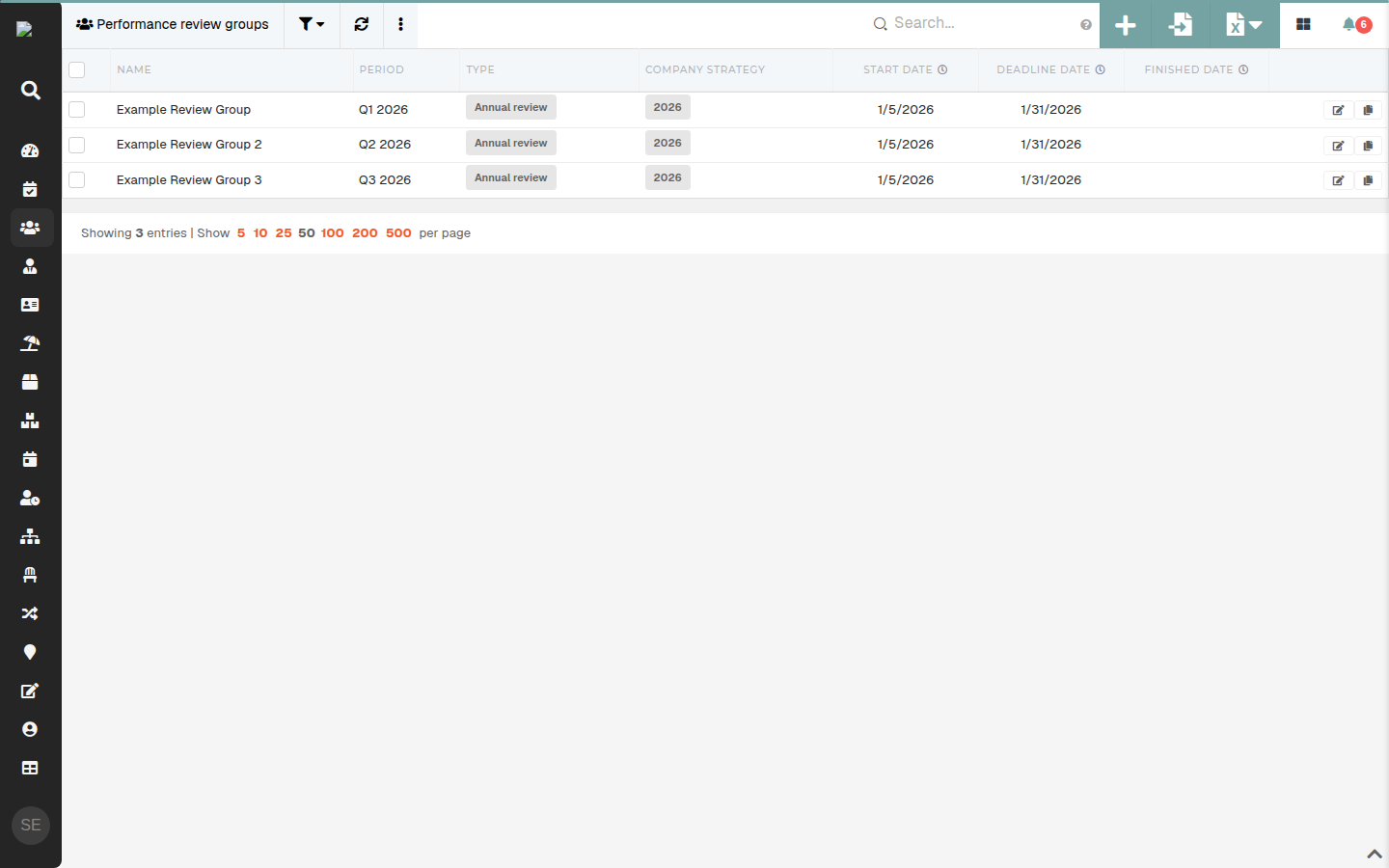 The Performance review groups list
2. Read the columns
By default the table shows:
- Name and Period — the review cycle’s name and the period it covers, for example "Q1 2026".
- Type — the kind of performance review this cycle uses.
- Company strategy — the company strategy (by year) this review cycle supports.
- Start date, Deadline date and Finished date — when the cycle starts, when reviews are due, and when it’s marked finished.
A few more columns are hidden by default — ID and Comment. Click the funnel icon in the top bar to show or hide columns and to filter the list.
3. Use the row actions
Each row has an edit icon to open the review group, and a copy icon to duplicate it.
 The row actions
See Create a new performance review group and Delete a performance review group for those flows, and Update a performance review group for everything on the group’s page itself.