Appearance
User HR profiles
The User HR profiles list is the HR register: every employee with a profile, their department and position, and their HR data in one table.
1. Open User HR profiles
Go to HR > User HR profiles. The table lists every employee who has an HR profile.
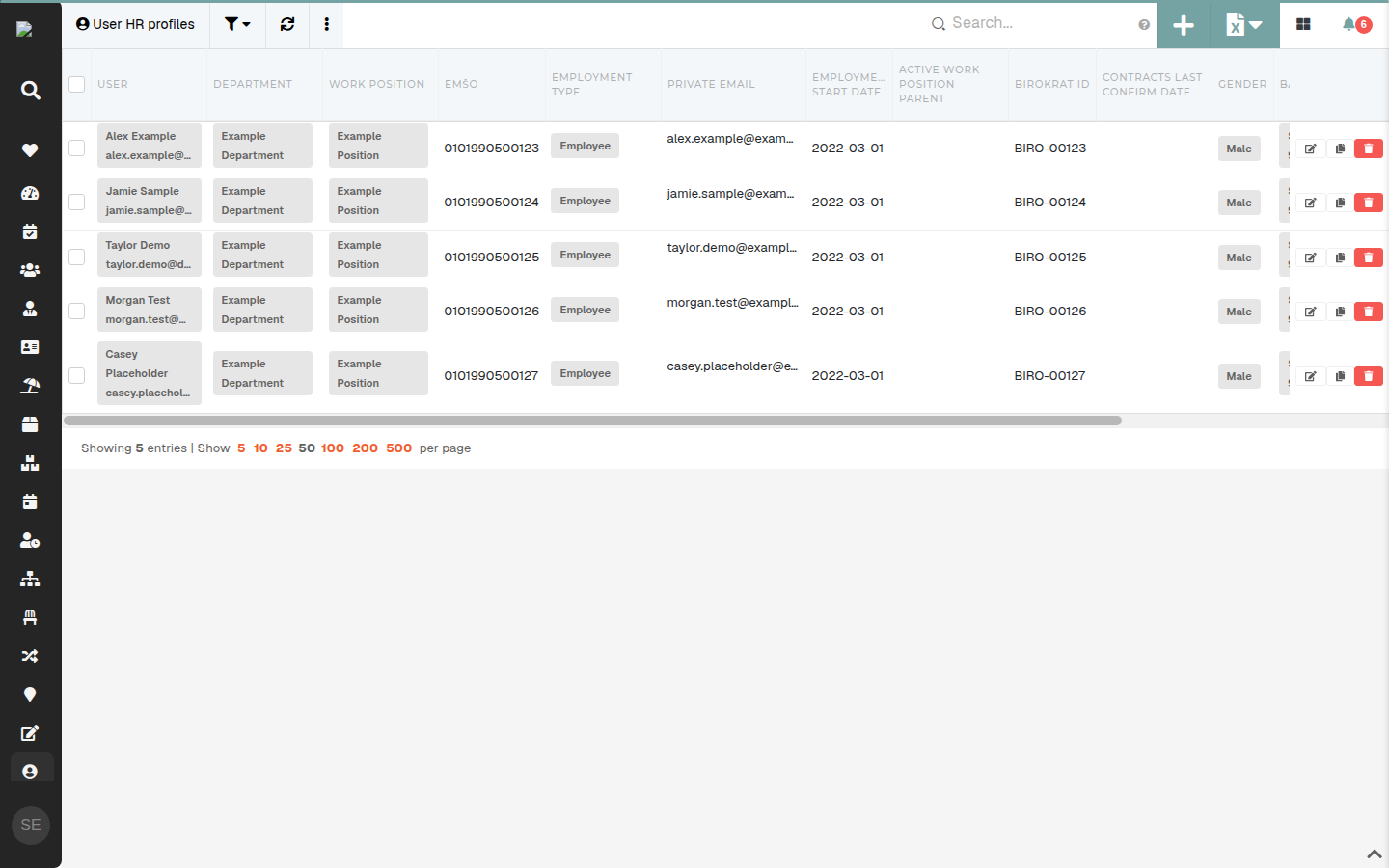 The User HR profiles list
2. Read the columns
By default the table shows:
- User, Department and Work position — who the profile is for and where they sit in the org chart.
- Employment type and Employment start date.
- Emšo, Private email, Birthday, Gender — personal details, visible only to people with permission to see this page.
- Bank account, Bank, Education, Birokrat id.
Many more columns exist but are hidden by default - for example the leave-day balances, Private phone, Citizenship, Tax number and the work-rule flags (Allow work from home, Allow shift work, Allow night work). Click the funnel icon in the top bar to show or hide columns and to filter the list.
3. Use the row actions
Each row has an edit icon to open the profile, a copy icon to duplicate it, and a trash icon to delete it.
 The row actions
See Create a user HR profile and Delete a user HR profile for those flows, and Update a user HR profile for everything on the profile page itself.