Appearance
Update a user HR profile
Once a profile is saved, its page unlocks a fuller set of HR data: work positions, addresses, residence history, bank accounts, contracts and leave balances.
1. Open a profile
Go to User HR profiles and click the edit icon next to an employee.
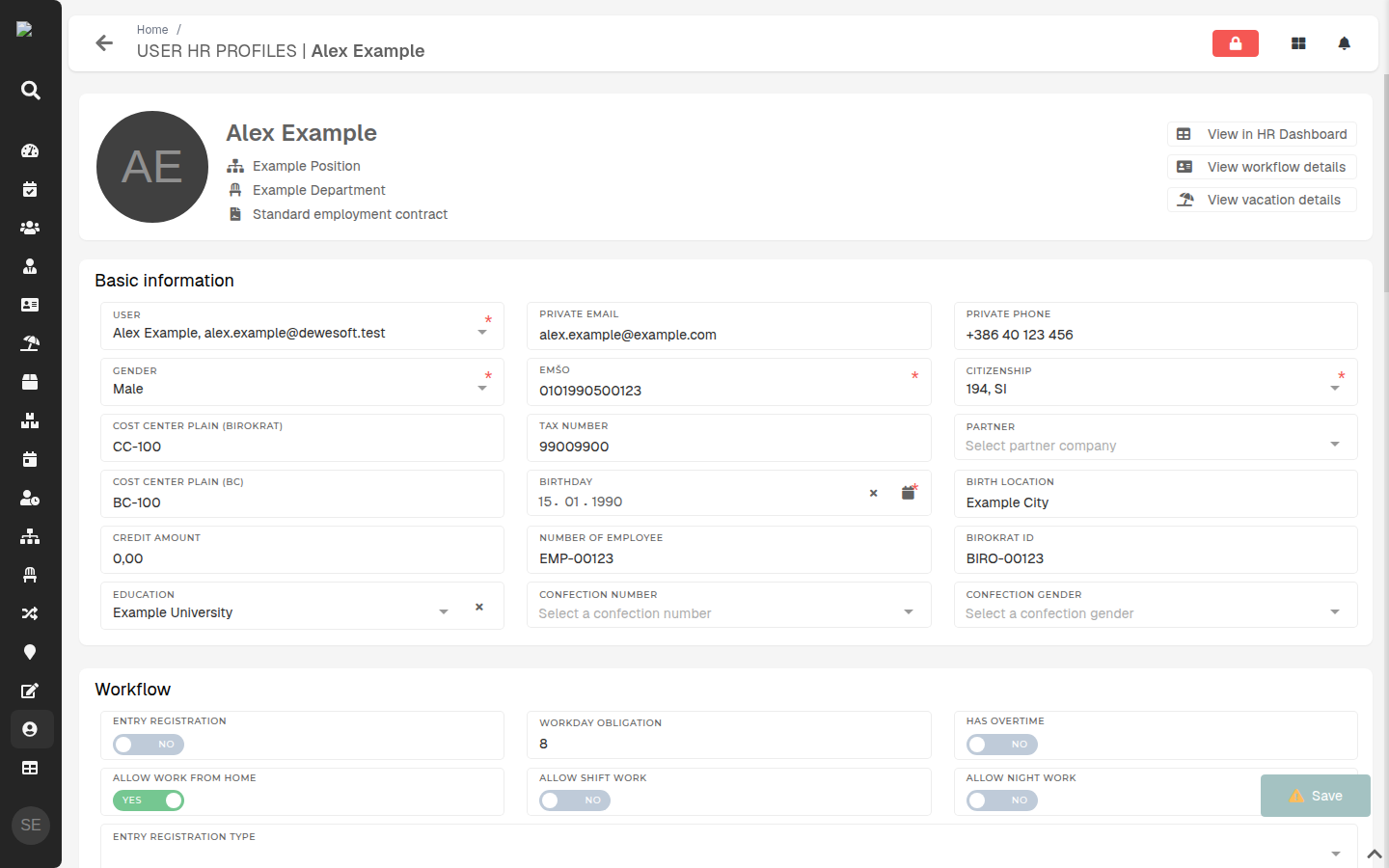 The user HR profile page
2. Check the profile header
The card at the top shows the employee’s photo and name, and links to:
- their current Work position and Department;
- their Employment contract;
- the HR Dashboard, Workflow details and Vacation details for this employee.
 The profile header
3. Edit the basic information
Change any field under Basic information - for example Private phone - then click Save. See Assign a credit amount to an employee for the Credit amount field in this same section.
 Editing Private phone
4. Review the work positions
The Work positions section lists every position the employee has held, with its Employment type and Valid from/Valid to dates. Depending on the employment type, it also shows the Employment contract and Trial period, or the Student hourly rate. Click Add new for a new position when it changes.
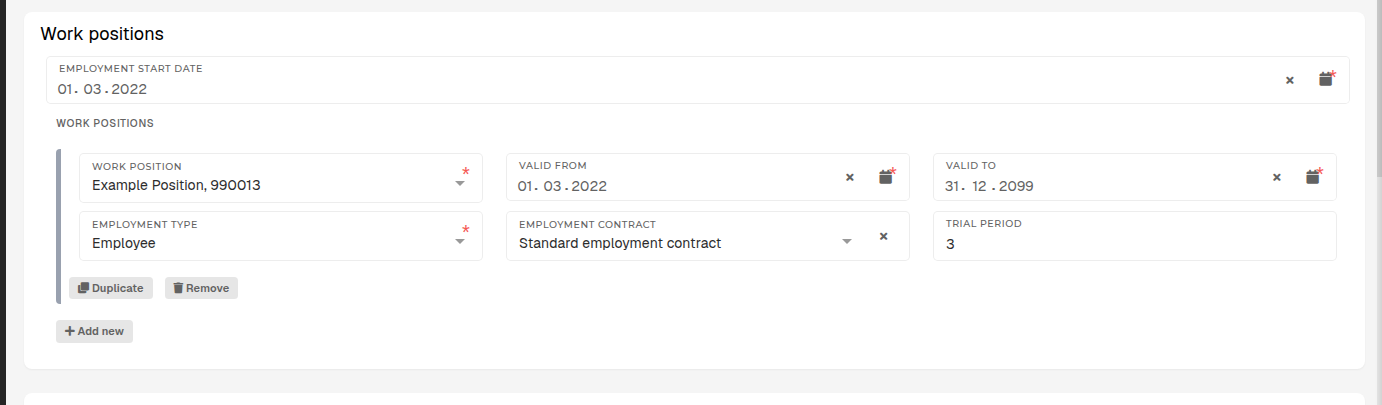 The Work positions section
5. Review the addresses and residence history
The Addresses section holds the employee’s home and other addresses. Employee residence history separately tracks which address they lived at and which work location(s) they commuted to from there, over time - used to calculate commuting distance.
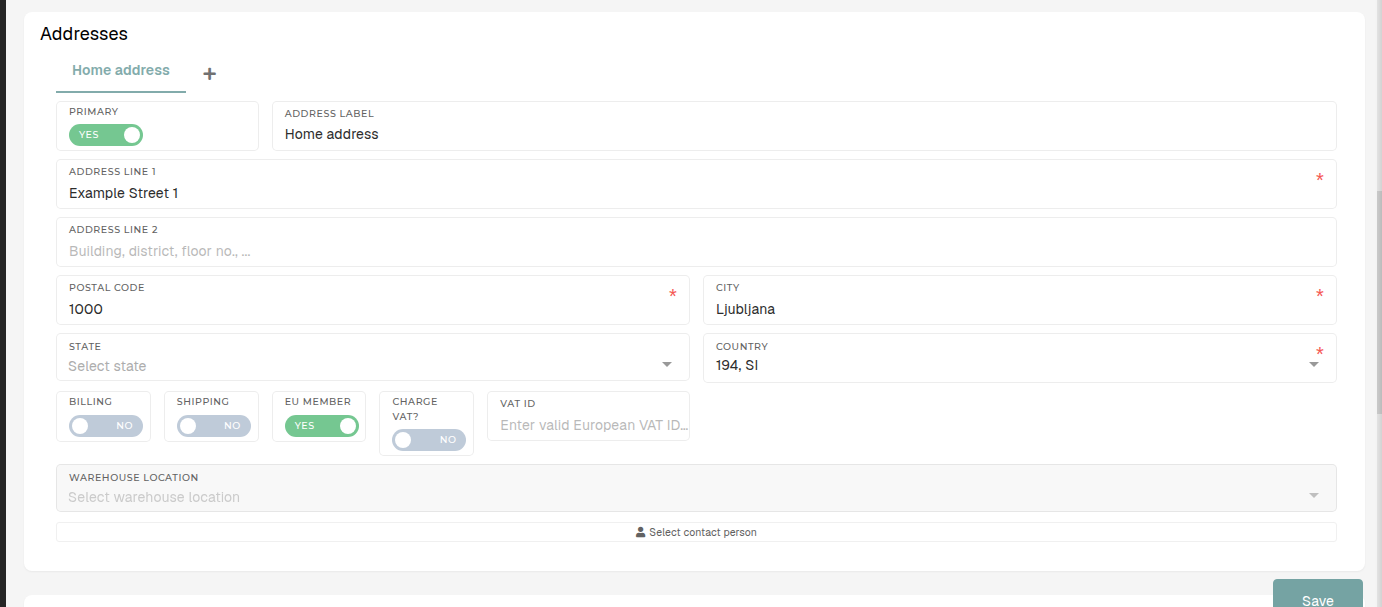 The Addresses section
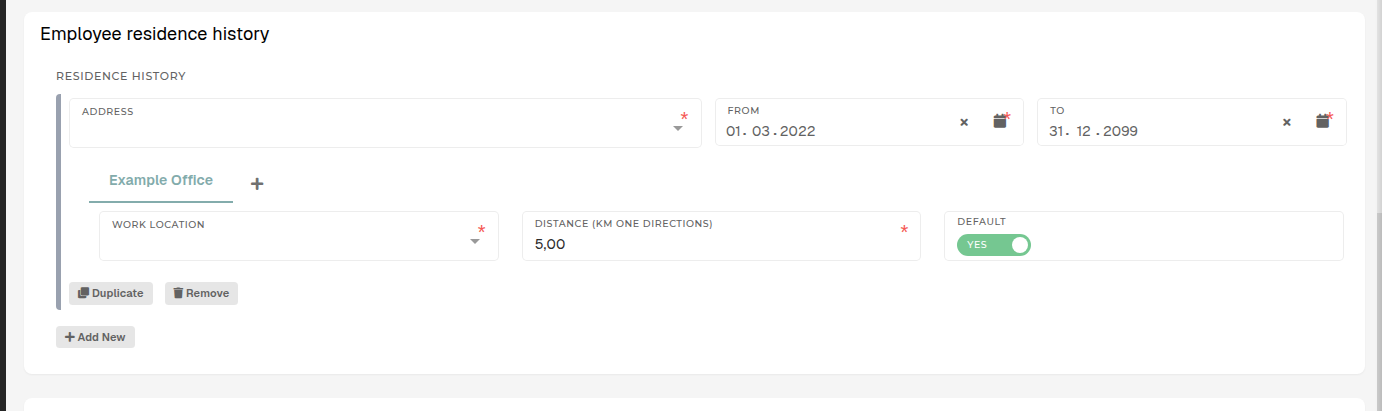 The Employee residence history section
6. Open the bank information
Bank information is collapsed by default - click its heading to open it. It lists the employee’s bank accounts, each with its Bank, Account number and Currency.
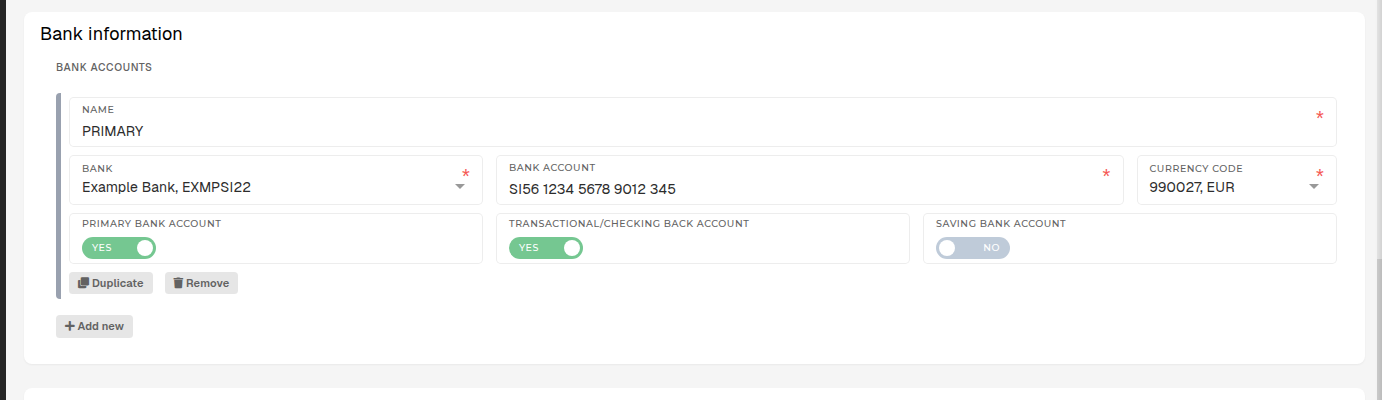 The Bank information section
7. Generate contracts
The Contracts section generates employment documents for this employee from templates - a vacation contract, a temporary or permanent employment contract (with its confirmation), an NDA, a work location contract, or a residence distance statement. Each button asks for confirmation, then generates the document (the vacation contract is added to File manager below; the others open in a new tab). See Generate a vacation contract for that button on its own.
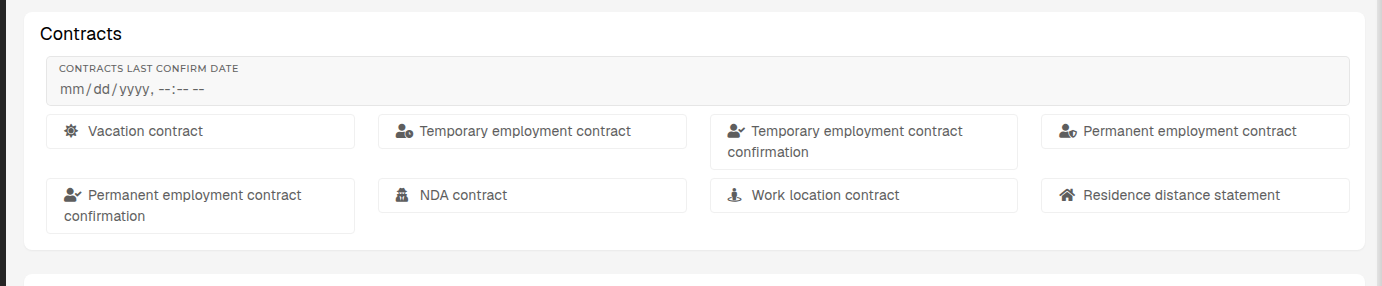 The Contracts section
8. Check the annual leave balance
Available leave in current year, Transferred leave days and Special leave days show how many days the employee has left, each with how many they’ve already used. Leave days bonus adds extra days on top, for example as a reward.
 The Annual leave balance section
NOTE
A few more sections are available further down, collapsed by default:
- Work conditions - special conditions that grant extra vacation days, for the employee or their family members.
- Family members - names, birth dates and VAT IDs, used for tax and benefits purposes.
- Past experiences - previous employment, used to calculate seniority.
- Reward eligibility - which reward schemes the employee qualifies for, and since when.