Appearance
Create a new attendance event
An attendance event records one employee’s attendance occurrence on a specific date — a clock-in, a day of vacation, a business trip, and so on.
1. Open the Attendance events page
Go to HR > Attendance events and click + in the top bar.
 The Add button on the Attendance events page
2. Pick the Employee
Under Basic information, pick the Employee this event belongs to. Required — only users who already have an HR profile appear here.
 Picking the Employee
3. Pick the Attendance event type
Pick the Attendance event type — what kind of event this is. Required. See Attendance event types.
 Picking the Attendance event type
4. Set the date
Fill in Date — when the event happened.
 The Date field
5. Set Active and Value
Turn Active on so the event counts, and optionally fill in Value — a free-text value for the event, for example a number of hours.
 Active and Value
NOTE
Attendance request and Substitution request, further up, link this event back to a request it was generated from, if any — they’re usually left empty when adding an event directly.
Night work date only applies when the event spans into night-shift hours.
6. Save the event
Click Save. The new event opens on its own page.
 The Save button
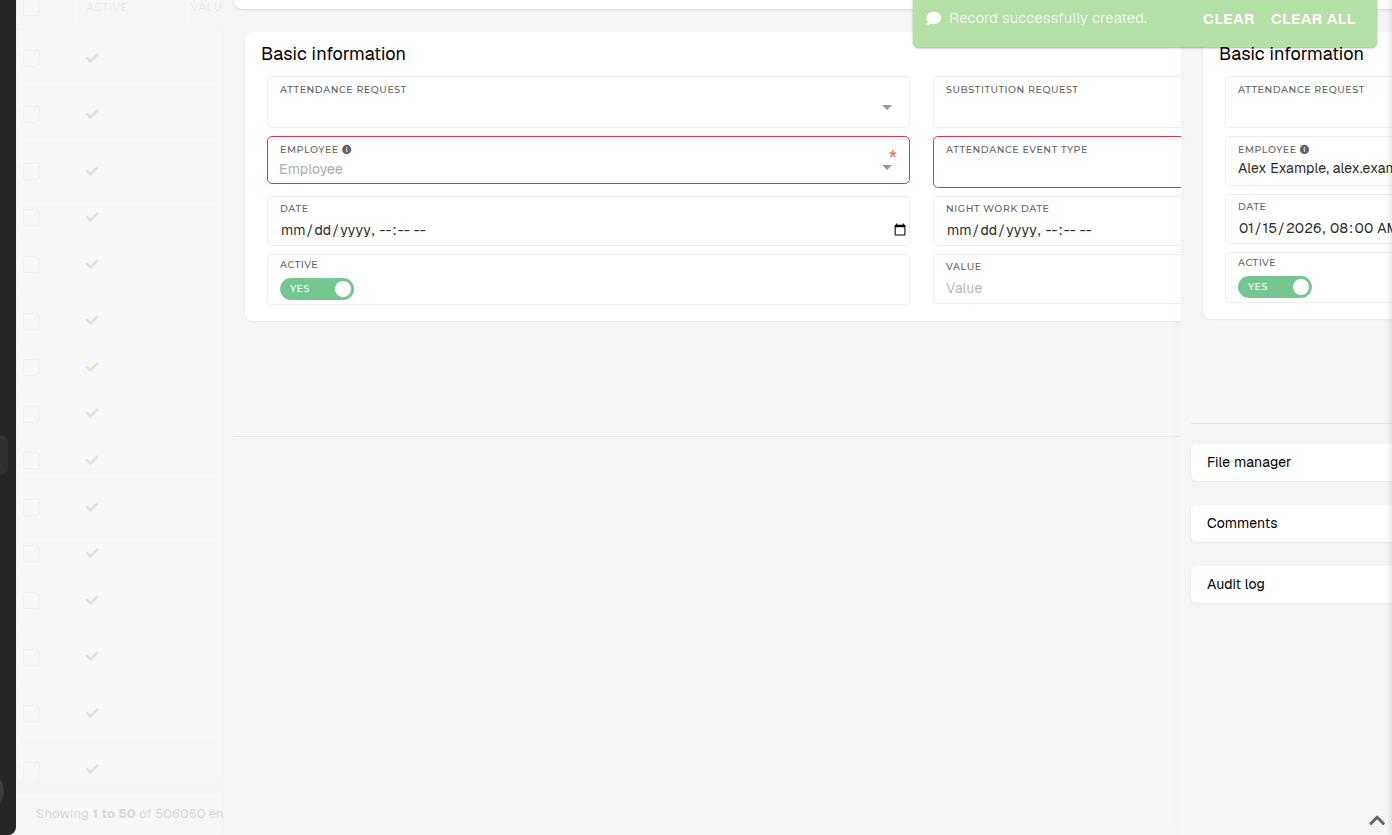 The new attendance event