Appearance
Resolving a flagged day
HR dashboard flags any day whose events need a closer look — a missing certificate, an unfinished business trip, overlapping events, duplicate registrations — so HR can open it and remove the bad entry directly.
Go to HR > HR dashboard and filter by a department or employees — see HR dashboard for the filter options.
1. Spot a flagged day
A day whose events still need attention is highlighted in red, and a coworker with at least one such day has their whole row tinted the same way until it’s resolved.
 A flagged day in the calendar
2. Open the day
Click the flagged day.
3. See what’s flagged
The popup shows the event and, below it, what’s wrong with it.
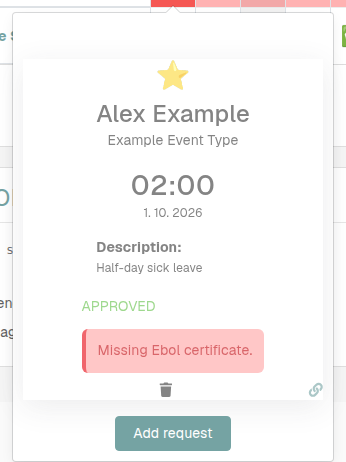 The flagged event
4. Remove the bad entry
Click the trash icon at the bottom of the card, then Confirm. This option is only available from HR dashboard — a lead’s own Workflow approvals page can’t delete a coworker’s request this way.
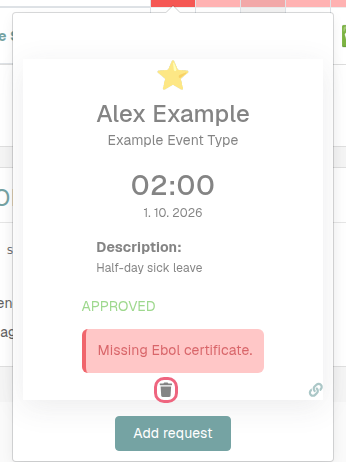 The delete option on a flagged event
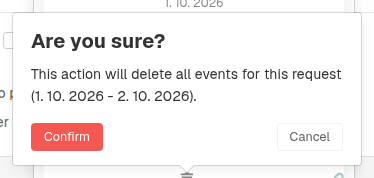 The delete confirmation
5. The day is resolved
The popup closes and the day’s row refreshes — once every flagged event on it is gone, the day goes back to a plain handled day.
 The day once resolved
NOTE
The error message names the actual problem — common ones include a sick leave missing its certificate, vacation and a registration on the same day, or a business trip whose process isn’t finished yet.
Multiple or unpaired registrations on one day show each registration separately, with its own delete icon, instead of this single request card.