Appearance
Move an employee to a different department
An employee's department always follows their current work position — move someone by ending their current position and assigning a new one in the target department.
1. Open the employee's profile
Go to User HR profiles and click the edit icon next to the employee.
An employee's Department, shown in the profile header, isn't edited directly — it always follows whichever Work position is currently active. To move someone to a different department, end their current work position below and add a new one that belongs to the new department.
 The Work positions section
2. End the current work position
On the employee's current position, set To to their last day in it.
 Setting the end date on the current position
3. Add the new work position
Click Add new, pick the Work position in the new department, choose an Employment type, and set From to the day it starts.
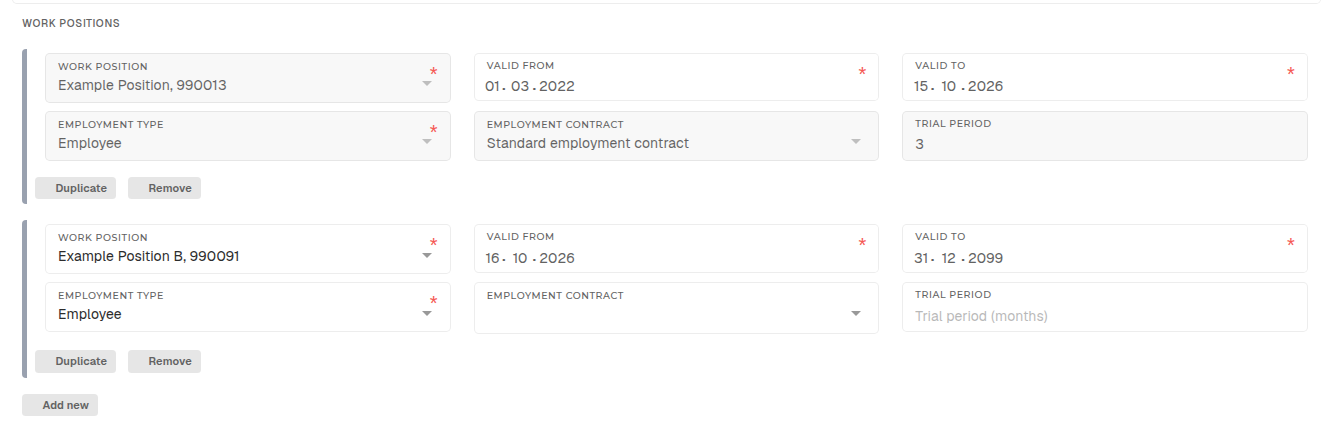 The new work position, in the new department
NOTE
The work position you pick already belongs to its own department — set on that position itself, see Update a work position. Saving here is what actually moves the employee.
4. Save your changes
Click Save.
 The Save button