Appearance
Create a new performance review group
A performance review group is the review cycle or template an HR admin sets up — for example “Q1 2026 Review” — which the performance review dashboard then uses to generate individual employee reviews. Create one to start a new review cycle.
1. Open the Performance review groups page
Go to HR > Performance review groups and click + in the top bar.
 The Add button on the Performance review groups page
2. Name the review group and pick its company strategy
Under Basic information, fill in Name. Company strategy links the cycle to one of the company’s multi-year strategies, picked by year. Both are required.
 Name and Company strategy
3. Set the type and period
Type is the kind of performance review this cycle uses — required. Period is a free-text description of the cycle’s timeframe, for example "Q1 2026" — also required.
 Type and Period
4. Set the start and deadline dates
Under Dates, fill in Start date and Deadline date.
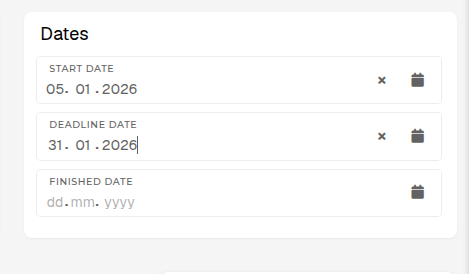 Start date and Deadline date
NOTE
Leave Finished date blank for now — set it from the group’s own page once every review in the cycle is done. Comment is optional.
5. Save the review group
Click Save. The new review group opens on its own page.
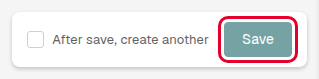 The Save button
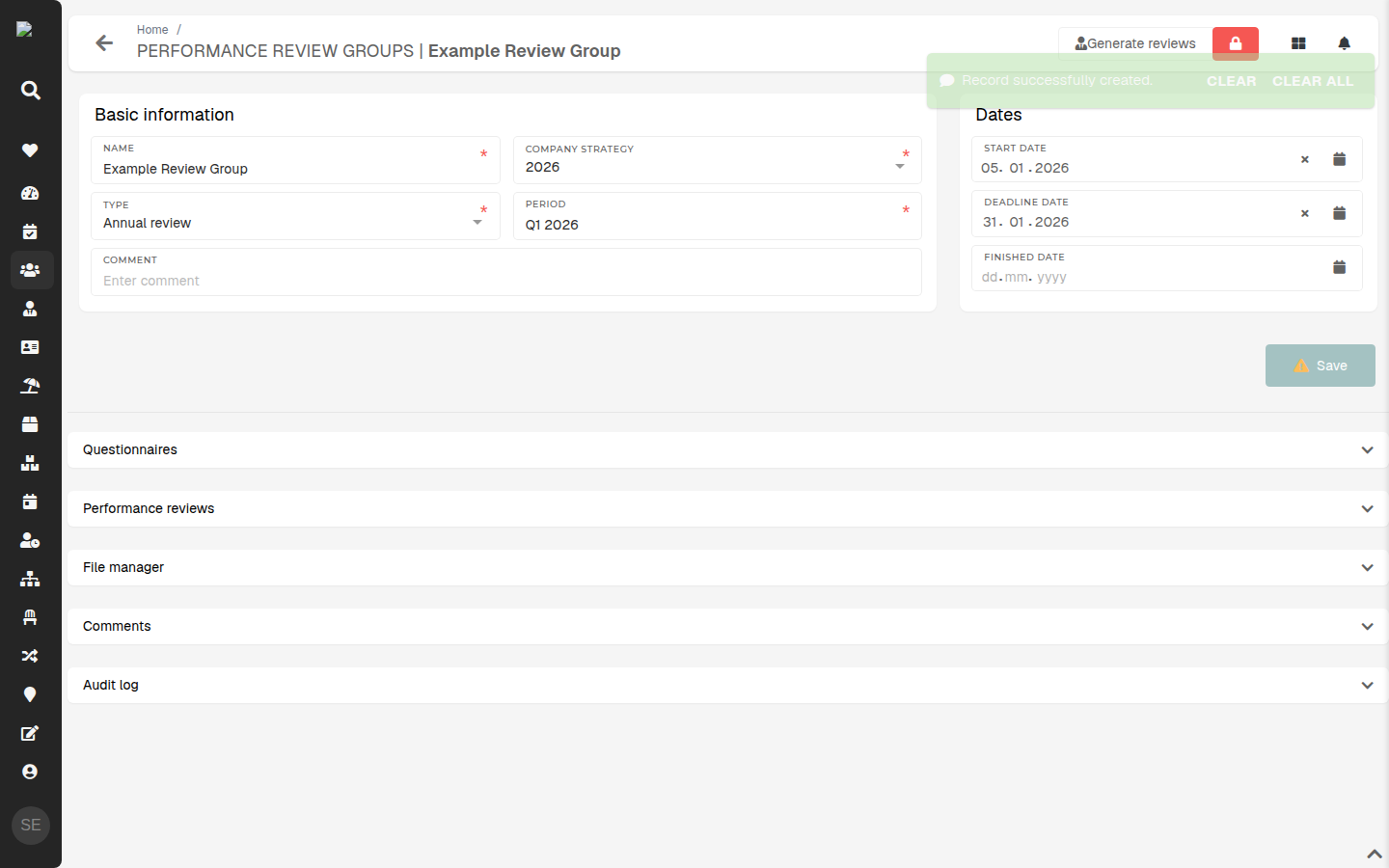 The new performance review group