Appearance
Employee equipment
Employee equipment lists every employee’s active work position together with how much work equipment and promo material they still have coming, and is the one place to update the status of getting it to them.
1. Open Employee equipment
Go to HR > Employee equipment. The table lists every employee’s active work position, along with how much work equipment and promo material they still have coming.
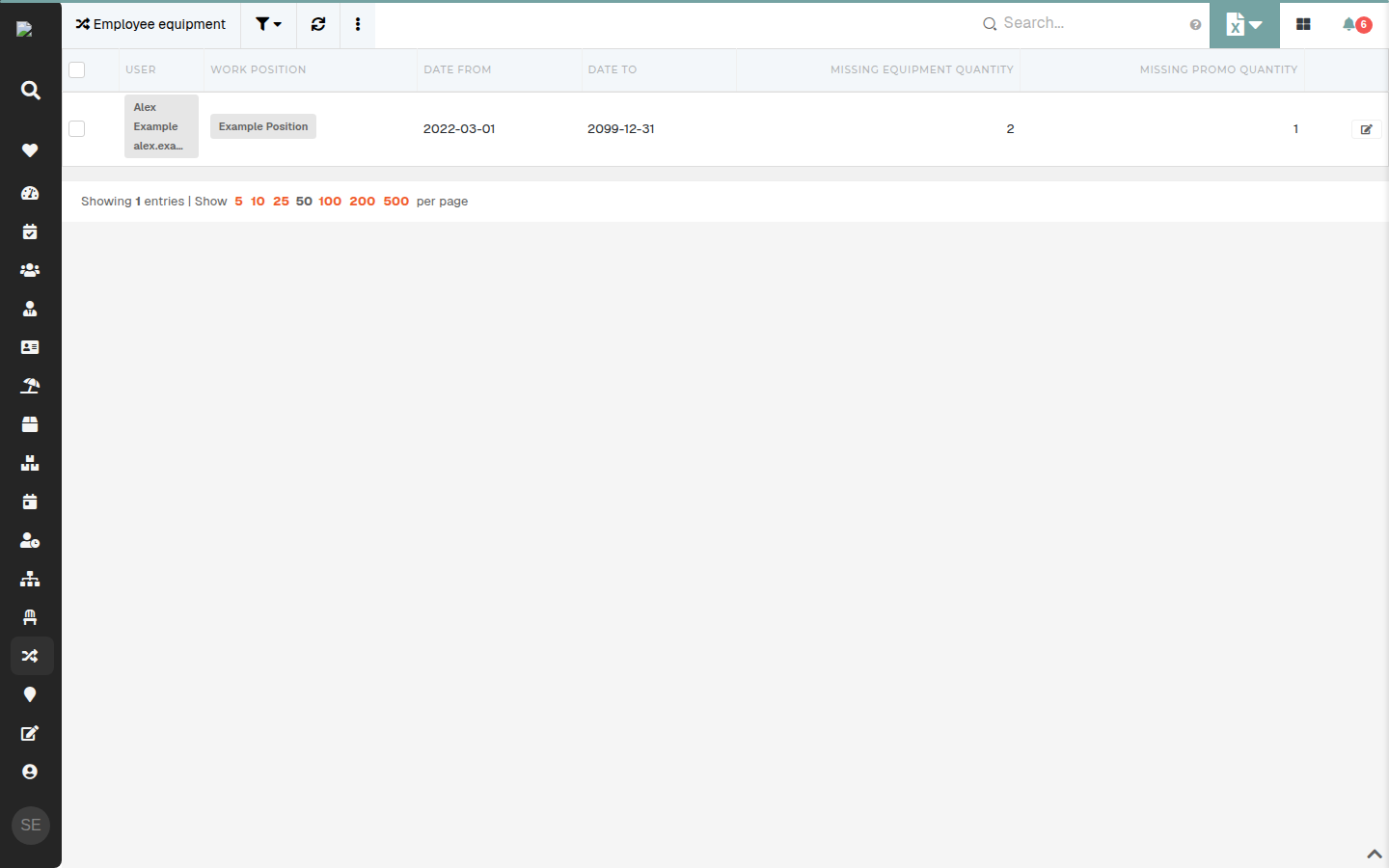 The Employee equipment list
2. Read the columns
By default the table shows:
- User and Work position — the employee and their active work position.
- Date from / Date to — how long that position assignment is valid for.
- Missing equipment quantity / Missing promo quantity — how many items of each the employee is still owed.
Equipment status is hidden by default. Click the funnel icon in the top bar to show it, or to filter the list.
3. Open a record
Click the edit icon next to an employee to open their equipment record.
 The edit icon
4. Review the record
This record is filled in automatically when the work position is assigned — User, Work position, Department and the validity dates aren’t editable here. Under Work equipment, Missing equipment quantity and Missing promo quantity show how much the employee is still owed.
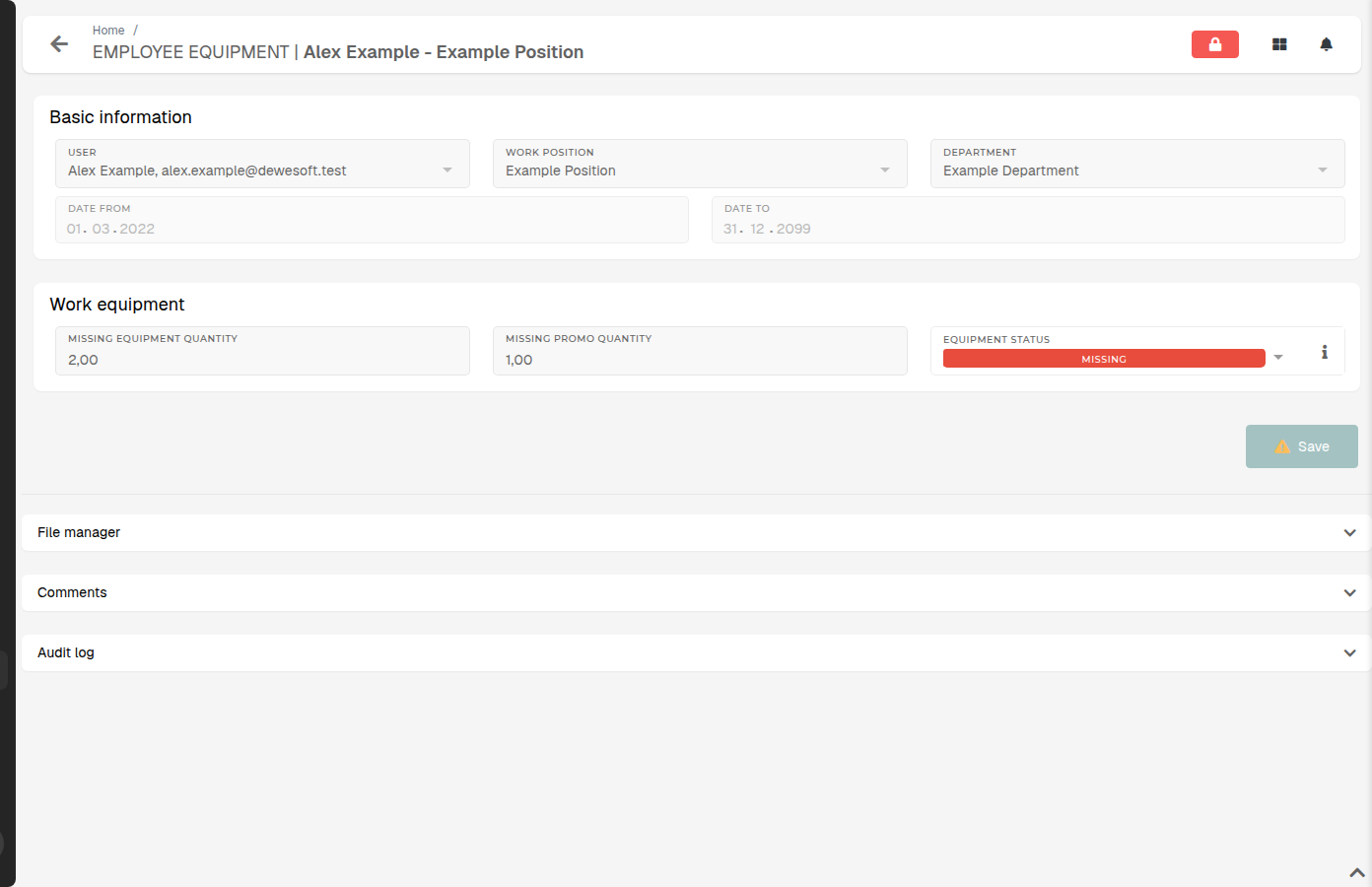 The Employee equipment record
5. Change the Equipment status
Open the Equipment status dropdown and pick a new status — for example Complete once everything has been handed over.
 Choosing a new Equipment status
6. Save your changes
Click Save.
 The Save button