Appearance
Create a user HR profile
A user HR profile holds an employee’s HR data: personal details, work positions, contracts, addresses and leave balances. Create one to bring a user into HR.
1. Open the User HR profiles page
Go to HR > User HR profiles and click + in the top bar.
 The Add button on the User HR profiles page
2. Pick the User
Under Basic information, pick the User this profile is for. Required.
 Picking the User
3. Fill in the personal details
- Gender — required.
- Emšo — the Slovenian national identification number. Not required yet at this point, but it becomes required once the profile has an active work position.
- Citizenship — the employee’s country of citizenship. Required.
 Gender, Emšo and Citizenship
4. Add the birthday
Fill in Birthday. Required.
 The Birthday field
NOTE
Private email, Private phone, Tax number, Birth location and the other fields in Basic information are optional. So are the Workflow and Notifications sections further down, and the collapsed Student info section.
Work positions, addresses, bank accounts, family members and leave balances only appear once the profile has been saved — see Update a user HR profile.
5. Save the profile
Click Save. The new profile opens on its own page.
 The Save button
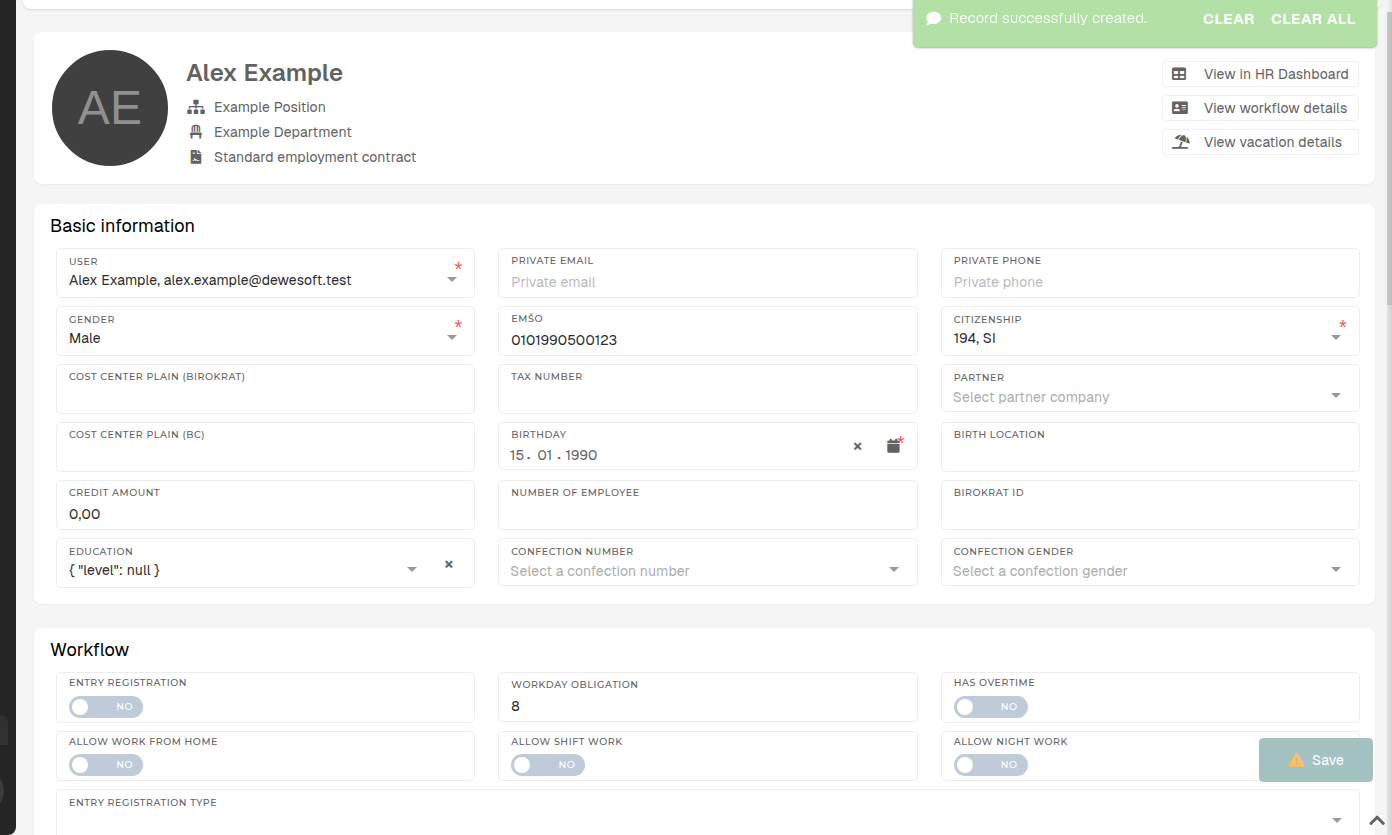 The new HR profile