Appearance
Work locations
Work locations are the company’s physical sites — offices, warehouses, and the like. Employees can be assigned to one as part of their residence information.
1. Open Work locations
Go to HR > Work locations. The table lists every work location in the company.
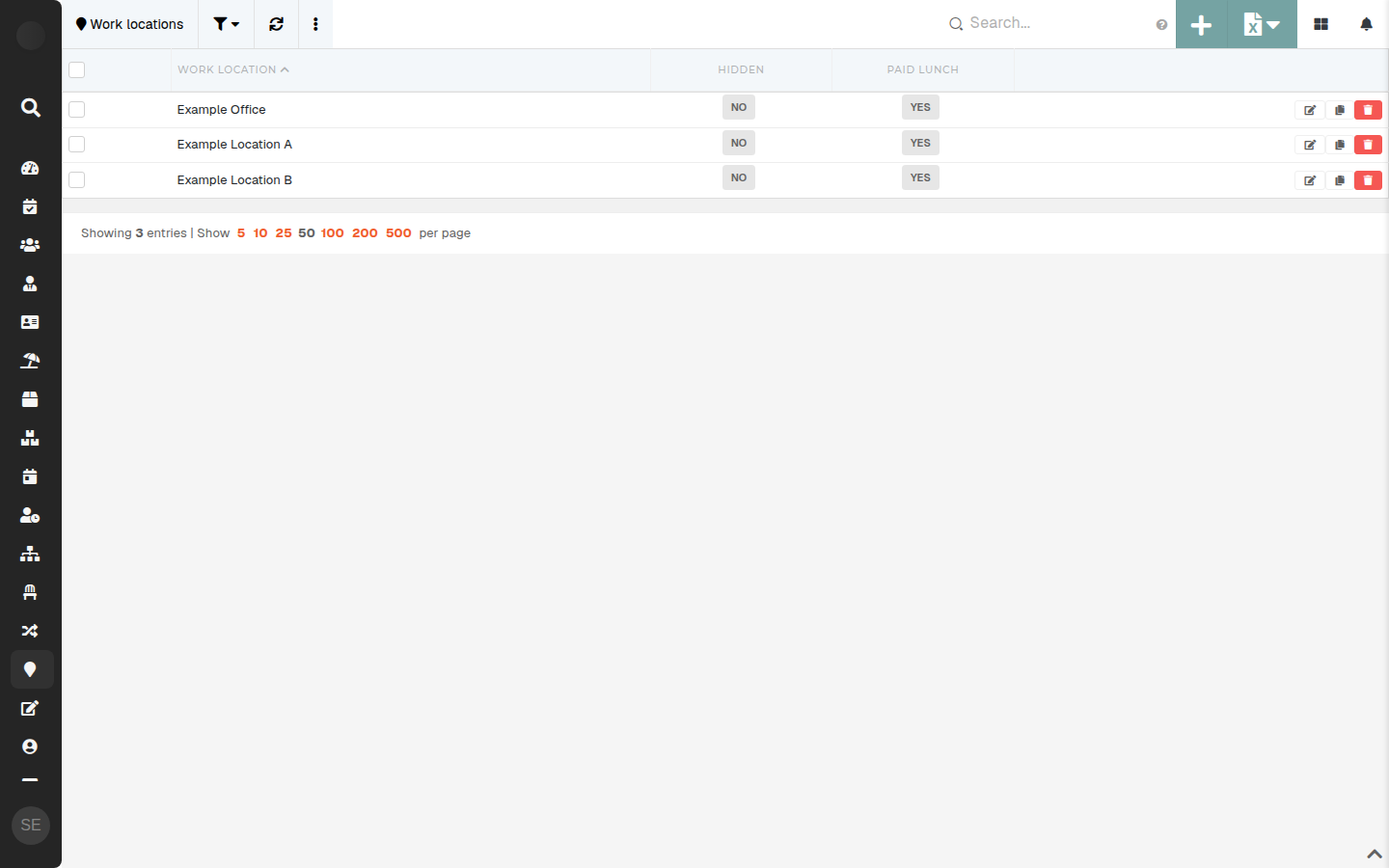 The Work locations list
2. Read the columns
By default the table shows:
- Work location — the site’s name.
- Hidden — whether the location is kept out of pickers elsewhere in the app.
- Paid lunch — whether the company provides a paid lunch break at this location.
Address line 1 and Address line 2 are hidden by default. Click the funnel icon in the top bar to show or hide columns and to filter the list.
3. Use the row actions
Each row has an edit icon to open the location, a copy icon to duplicate it, and a trash icon to delete it.
 The row actions
See Create a new work location and Delete a work location for those flows, and Update a work location for everything on the location page itself.