Appearance
Salary export
Salary export generates the monthly payroll file for your accounting program, plus a custom export of changed salaries or a vacation report.
1. Open Salary export
Go to HR > HR reporting — Salary export opens first. It has two panels: the Salary export itself, and a Custom export (changed salaries / vacation report) alongside it.
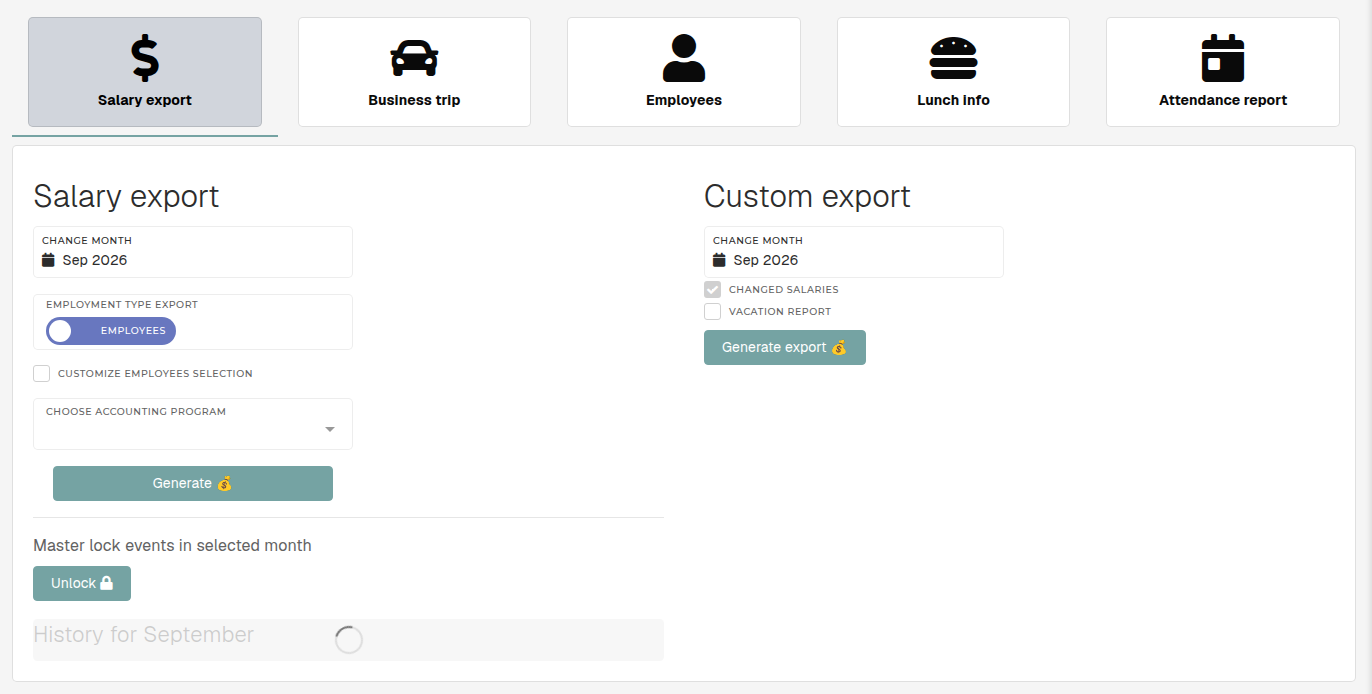 The Salary export tab
Change month picks the payroll month (it defaults to last month). Employment type export switches between Employees and Students only — students-only exports can additionally be produced as Excel or PDF.
Tick Customise employees selection to export only specific people instead of everyone, and pick Choose accounting program for the file format your accounting software expects.
2. Customise the employee selection (optional)
Tick Customise employees selection, then search and pick people under Select users for export.
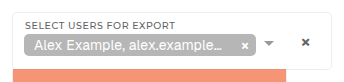 Picking specific employees
3. Generate the export
Click Generate 💰. The file opens in a new tab once it is ready.
 The Generate button