Appearance
Update a job application
Review a candidate’s details, record how their application is progressing, and read what they sent in — all from the application’s own page. See Job applications for the list it opens from.
1. Open a job application
Go to Job applications and click the edit icon next to a candidate’s row.
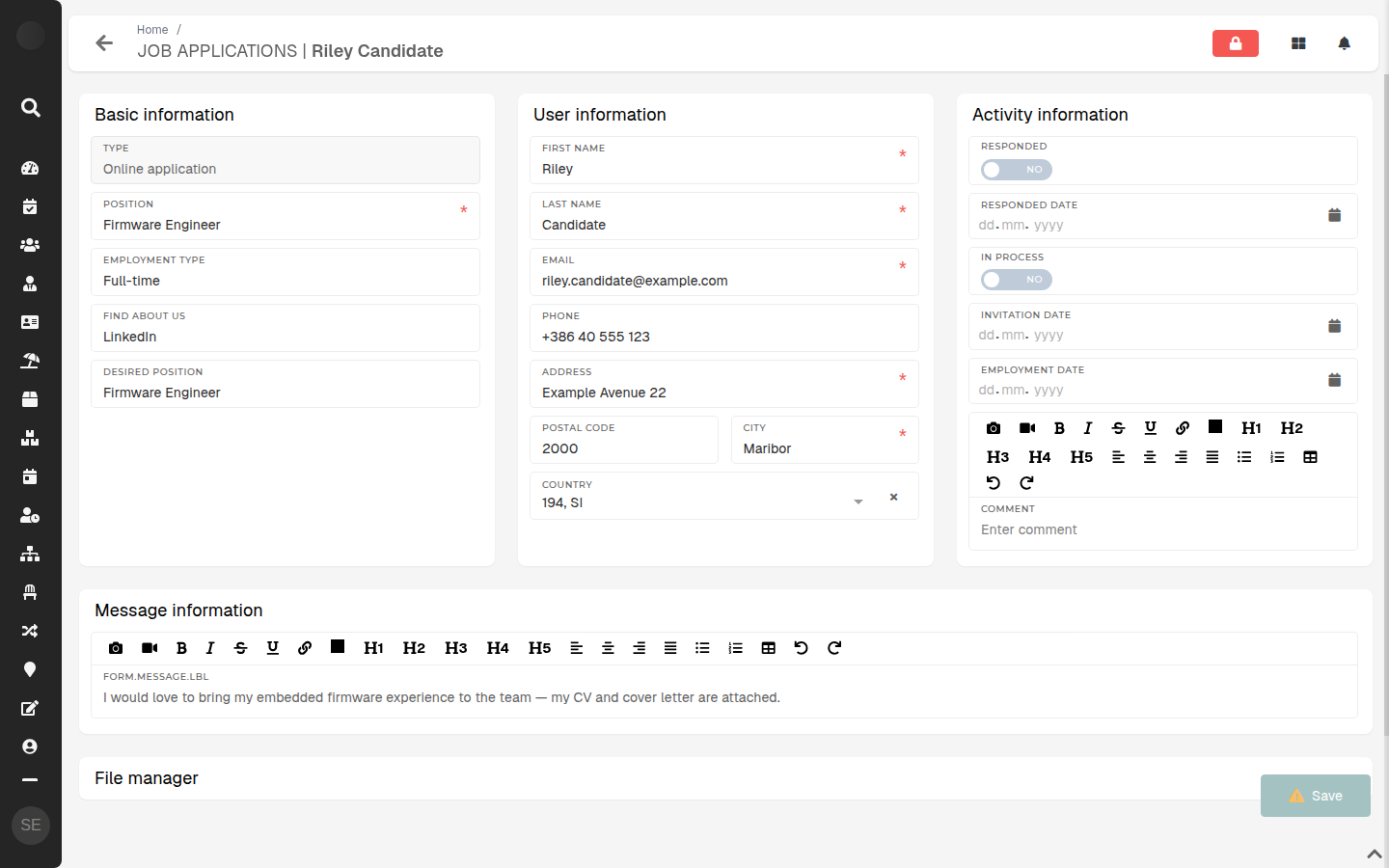 The job application page
2. Review the basic information
Under Basic information, see the Position the candidate applied for, the Employment type, Find about us (how they heard about the opening) and the Desired position they wrote in. Type is set automatically when the application arrives and can’t be edited here.
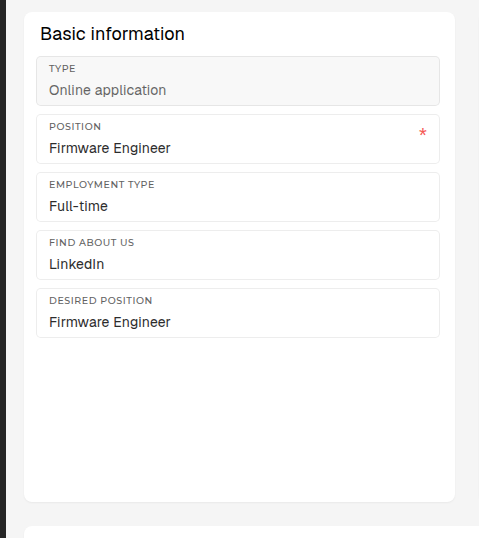 Basic information
3. Review the candidate’s own details
Under User information, see the candidate’s First name, Last name, Email, Phone and home address.
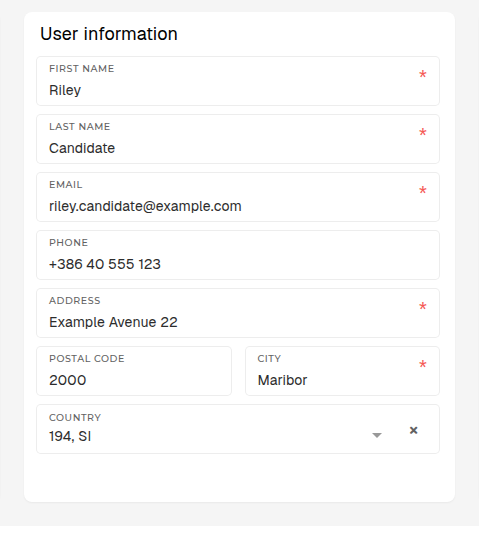 The candidate’s contact details
NOTE
This is the candidate’s own personal information — not a coworker’s. Handle it like any other personal data.
4. Mark the application as Responded
Under Activity information, turn on Responded once you’ve replied to the candidate, and set Responded date to when you did.
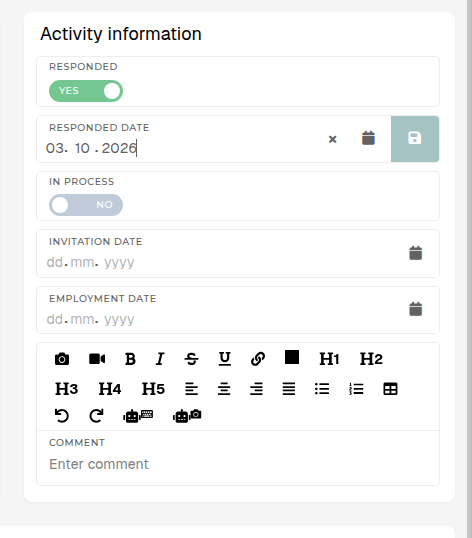 Marking the application as Responded
5. Mark the candidate as In process
Turn on In process once you’ve invited the candidate to interview, and set Invitation date to when you did. Employment date and Comment are there for later — for example once the candidate is hired.
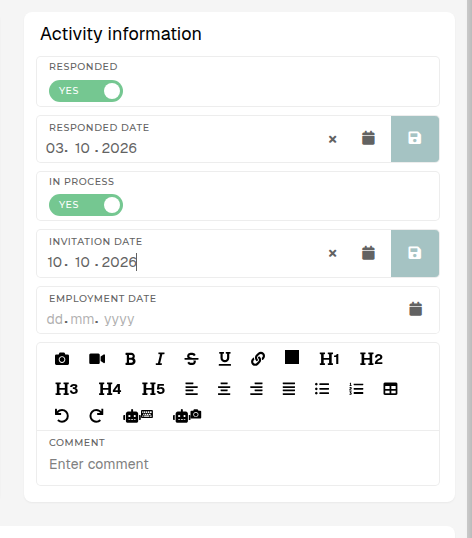 Marking the candidate as In process
6. Read the message
Under Message information, read whatever the candidate wrote when they applied.
 The candidate’s message
7. Find the attached files
Expand the collapsed File manager section near the bottom of the form to see the filenames of the CV file, School report and PDF job application the candidate attached.
 The attached files
NOTE
These three fields only show the filename the candidate uploaded — they’re read-only here. There’s a separate, more general File manager section further down the page for attaching other documents to the record; it’s unrelated to the candidate’s own submitted files above.
8. Save your changes
Click Save.
 The Save button