Appearance
Create a new work location
A work location is one of the company’s physical sites — an office, a warehouse, and so on. Create one so employees can be assigned to it as part of their residence information.
1. Open the Work locations page
Go to HR > Work locations and click + in the top bar.
 The Add button on the Work locations page
2. Name the location and set its options
Under Basic information, fill in Work location. Required. Toggle Hidden to keep the location out of pickers elsewhere in the app, and Paid lunch if the company provides a paid lunch break there.
 Work location, Hidden and Paid lunch
3. Add the location’s address
Under Contact information, click Add new.
Fill in Address line 1, Postal code, City and Country, and toggle Primary on. Address line 2 and State are optional. Billing, Shipping, EU member, Charge VAT? and VAT ID only matter for invoicing addresses — leave them off for a plain work site.
NOTE
Warehouse location and Select contact person are for other kinds of addresses in the app and don’t apply to a work location.
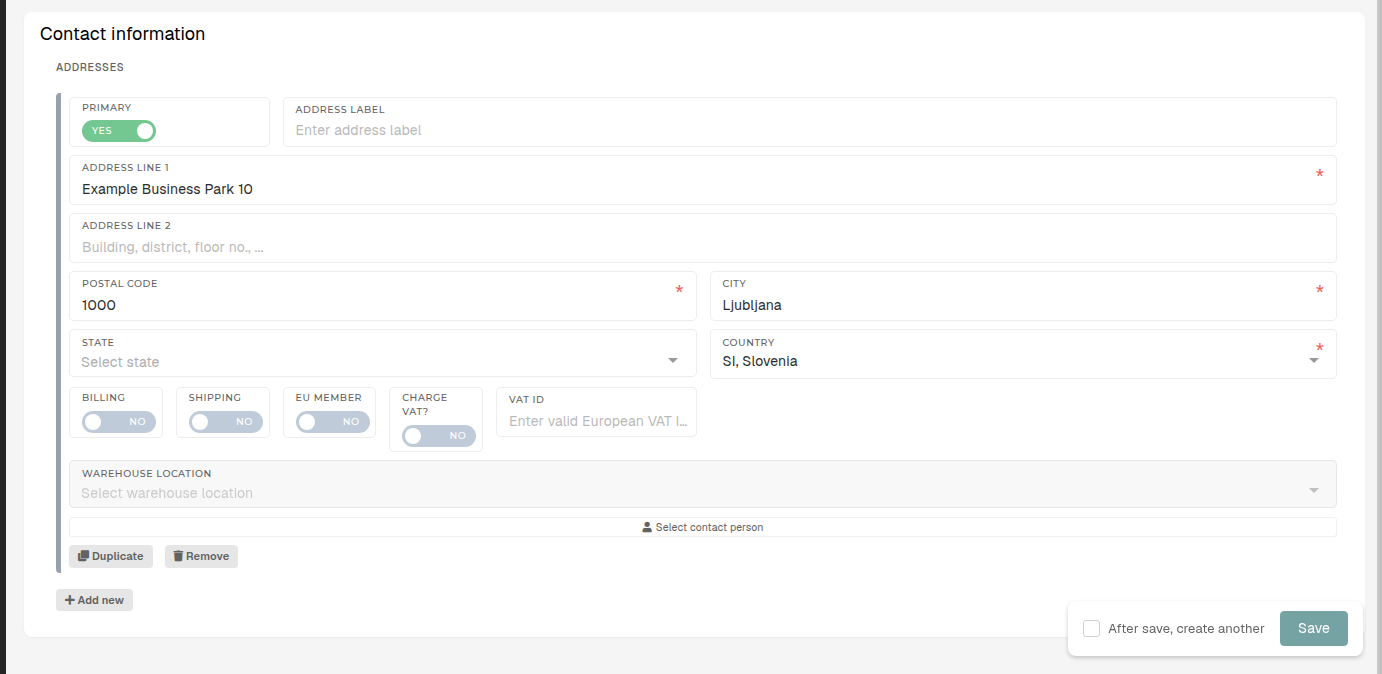 The location’s address
4. Save the location
Click Save. The new location opens on its own page.
 The Save button
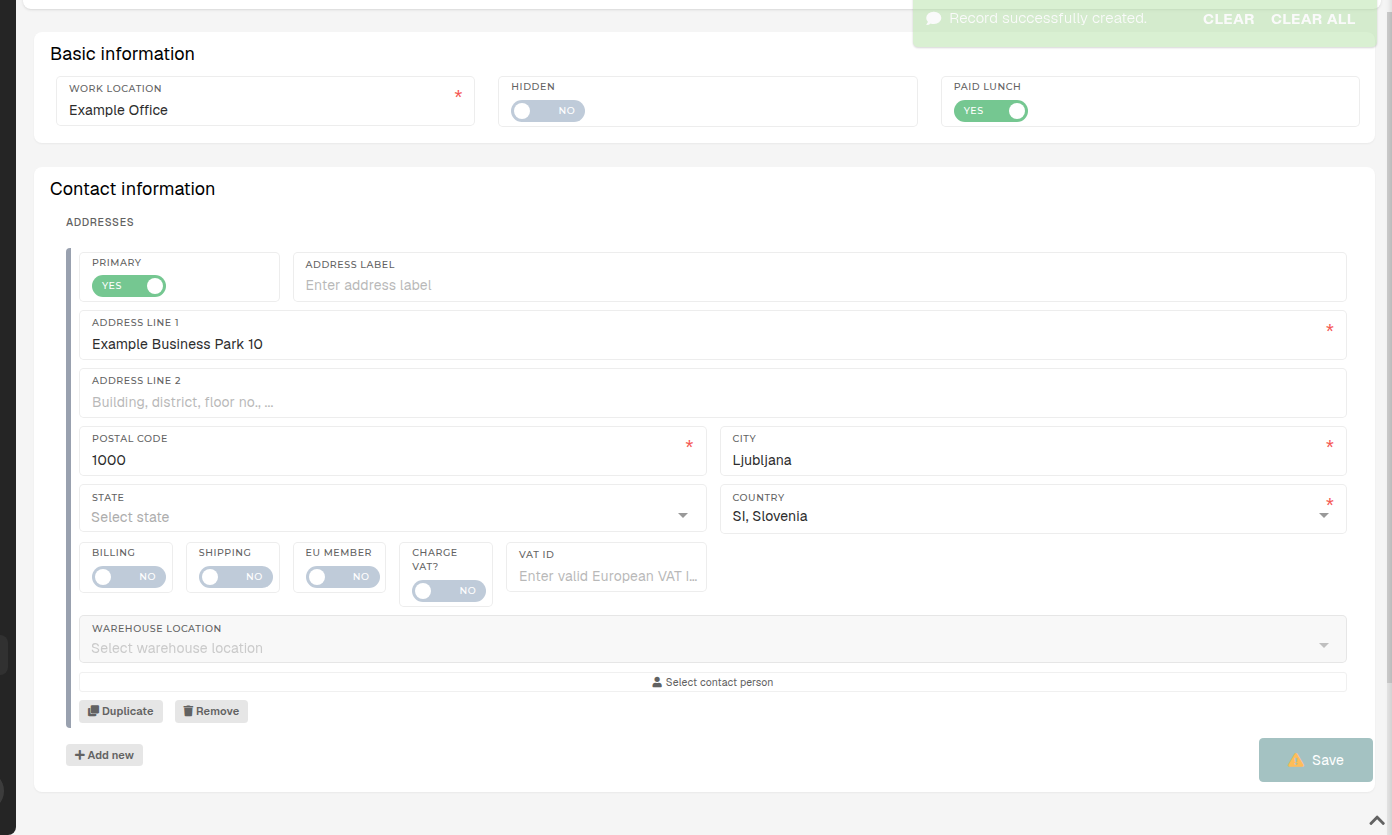 The new work location