Appearance
Update a performance review group
Change a review group’s name, period, type, company strategy or dates while its cycle is under way. See Create a new performance review group for what each field means.
1. Open a review group
Go to HR > Performance review groups and click the edit icon next to a review group.
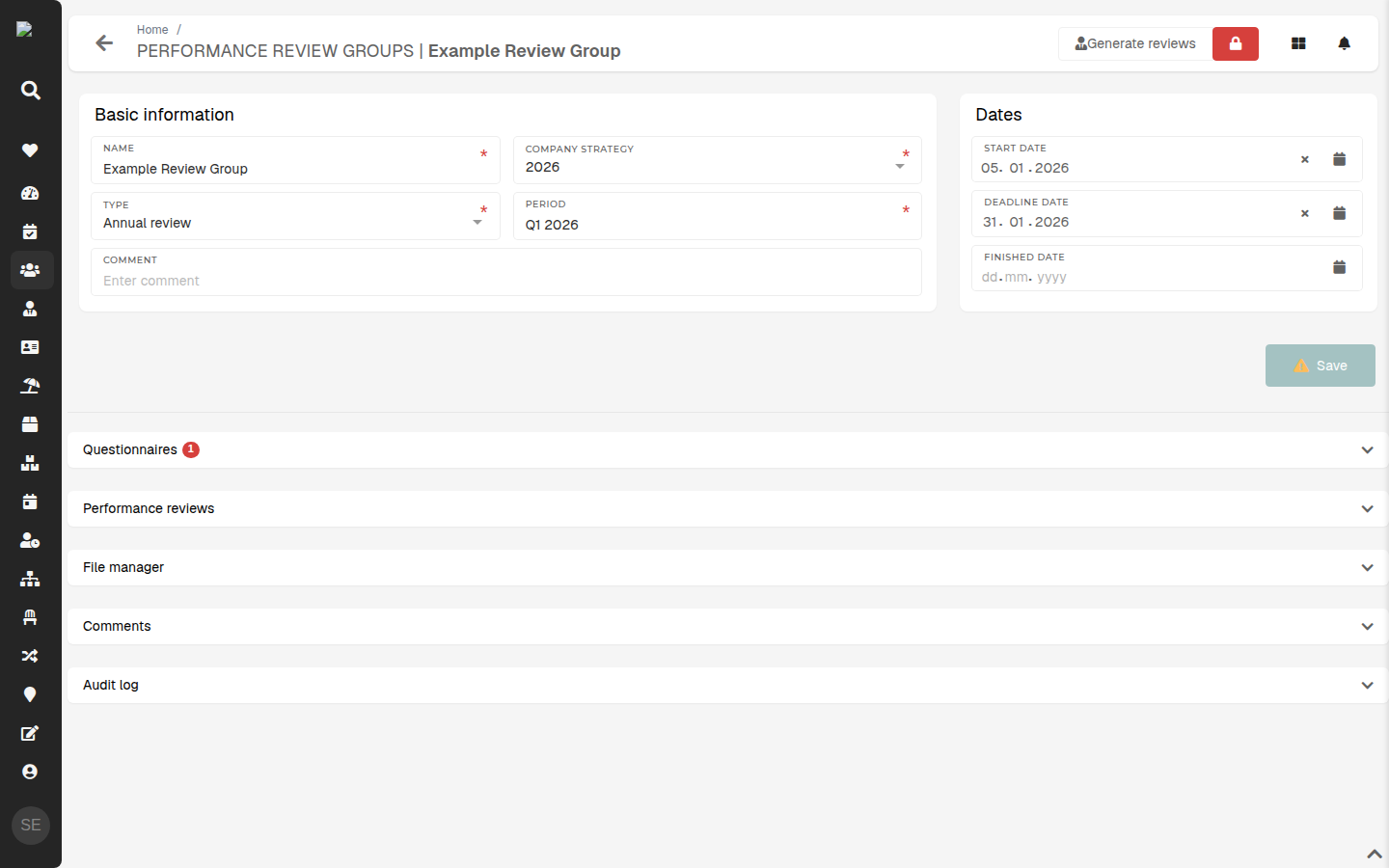 The performance review group page
2. Edit the basic information
Change any field under Basic information — for example Name — then click Save.
 Editing Name
3. Change the type and period
Type, Period and Company strategy can all be changed at any time — for example to move the cycle onto a different review type.
 Changing Type and Period
4. Mark the cycle finished
Once every review in the cycle is done, fill in Finished date under Dates.
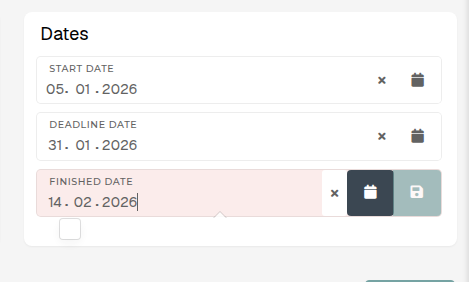 Setting Finished date
5. Save your changes
Click Save.
 The Save button
6. Build a questionnaire
Open Questionnaires below the form. Each card is one questionnaire — click its title bar to expand it.
 The Questionnaires section, collapsed
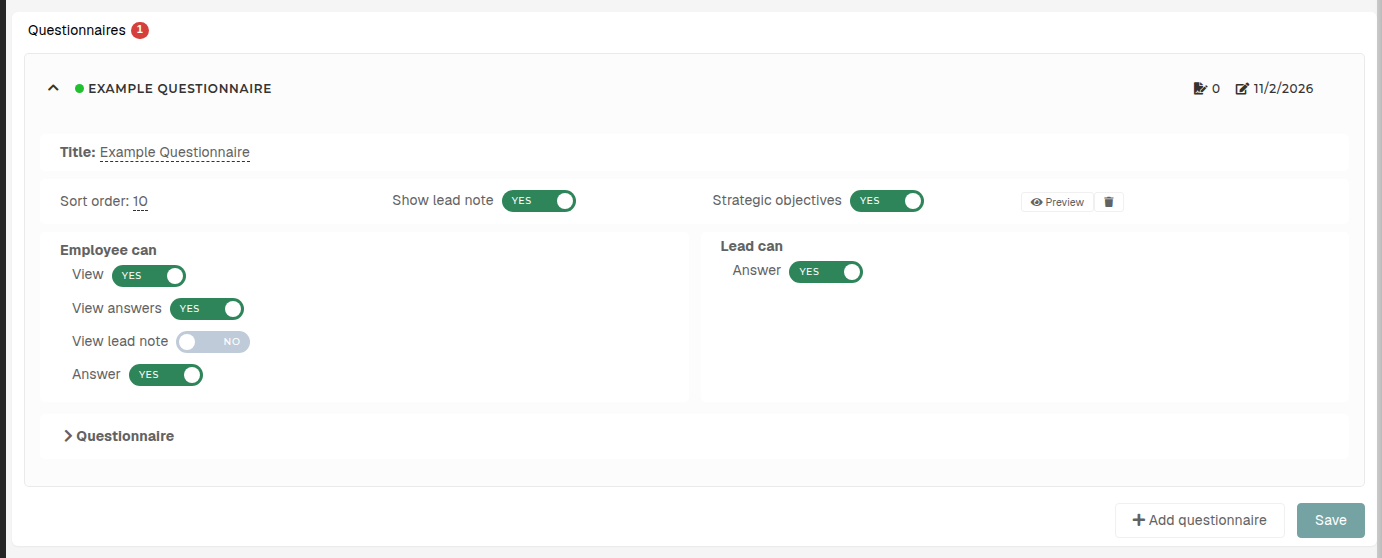 A questionnaire, expanded
Edit the Title and Sort order inline, and use Show lead note / Strategic objectives to control which extra sections appear when someone fills it in. Employee can / Lead can set, separately for each side, whether they can view the questionnaire, view each other's answers, view the lead's note, or answer it themselves.
Click Preview to see the questionnaire as the employee or lead would fill it in, without saving anything. A questionnaire that already has submitted answers can't be deleted — the trash icon is disabled once Employee can interviews exist for it.
7. Edit the question grid
Click Questionnaire inside the card to open its question grid — a spreadsheet-like table of rows and columns you build up by hand. Click a header or cell's text to rename it, the gear icon for its row/column span and a delete option, and the + at the end of a row or column to add another.
 The question grid
Click Add questionnaire to start a new, blank one, or Save to persist changes to the questionnaires.
8. Generate reviews for this cycle
Click Generate reviews in the toolbar to create a performance review for each employee in this group's scope.
 The Generate reviews button
By default, reviews are generated for every eligible employee. Pick specific coworkers under Generate reviews only for these coworkers to narrow it down instead.
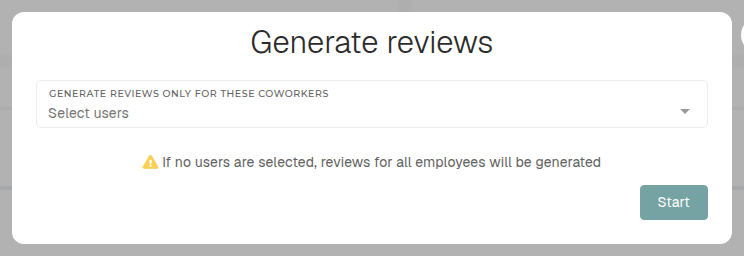 The Generate reviews modal
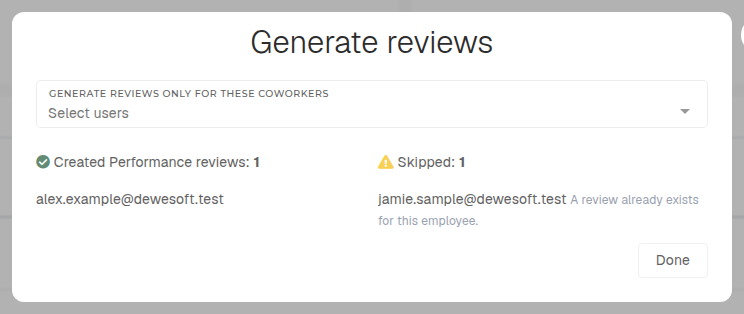 The generation result — created and skipped employees
NOTE
A review already generated for an employee in this cycle is skipped, with the reason shown next to their email.
The group's page also has a Performance reviews section listing every review this cycle has generated so far, for a lead to track progress — not covered here, since it shows real employees' review data.