Appearance
Manage attendance requests
The Workflow approval panel on Workflow approvals lists every coworker’s attendance request still waiting on a decision — approve or decline it right there, without opening the request itself.
1. Open the Workflow approval panel
Each pending request shows who it’s from, what kind of request it is, the date range, and a description. Approve and Decline act on that single request.
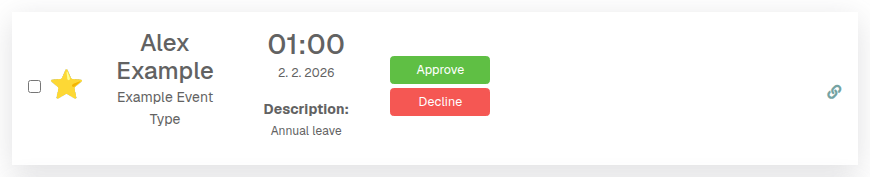 A pending request
2. Approve a request
Click Approve. The request is marked approved immediately — no confirmation needed.
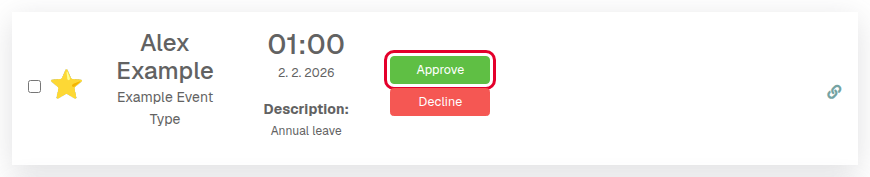 The Approve button
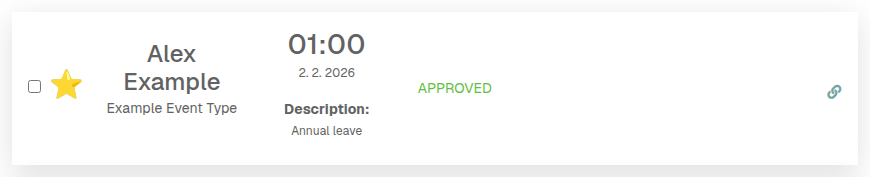 The request once approved
3. Decline a request instead
Click Decline to open a small text box for a reason, then press Enter to submit. The request is marked declined.
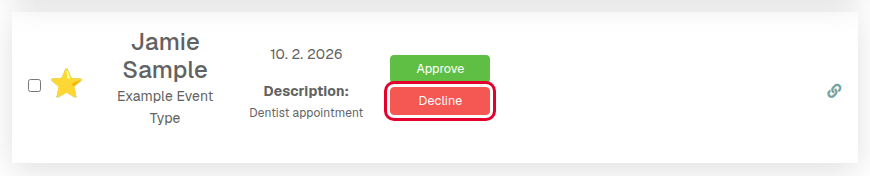 The Decline button
 The request once declined
TIP
Tick Select all (or individual checkboxes) to approve or decline several requests at once.