Appearance
Job applications
A job application is one candidate’s submission for an open position at Dewesoft. The Job applications list is where HR reviews every candidate, tracks where they stand in the hiring process, and reads what they sent in.
1. Open Job applications
Go to HR > Job applications. The table lists every candidate who has applied for a position.
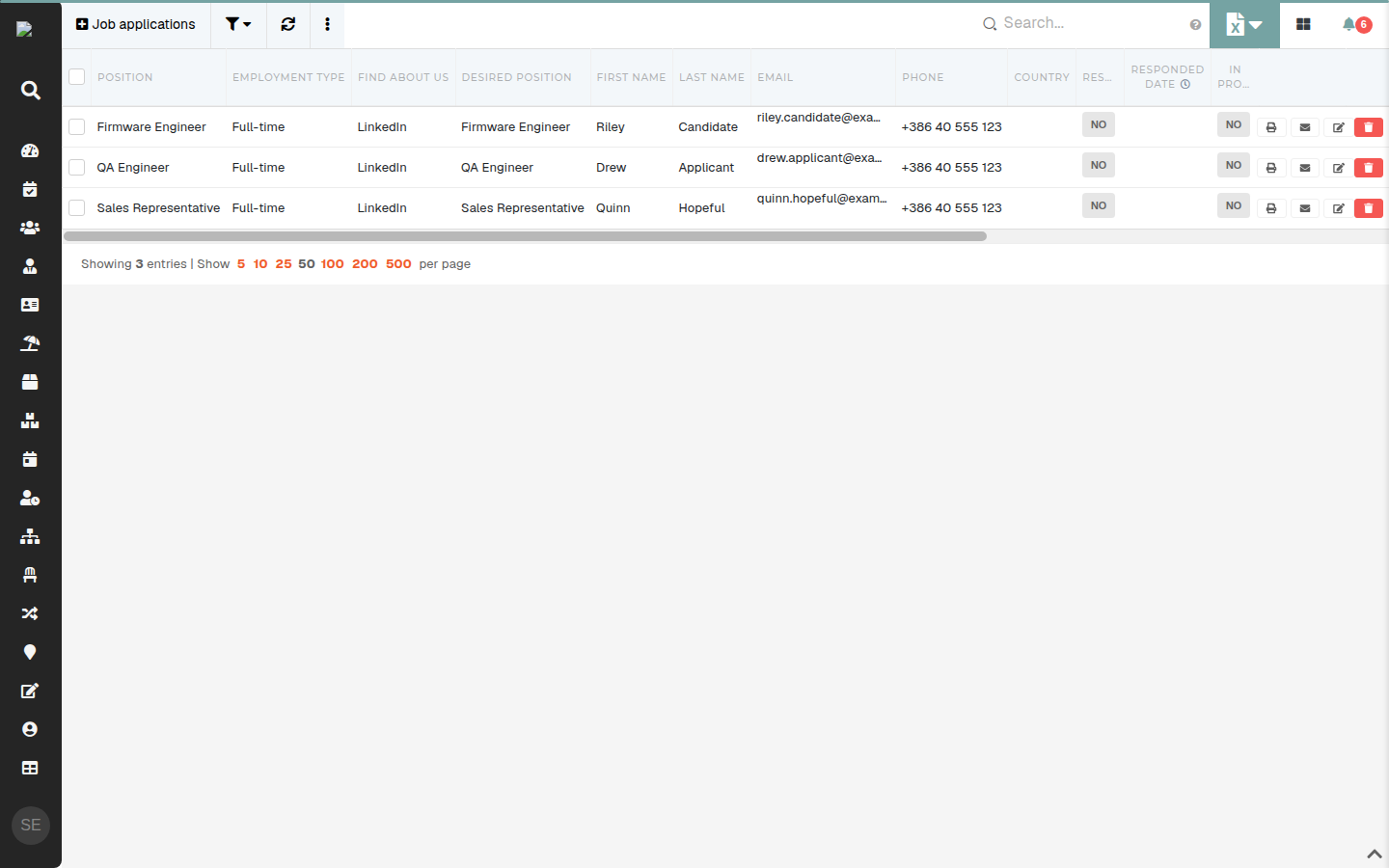 The Job applications list
NOTE
There’s no button here to add a job application by hand. Candidates submit their own applications through the public application form outside the ERP, and they show up in this list automatically.
2. Read the columns
By default the table shows:
- Position, Employment type, Find about us and Desired position — what the candidate applied for, and how they heard about the opening.
- First name, Last name, Email, Phone and Country — the candidate’s own contact details.
- Responded and In process, each with its own date — where the application stands in the hiring process.
- CV file, School report and PDF job application — links to whatever the candidate attached.
Click the funnel icon in the top bar to show more columns (for example ID or Type) or to filter the list.
3. Use the row actions
Each row has a print icon to print the application, an envelope icon to email it on, an edit icon to open the candidate’s own page, and (with permission) a trash icon to delete it.
 The row actions
See Update a job application for everything on the candidate’s own page, and Delete a job application to remove one.