Appearance
Update a work position
Change a work position’s basic details, manage which HR department(s) it belongs to, attach its safety standards and work equipment, and grant it system roles — all from the same page.
1. Open a position
Go to Work positions and click the edit icon next to a position.
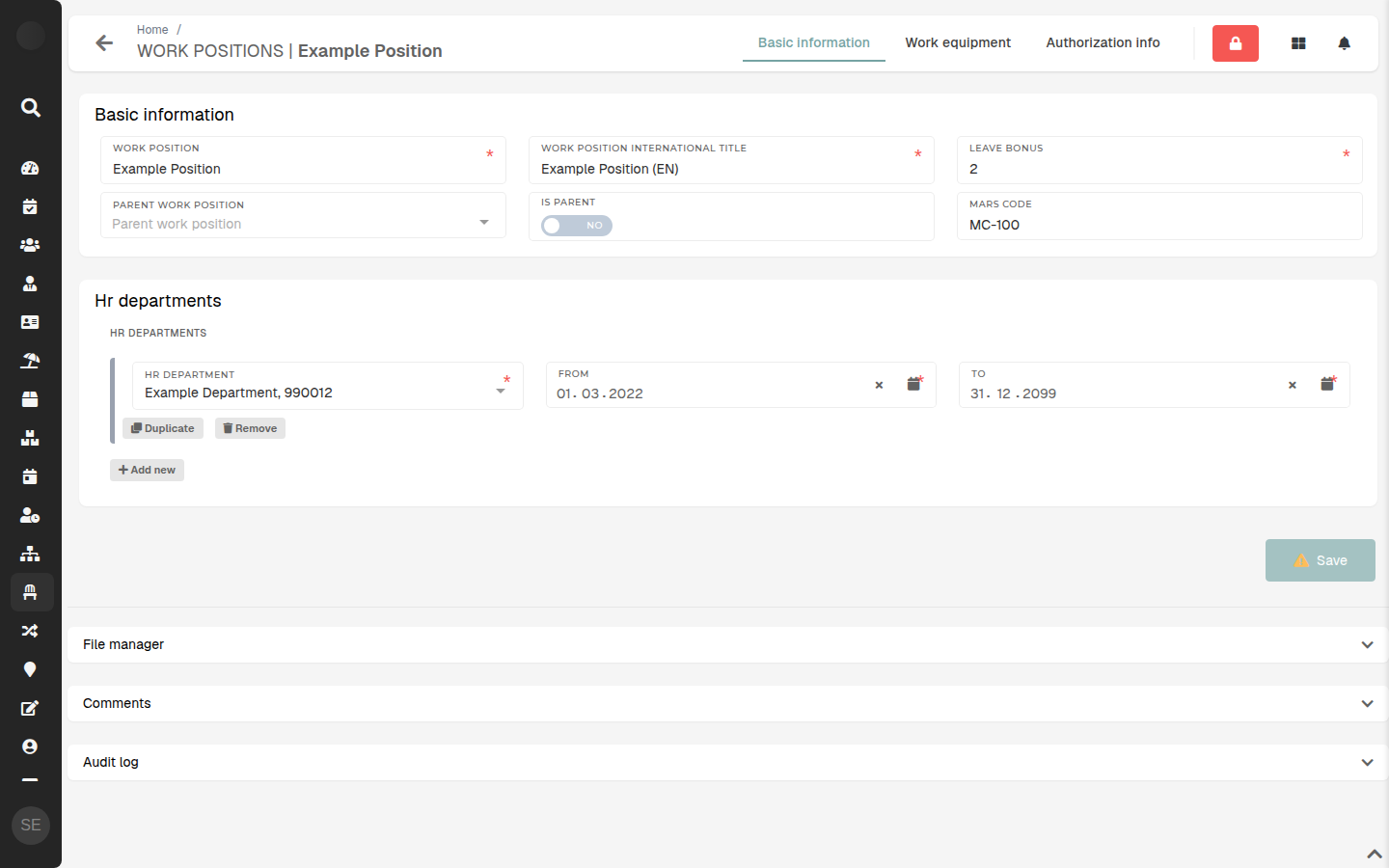 The work position page
2. Edit the basic information
Change any field under Basic information — for example Leave bonus — then click Save.
 Editing Leave bonus
3. Review the Parent work position, Is parent and Mars code
Parent work position nests this position under another one. Is parent marks it so it can be picked as another position’s parent. Mars code is an internal reference code.
 Parent work position, Is parent and Mars code
4. Manage HR departments
The Hr departments section lists every department this position has belonged to, each with a From/To date range. Click Add new for another department, or Remove on a row to delete it.
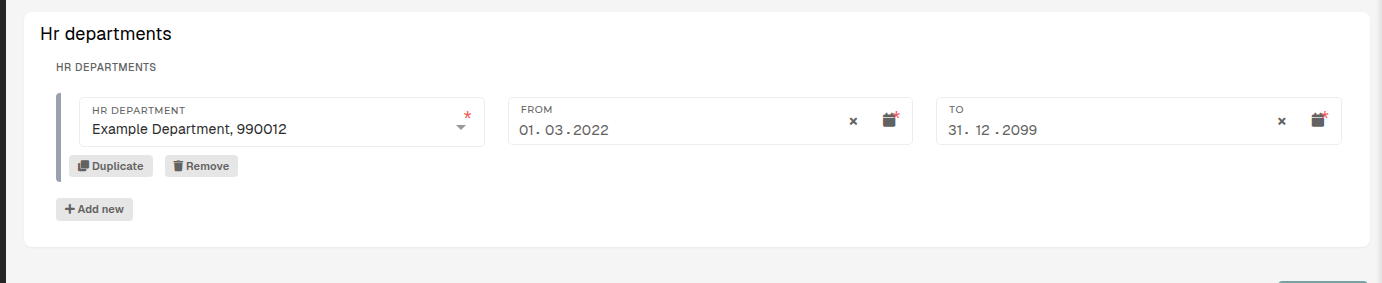 The Hr departments section
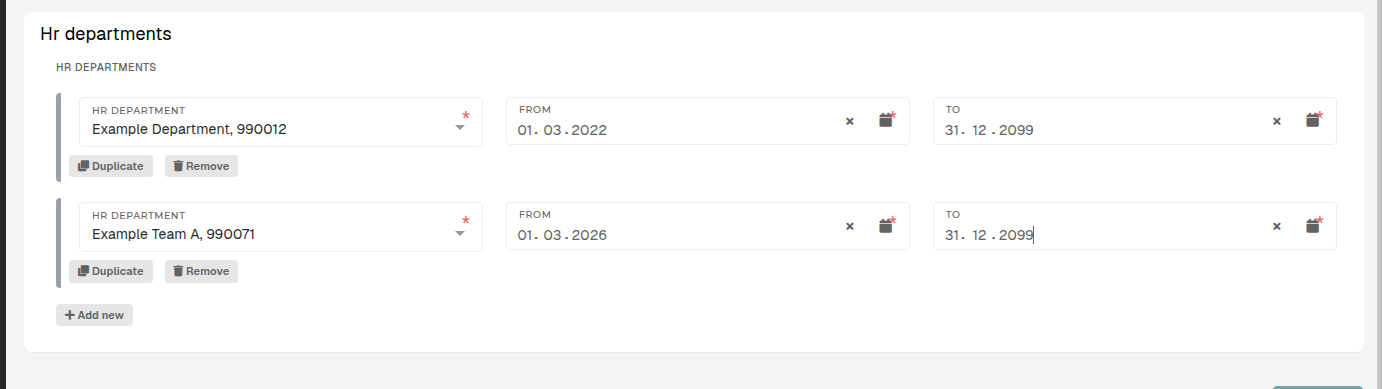 Adding an HR department
NOTE
An active link’s To date must stay in the future. To move the position to a different department, close out the current link (set its To date) before adding the new one — date ranges can’t overlap.
5. Attach work equipment
Click the Work equipment tab. Pick one or more Safety standards for the position — the work equipment list below only offers equipment that belongs to the standards picked here. Click Add new, pick the Work equipment and set the Quantity the employee gets.
 The Safety standards field
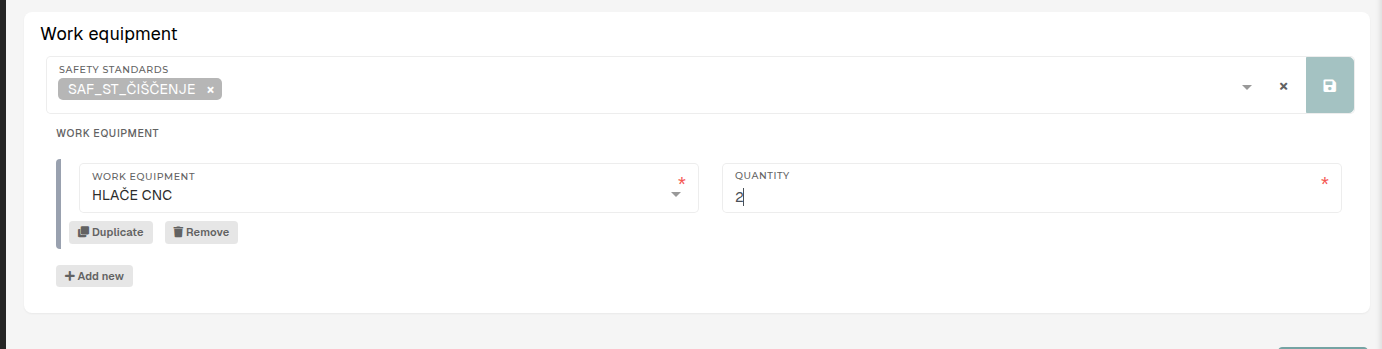 Adding work equipment
NOTE
Only equipment linked to the position’s safety standards shows up here — pick a safety standard first if the equipment you need is missing.
6. Grant authorizations
Click the Authorization info tab. Search and pick one or more Roles — anyone holding this position is granted every role listed here.
 The Roles field
NOTE
Employees already holding this position need to log out and back in before a newly added role takes effect.
7. Save your changes
Click Save.
 The Save button