Appearance
Attendance event types
An attendance event type defines a kind of attendance event — for example Sick leave, Vacation or Business trip — and a large set of toggles that decide how it behaves: whether it needs a request, who can see it, whether it counts toward leave balances, and so on.
1. Open Attendance event types
Go to HR > Attendance event types. The table lists every attendance event type in the company.
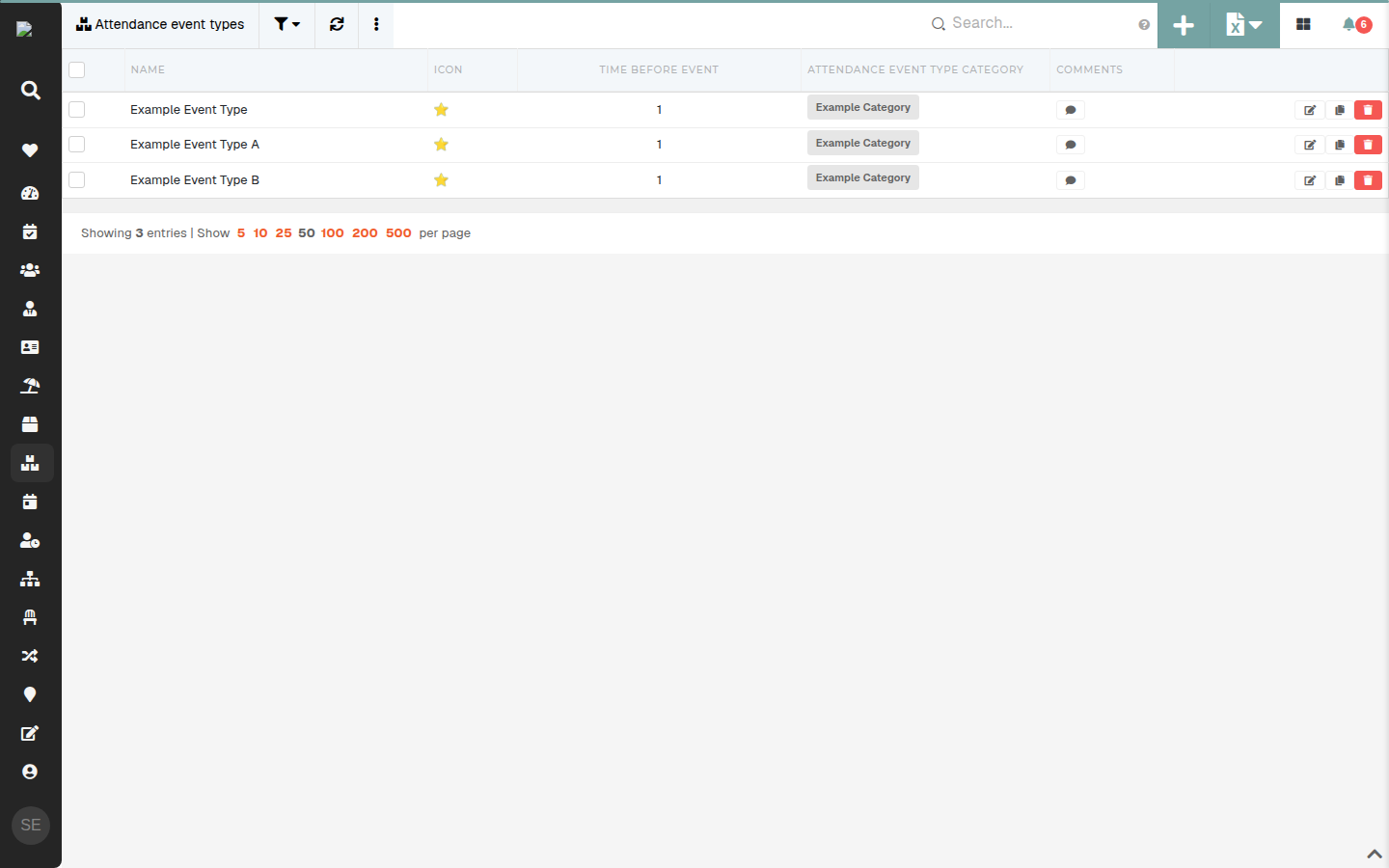 The Attendance event types list
2. Read the columns
By default the table shows:
- Name — the event type’s name.
- Icon — the short icon or symbol used for the event elsewhere in the app.
- Attendance event type category — the category this event type belongs to.
- Time before event — how many days in advance a request must be submitted.
Click the funnel icon in the top bar to add any of the many behavior columns — Needs request, Is timestamp, Visible to employee, Count in saldo, and so on — or to filter the list.
3. Use the row actions
Each row has an edit icon to open the event type, a copy icon to duplicate it, and a trash icon to delete it.
 The row actions
See Create a new attendance event type and Delete an attendance event type for those flows, and Update an attendance event type for everything on the event type’s own page.
See Attendance event type categories for how categories group these event types.