Appearance
Employee vacation details
Pick an employee and a year to review their vacation balances, their usage history, and every vacation day they took that year.
1. Open Employee vacation details
Go to HR > Employee vacation details. Pick an employee from Employee, and the year to review from the year field next to it — both default to yourself and the current year.
 The employee and year filters
2. Pick an employee
Click Employee and search for the person whose vacation you want to review.
 Alex Example selected
3. Pick a year
Click the year field to open the calendar and pick a different year. It defaults to the current year (2026).
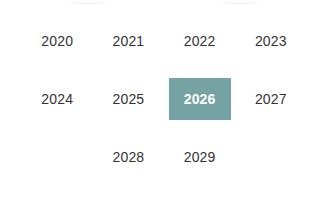 The year picker
4. Review the vacation balance tiles
Three tiles summarize the year: Annual vacation, Transferred vacation (carried over from the previous year) and Special vacation (granted for specific circumstances). Each shows how many days are Assigned, how many are Used, and how many are still Available.
 The vacation balance tiles
5. Review the chart and the vacation leave table
The donut chart breaks down used vs. available annual and transferred leave. The table below lists every vacation leave grant for the year — its Leave type (click it for a description), Duration, day counts, and whether it’s still Active (click for why not, if not).
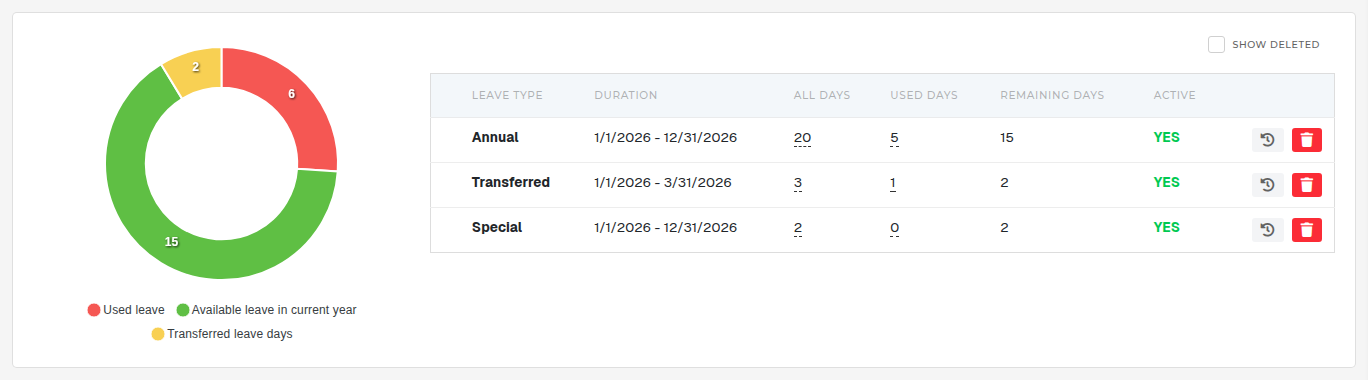 The chart and vacation leave table
NOTE
HR can edit a leave grant’s day counts directly in the table (for the current year only), and delete or restore a grant from the actions column — both need the matching permission and only apply to someone else’s profile, never your own.
6. Review the vacation days taken
The Events section, collapsed by default, lists every vacation day taken that year, grouped by month.
 The Events section